Reduce the pale veil that atmospheric haze or fog can leave over a photo. Use this dehaze photo tool on a hazy landscape or outdoor image, compare the AI preview with your original, and decide whether the change looks right before downloading.
Drag your image here, or
Reference Image (Max 50MB)
✨ Try it online · Upload a photo to get started
BeforeAfter
Dehaze Photo Before and After
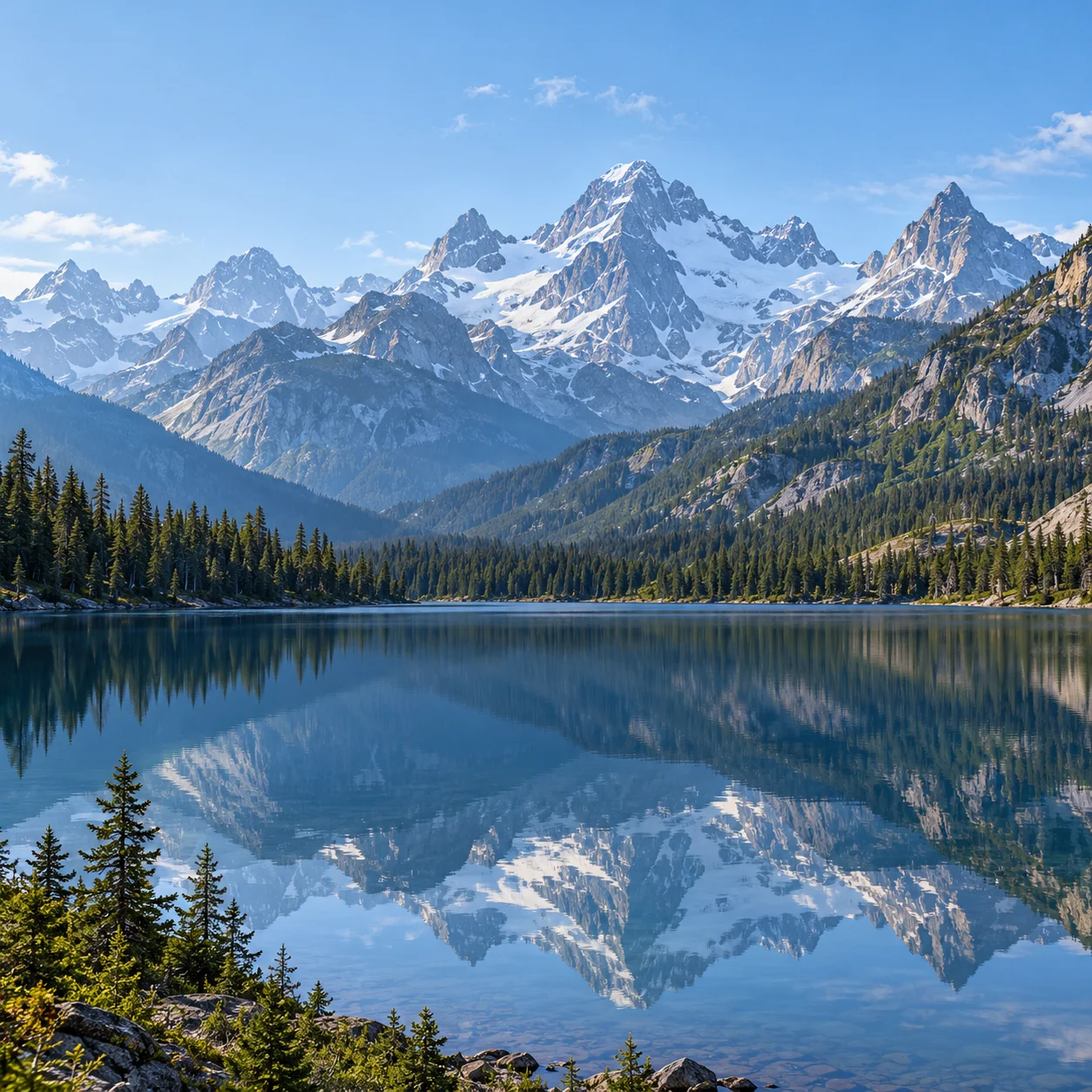
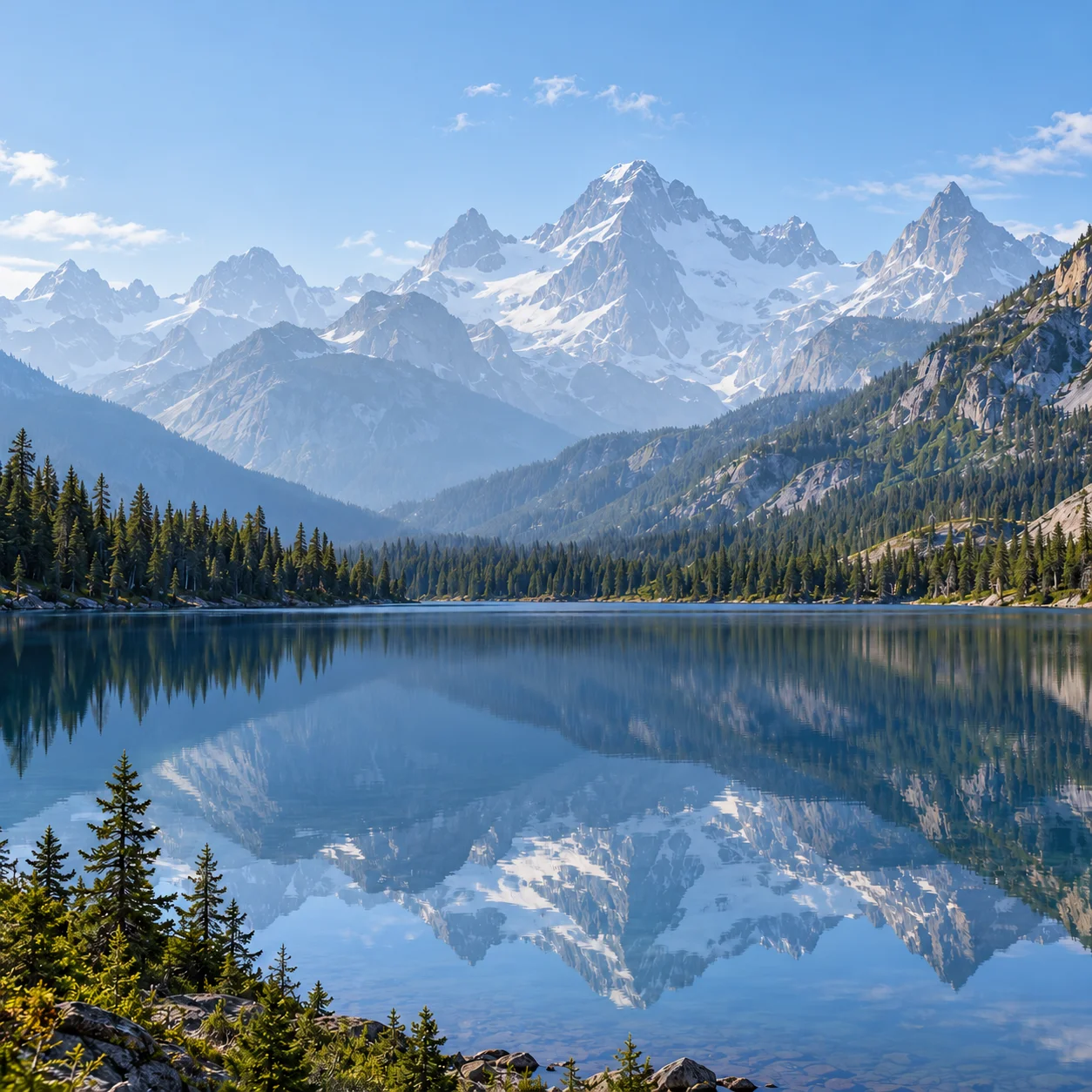
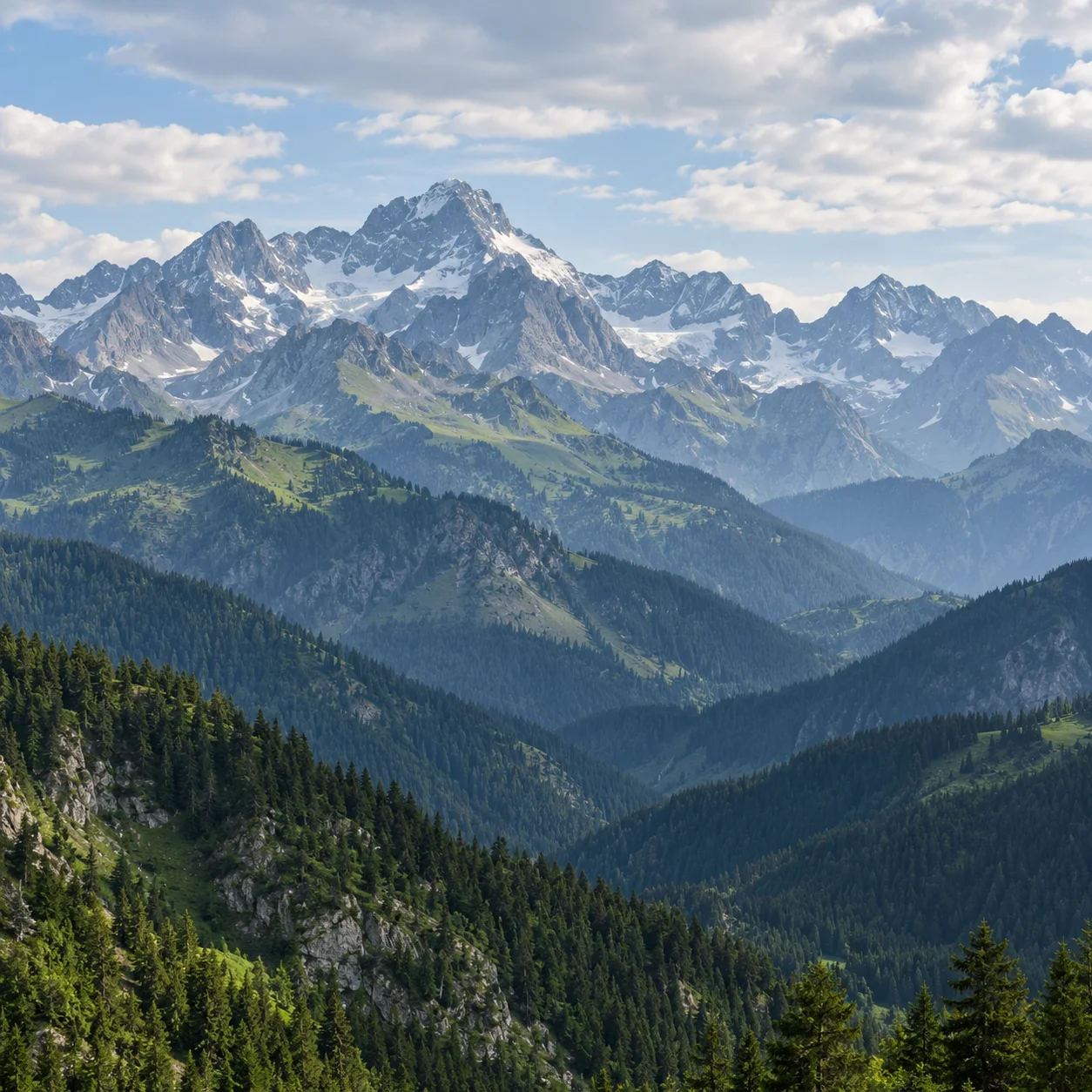
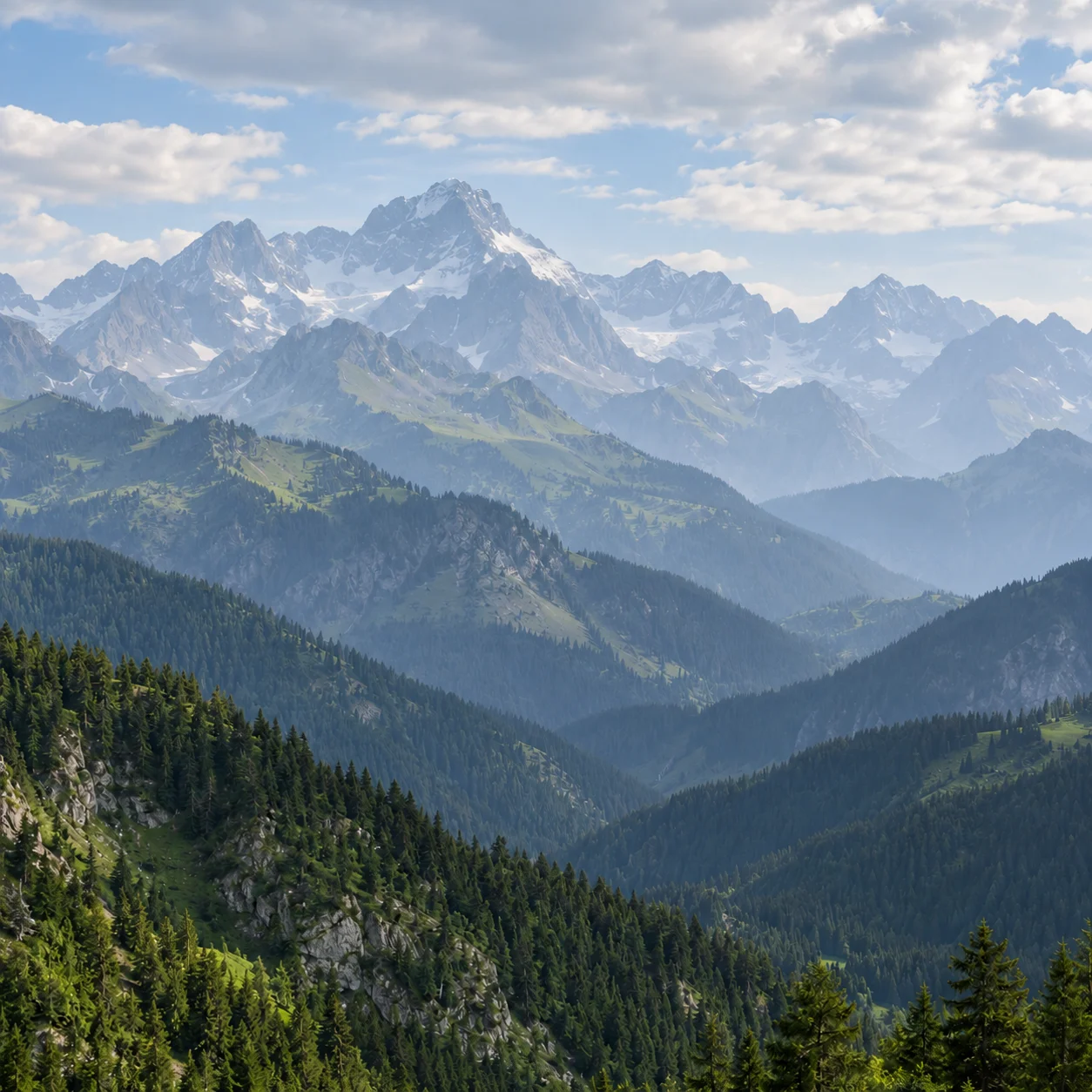
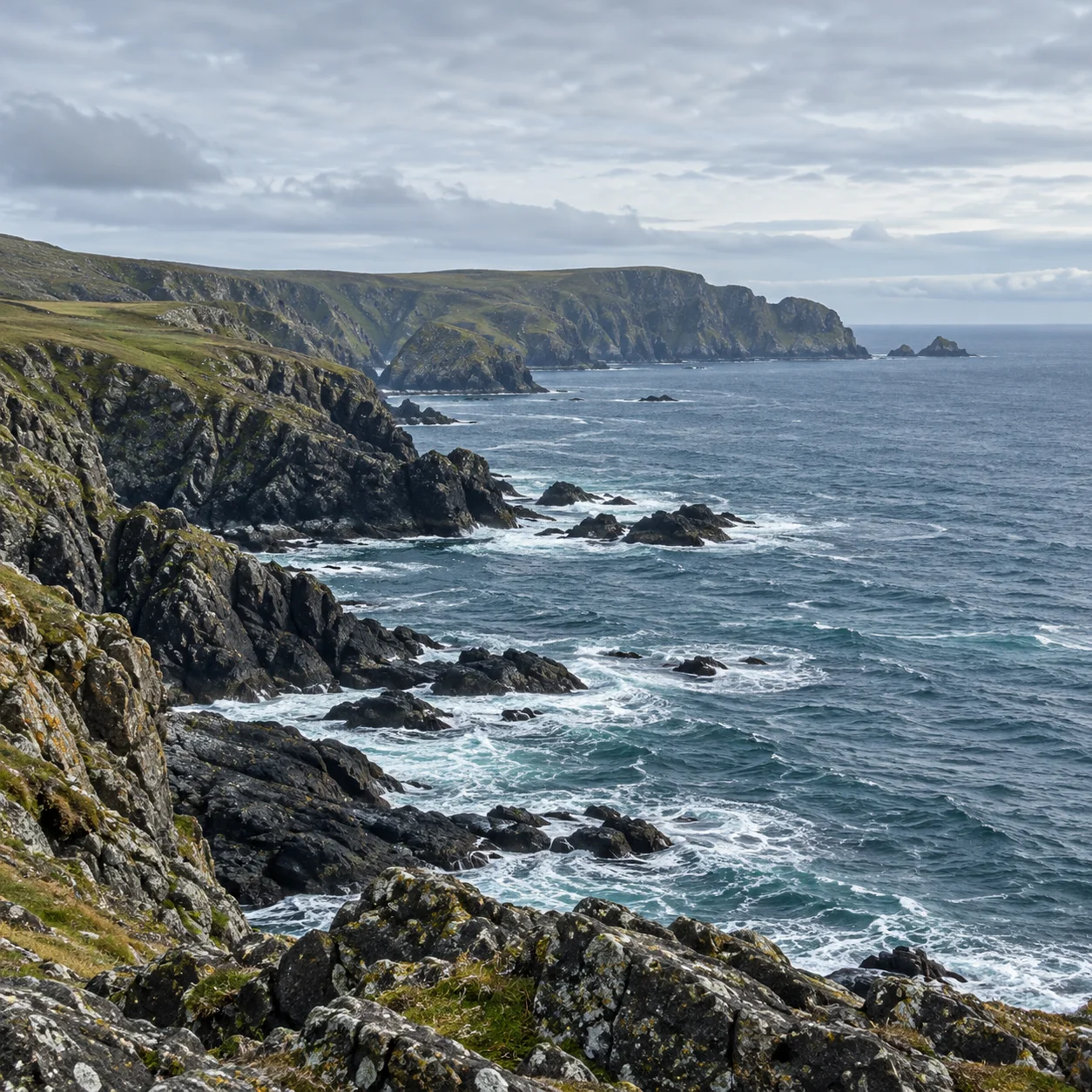
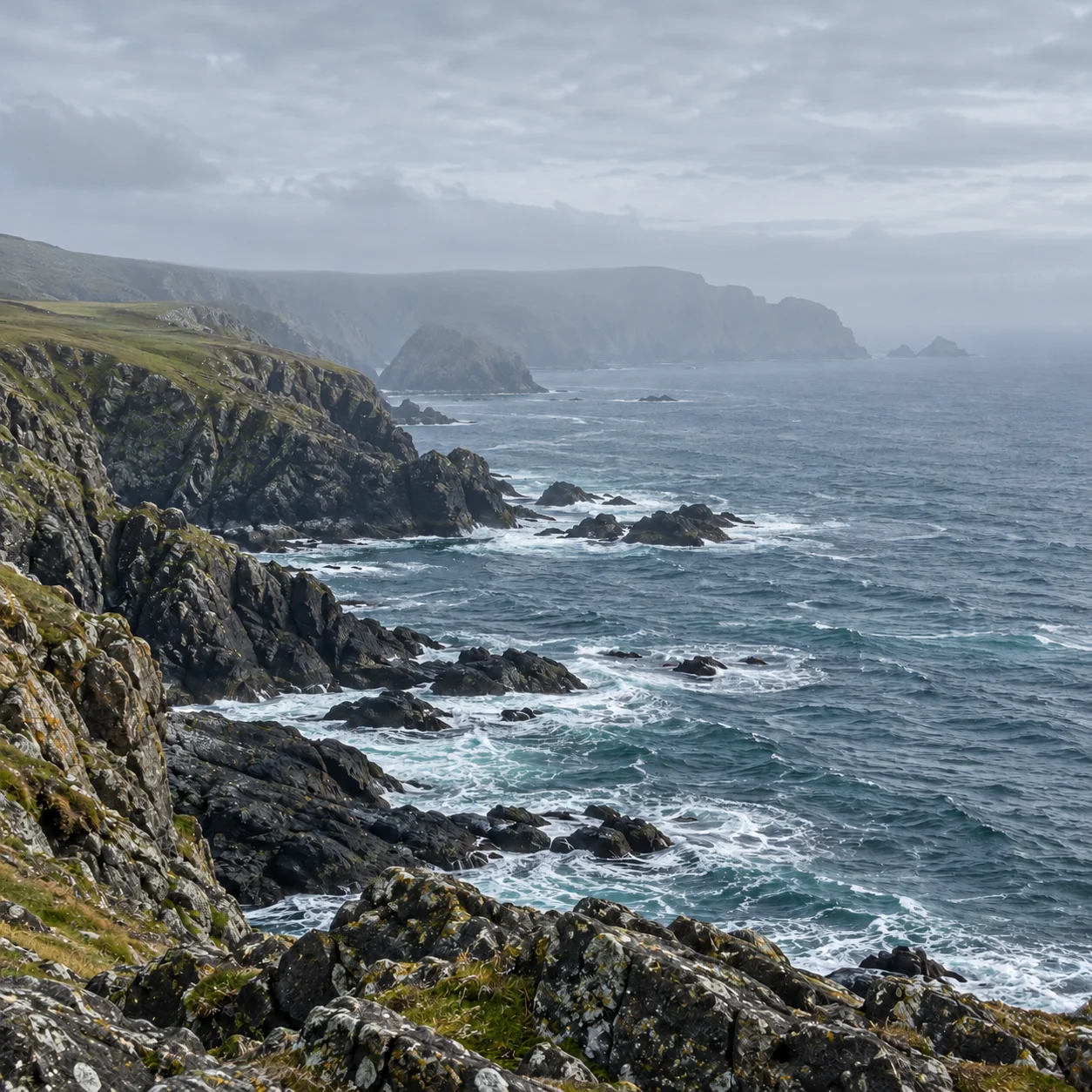
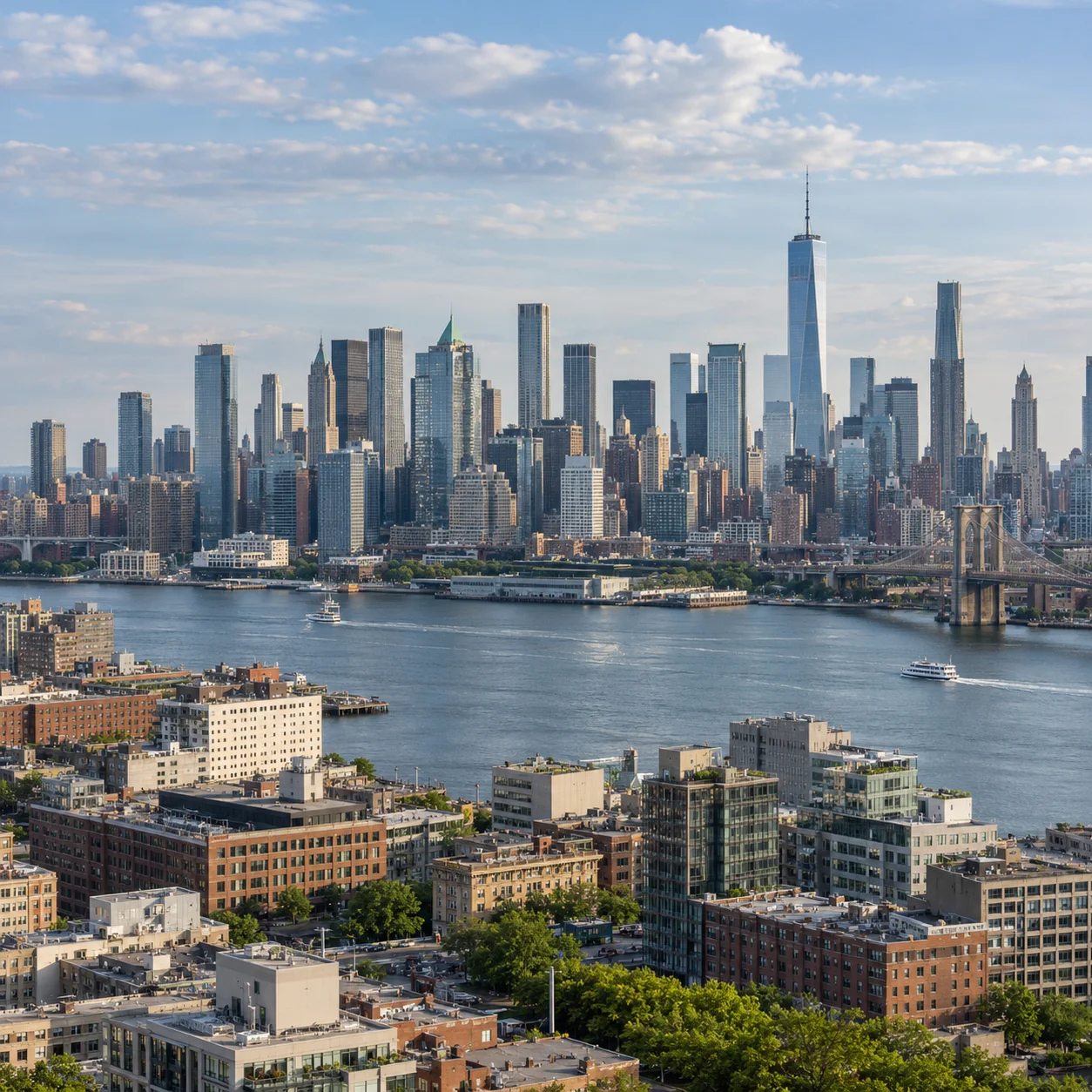
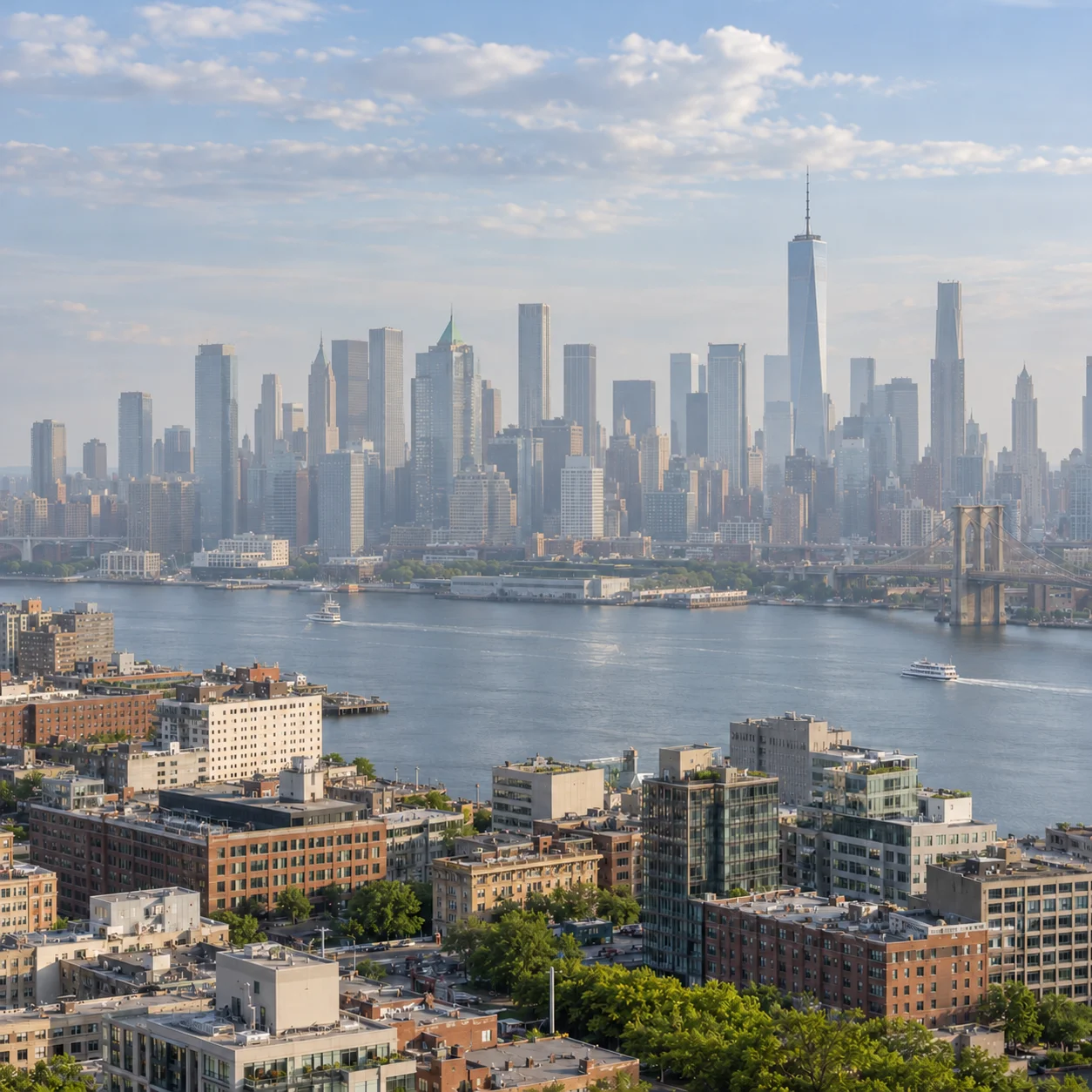
Explore planned dehaze photo examples for misty mountains, a foggy coast, an urban skyline, and a forest valley. Each before-and-after comparison is intended to show how reducing atmospheric haze may improve visible contrast while keeping expectations grounded in the detail present in the source.
BeforeAfter
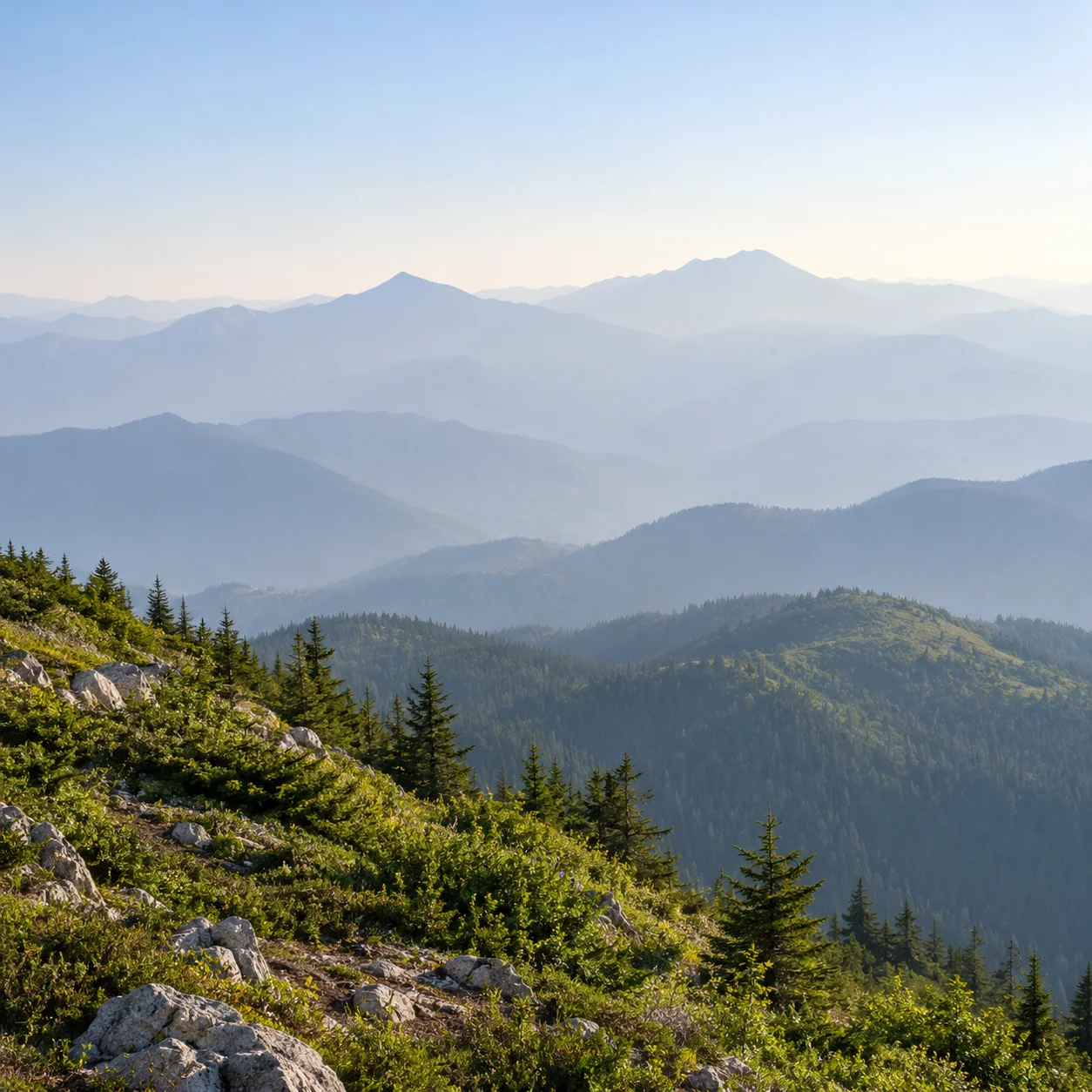
A distant mountain landscape is a common place to notice atmospheric haze: ridgelines can look pale and blend into the sky. Compare the planned original and AI dehaze photo example with the slider to judge changes in separation and contrast. The preview helps you decide whether the result suits your image before downloading.
On a foggy coast, mist can soften the boundary between water, shoreline, and horizon. This dehaze photo comparison illustrates how reducing haze may make existing shapes easier to distinguish. Use the slider to review the difference rather than assuming every patch of fog or hidden feature can be removed.
Haze across a city can make buildings and a distant skyline appear flat, especially when structures recede into the background. Compare the source with this dehaze photo preview to inspect tonal separation. Dehazing changes captured information; it cannot reliably recreate architecture or texture absent from the original.
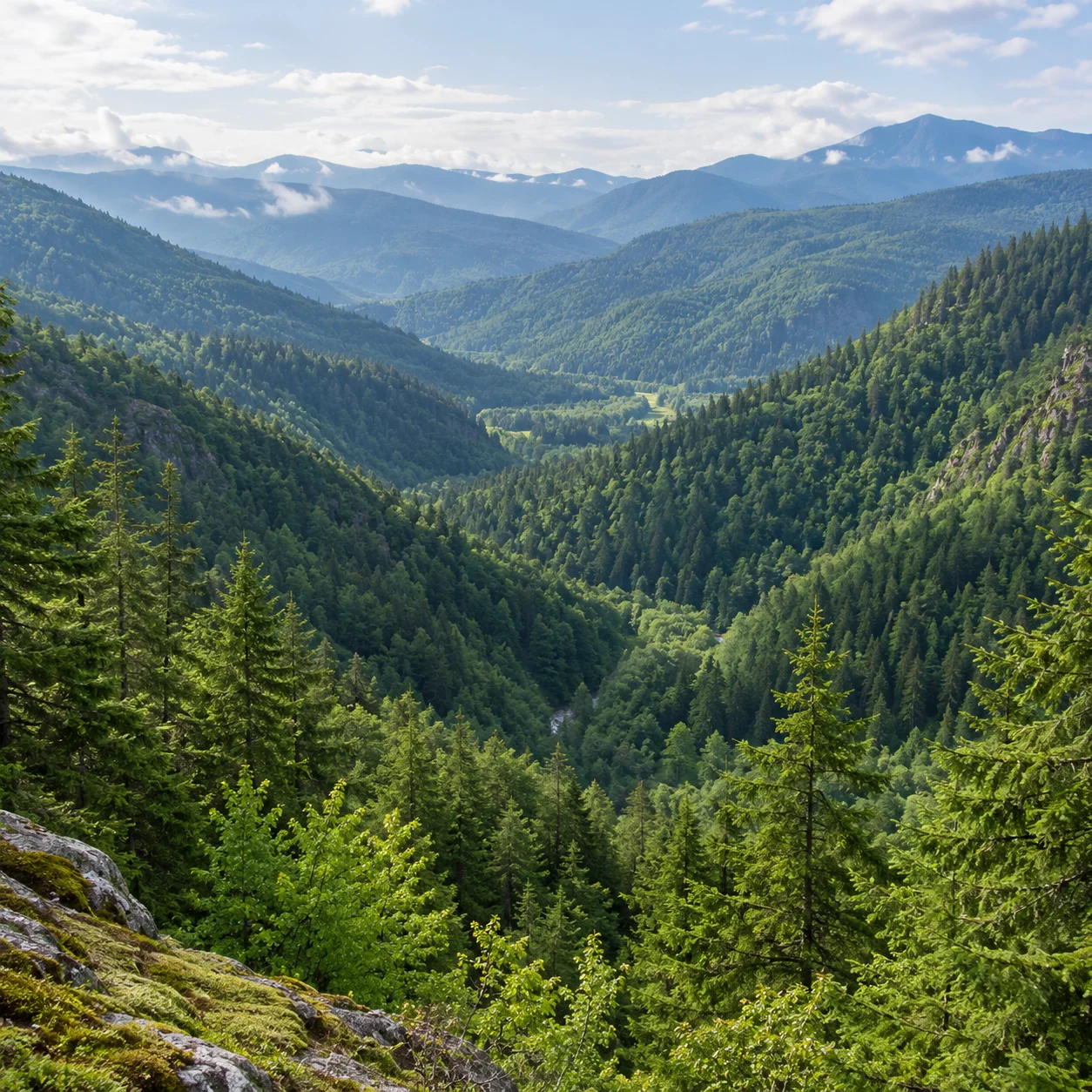
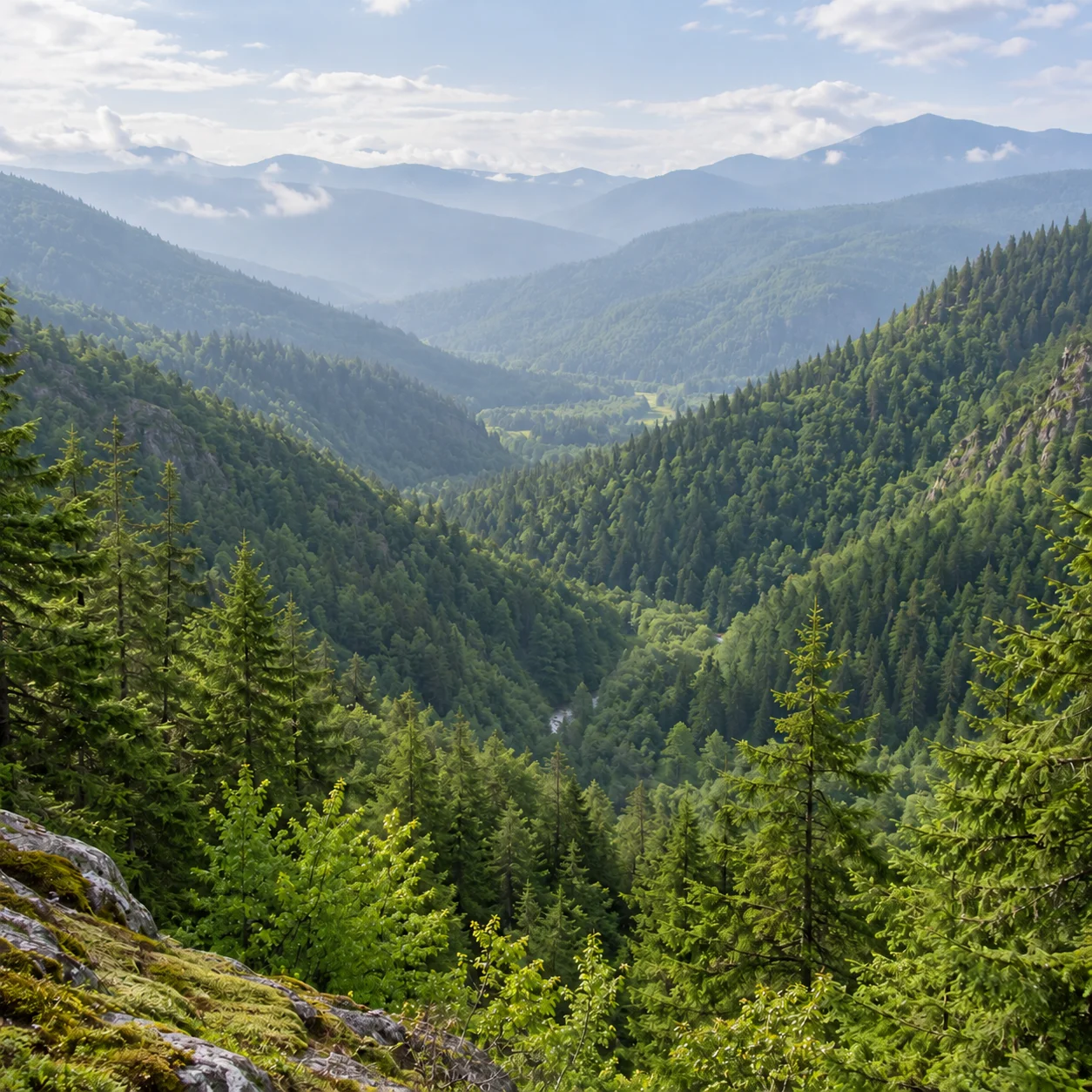
In a forest valley, haze can soften successive hills and tree lines, making the scene's depth harder to read. This dehaze photo before-and-after example lets you judge how an online tool affects those layers. Check the distant background and nearer edges to see whether the overall change looks balanced.
Dehaze photo processing reduces the pale, low-contrast veil that fog or atmospheric haze can place over a scene. The effect is often most noticeable in distant outdoor views, where haze makes subjects blend into the background. This dehaze photo guide focuses on improving visible separation in captured information, not inventing details that were never recorded.
1
Reduce Atmospheric Haze in Photos
Try photo dehazing when atmospheric haze makes distant mountains, buildings, coastlines, or a horizon look pale and blend into the background. It is intended for a visible veil across a scene, not for removing an object or correcting every kind of blur.
2
Improve Flat, Washed-Out Contrast
Haze and fog can reduce tonal separation across an image, leaving dark and light areas closer together. Dehazing aims to make a low-contrast outdoor photo look less washed out in the preview; compare the result carefully to make sure shadows and colors still look natural to you.
3
Make Existing Scene Details Easier to See
An AI photo dehazer may make captured edges, ridgelines, and structures easier to distinguish by changing the image's visible contrast. It cannot guarantee recovery of details the camera did not record or that are fully obscured, so keep the original and judge the preview rather than treating it as a new source of scene information.
4
Compare Your Dehaze Photo Preview Before Download
Review the original beside your dehaze photo preview at the comparison slider. Look at distant edges, midtones, and color shifts, then decide whether the change looks natural before saving. If the effect feels too strong or does not address the problem, keep the source and try another image.
Why Use AI
A Simpler Way to Dehaze Images
An online photo dehazer gives you a focused way to test a hazy image: upload it, review the generated preview, and compare the visible change with your source before deciding what to keep.
How It Works
How to Dehaze a Photo Online in 4 Steps
A practical dehaze photo workflow is simple: choose a suitable source, upload it, review the generated comparison, and save a dehaze photo copy only if the result works for your image. Keep the original file so you can compare or return to it later.
1
Upload a Photo with Haze or Fog
Choose a misty landscape, foggy coastline, distant skyline, or another photo where haze has muted the scene. This is the kind of source to use when you dehaze photo images online. Upload an image you have permission to use, and retain the original.
2
Let AI Analyze the Image
The image enters the AI dehaze photo workflow. Processing time can vary; wait for the preview to finish before refreshing or leaving the page, and follow status or credit information shown by the tool.
3
Preview Your Dehazed Photo
Compare your dehaze photo result with the original. Check distant edges, contrast, and color, and decide whether captured scene details are easier to distinguish without making the image look unnaturally dark or saturated.
4
Download Your Image
Download the dehaze photo result if it looks right for your purpose, and keep the source separately. If the dehaze photo preview is not a good fit, try another image rather than overwriting your original.
Features of This Online Photo Dehazer
This dehaze photo workflow combines an upload area, AI processing, and a before-and-after preview. Review each result yourself, since the visible change depends on the source image and the amount of haze.
AI Haze Reduction
Upload a photo with atmospheric haze for AI processing designed to reduce the visible veil. This dehaze photo tool is most relevant when the scene looks pale from haze, not when the main issue is an out-of-focus subject.
Contrast Review
Check whether a dehaze photo preview makes a low-contrast or washed-out scene easier to distinguish. Use the comparison to inspect overall tones, not just one edge or a small part of the frame.
Dehaze Photo Scene Tone Preview
Review visible tones in the dehazed photo and decide whether the result looks natural for your scene. Haze reduction can change the perceived depth and color balance, so compare the complete image before saving.
Dehaze Photo Visible Detail Review
Compare captured scene structures in the original and preview. Dehazing may make recorded boundaries easier to see, but it cannot recreate detail absent from the source or reliably reveal what was fully hidden by dense fog.
Before-and-After Comparison
Compare your dehaze photo preview with the source before choosing whether to download it. The slider shows both versions in context so you can keep the one that best fits your intended use.
Dehaze Photo Online in Your Browser
Use the dehaze photo page in a modern browser on desktop, tablet, or phone. For a reliable comparison, view the full image at a comfortable size and check upload limits first.
Frequently Asked Questions About Photo Dehazing
Learn how to dehaze photo images online, which scenes may benefit, what haze removal can and cannot change, and what to check before downloading an image.
Ready to Dehaze a Photo?
Try this dehaze photo workflow on a hazy or foggy image. Compare the AI preview with your original, review contrast and colors, and download a copy only if the result works for you.