Ai Photo EnhancerAi Photo Enhancer

Image Brightener for Dark Photos

Use this online Image Brightener to make a dim or underexposed photo easier to see. Upload a picture, review a brighter AI preview, and compare it with the original before downloading a copy. The result depends on the light and detail captured in your photo.

Drag your image here, or

Reference Image (Max 50MB)

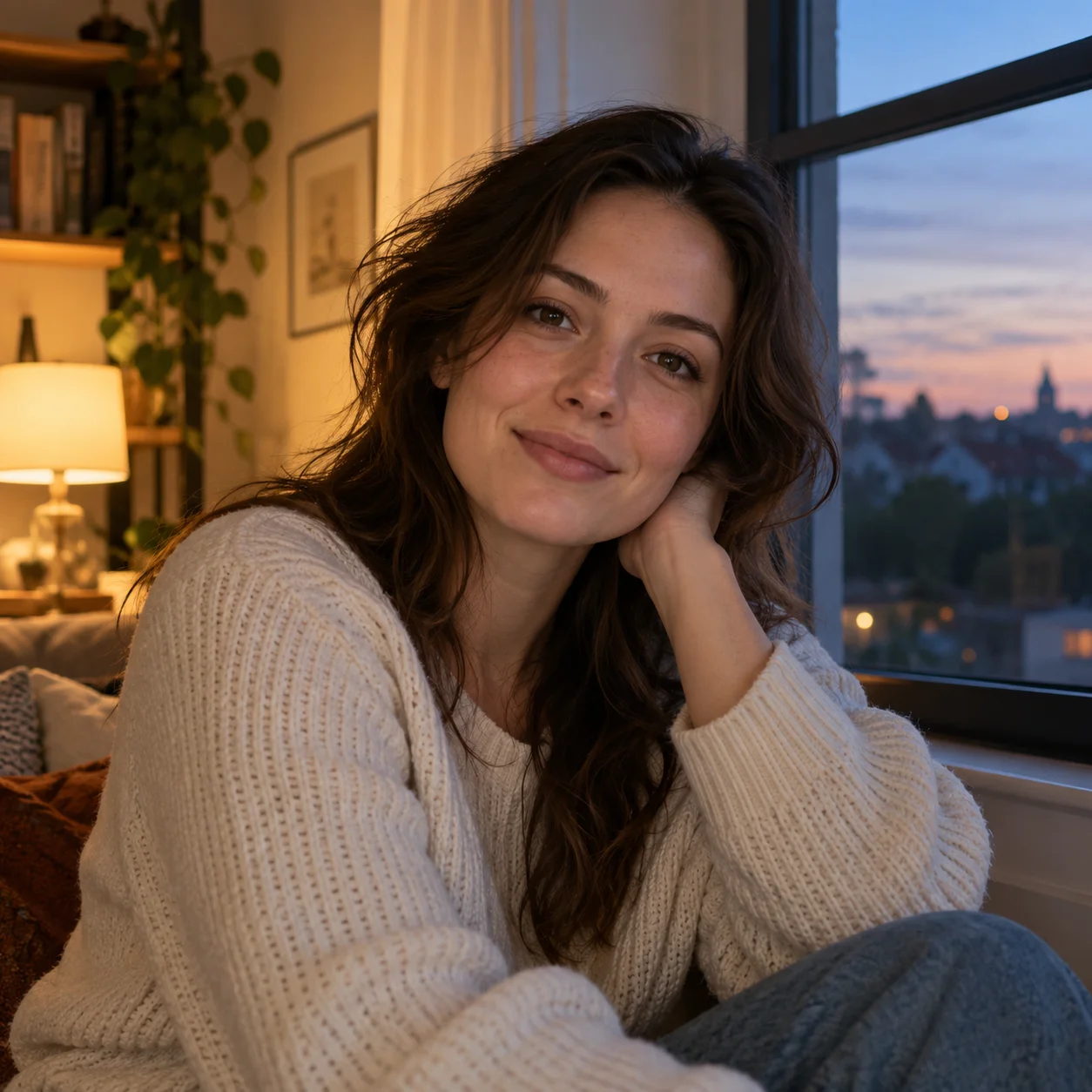
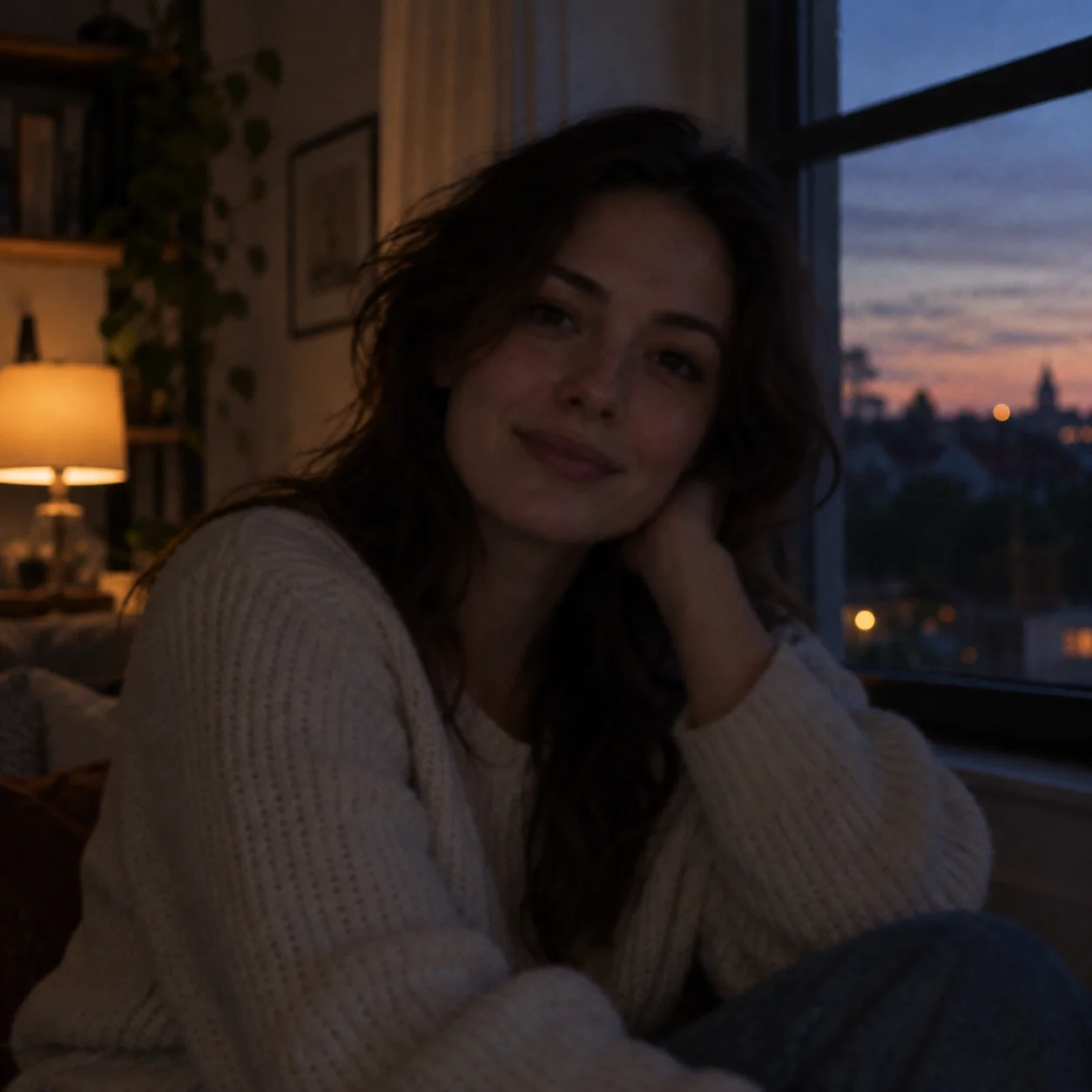
Image brightener preview of an uploaded photoImage brightener preview of an uploaded photoImage brightener preview of an uploaded photoImage brightener preview of an uploaded photoImage brightener preview of an uploaded photoImage brightener preview of an uploaded photo
Upload, brighten, preview, and save your photo
Brighter preview of a vintage baby portrait from the image brightenerOriginal faded vintage baby portrait uploaded to the image brightener
BeforeAfter

See Image Brightener Examples

See how the Image Brightener preview compares with each original. Drag the slider across faces, shadows, and highlights; results vary by photo, so review the full image before saving.

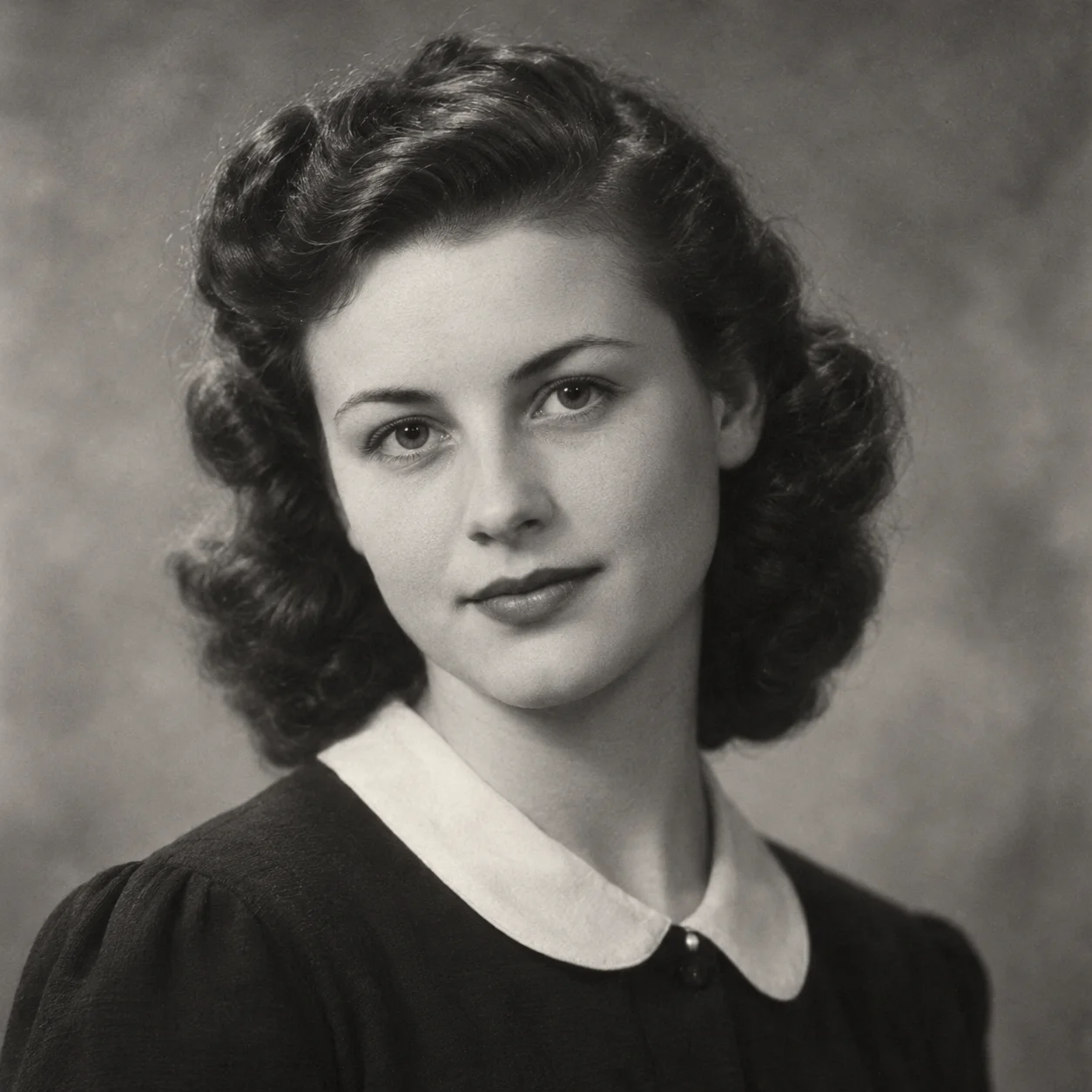
Restored black-and-white portrait of a woman, shown as an image brightener example
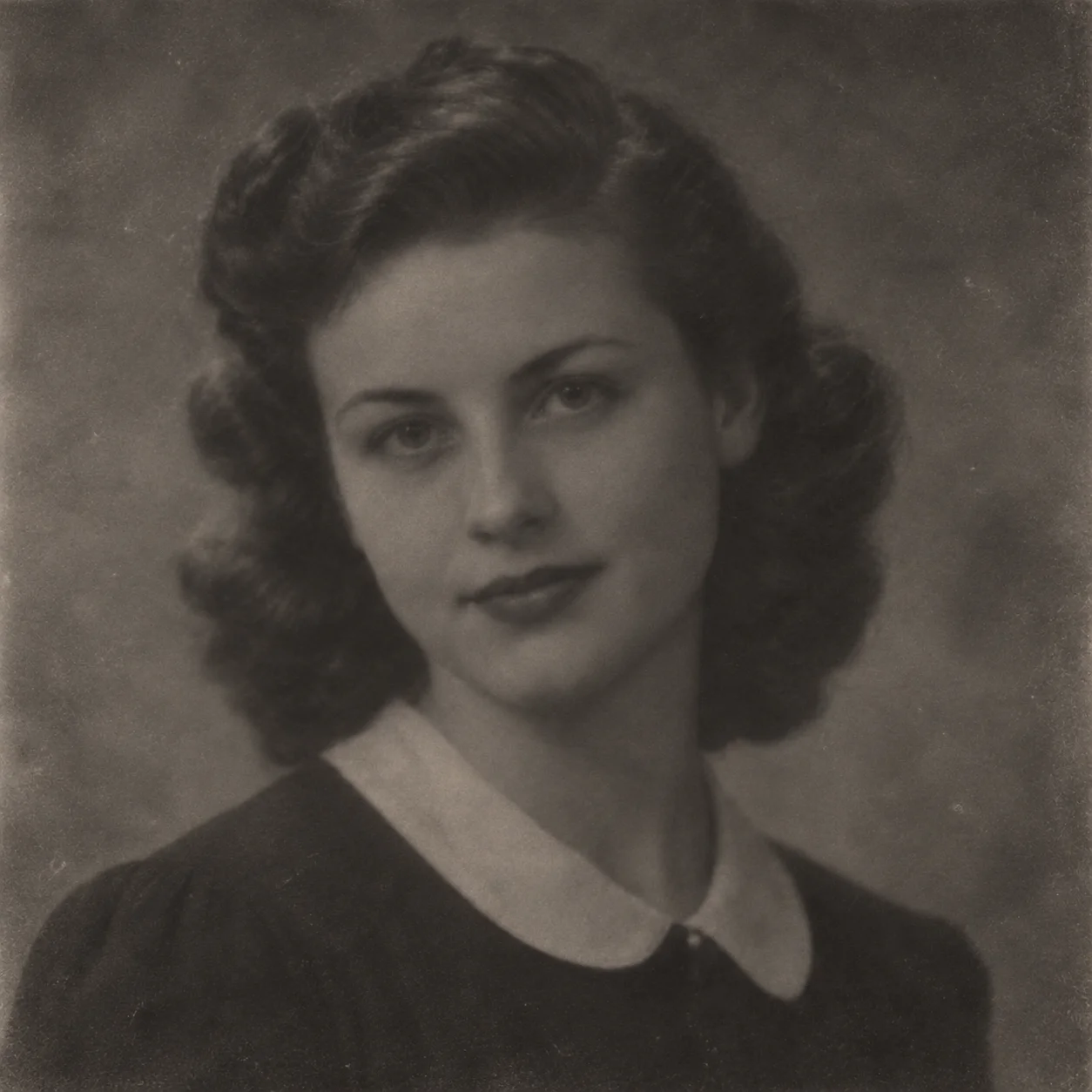
Faded vintage portrait of a woman before photo enhancement
Before
After

Compare a Vintage Portrait

This vintage portrait lets you compare facial definition, hair, and clothing in an older photograph. Move the slider across the eyes and shadowed areas to inspect the Image Brightener result while keeping the original character in view.

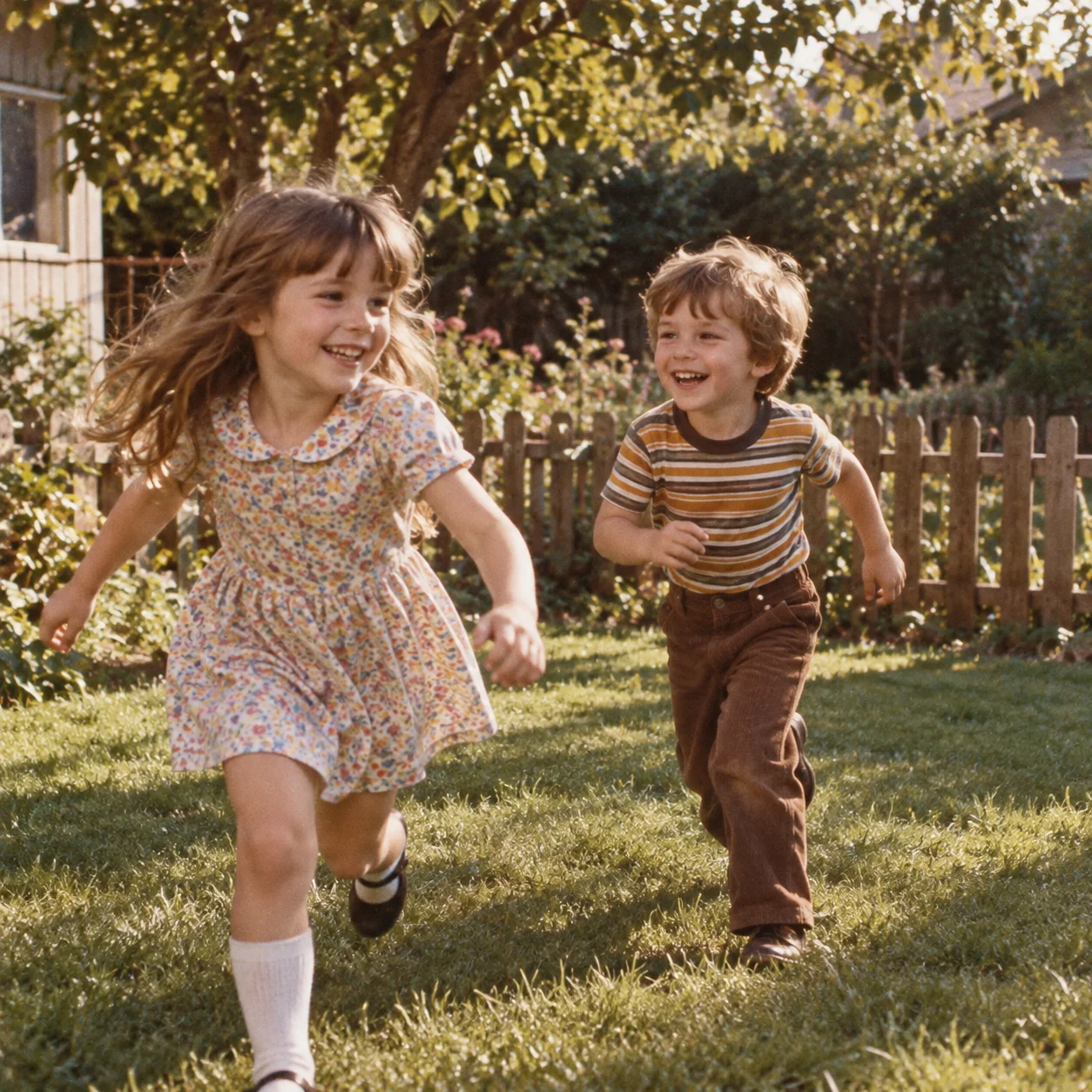
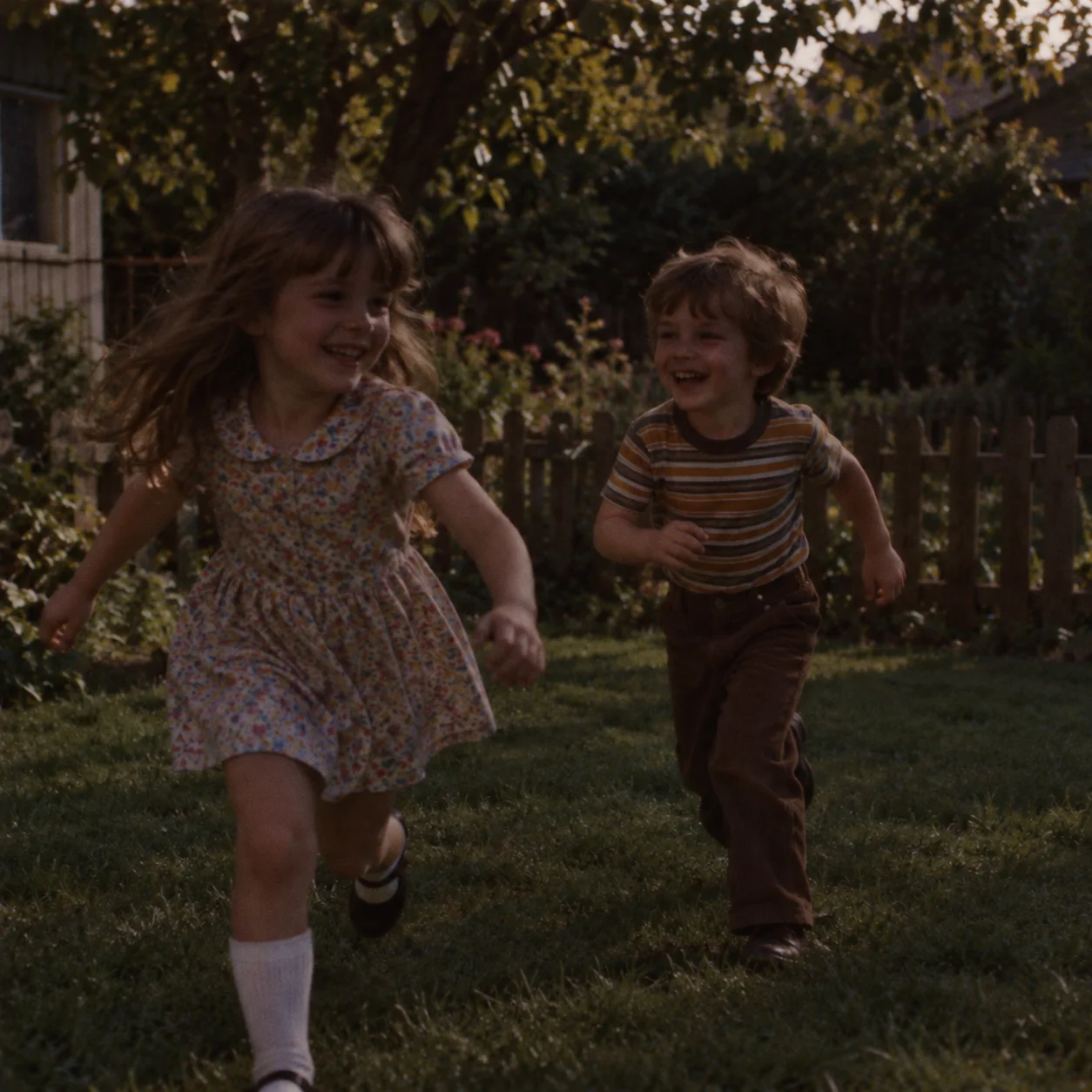
Enhanced family photo of children playing in a yard, shown as a photo brightener example
Faded family photo of children playing in a yard before enhancement
Before
After

Compare a Family Photo

In this outdoor family snapshot, compare the children and yard in both versions. The Image Brightener preview makes it easier to inspect their definition; check the full frame as well to see whether the overall tones still look natural.

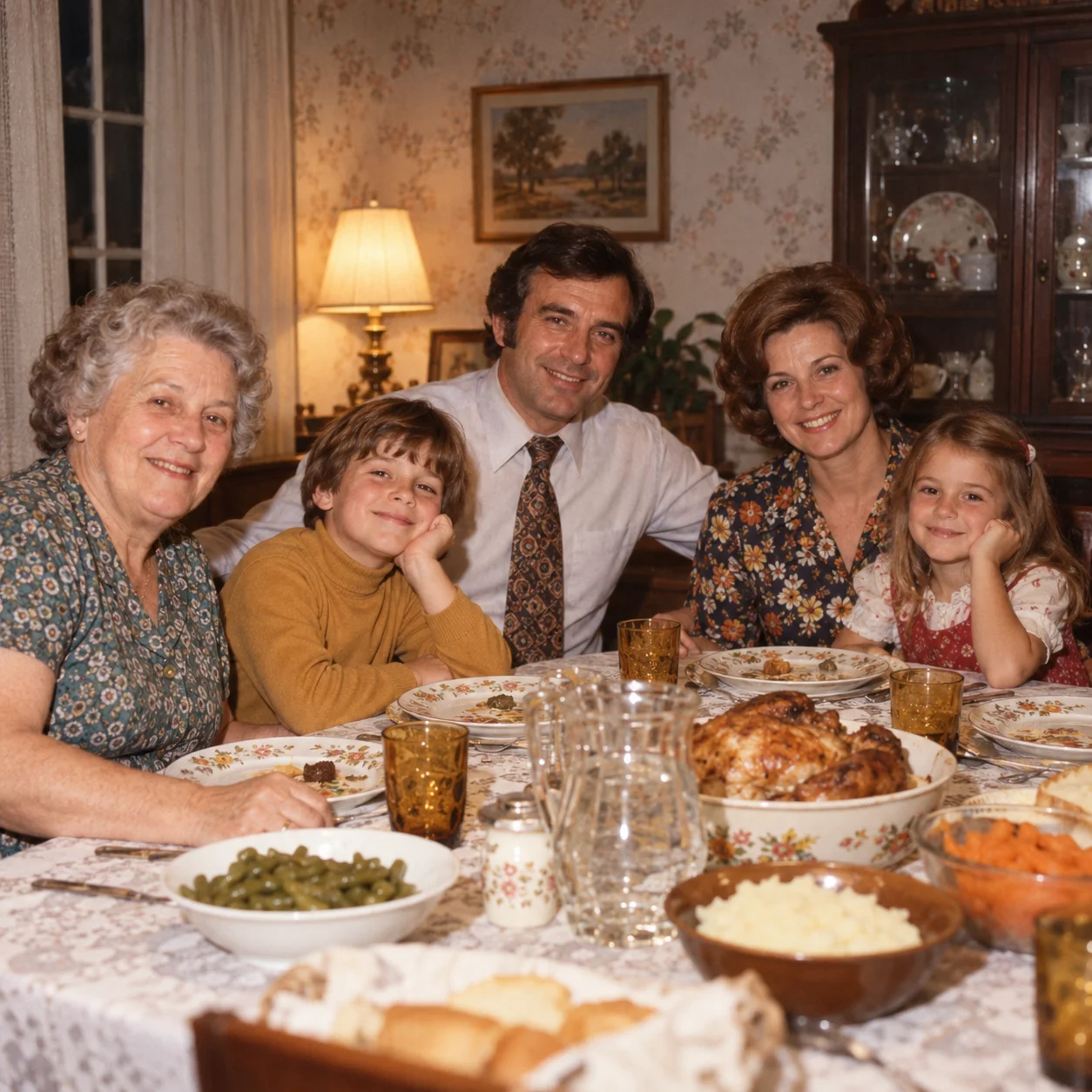
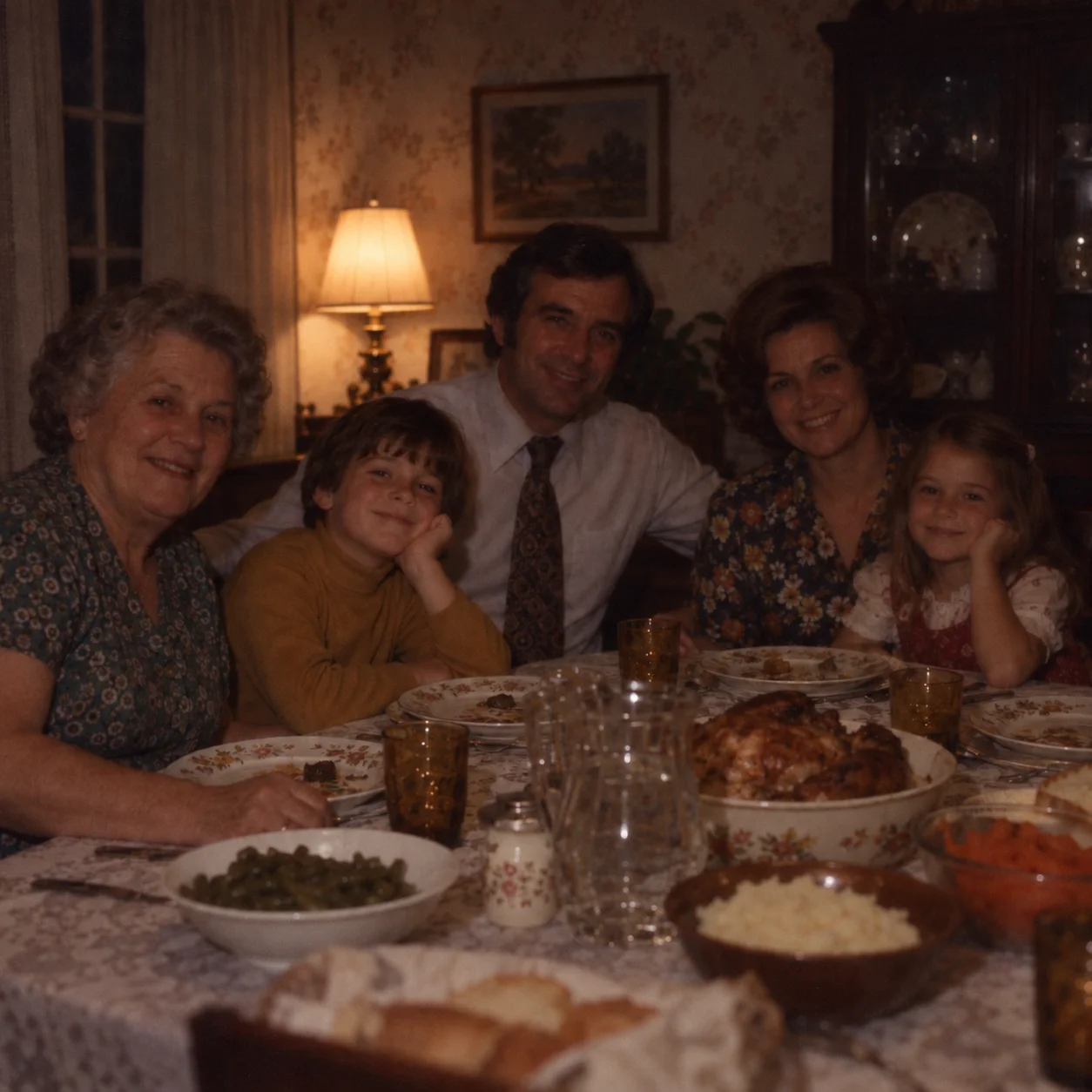
Enhanced family dinner portrait shown as an online image brightener example
Faded family dinner portrait before photo enhancement
Before
After

Compare a Family Dinner Photo

This older dinner portrait is an indoor scene with people and table details to inspect. Compare both sides of the slider to see what the Image Brightener changes, then check that skin tones and the room still feel consistent with the original.

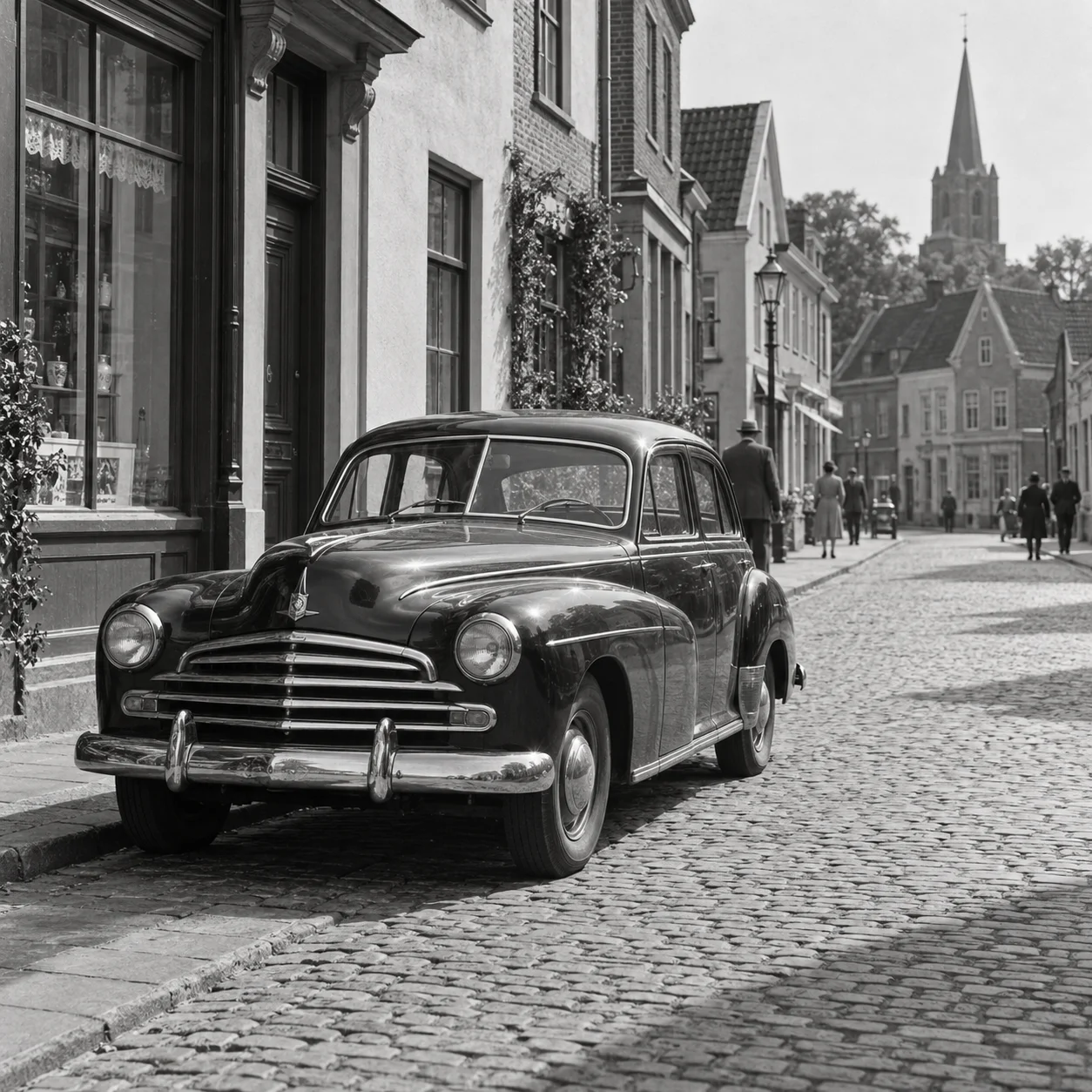
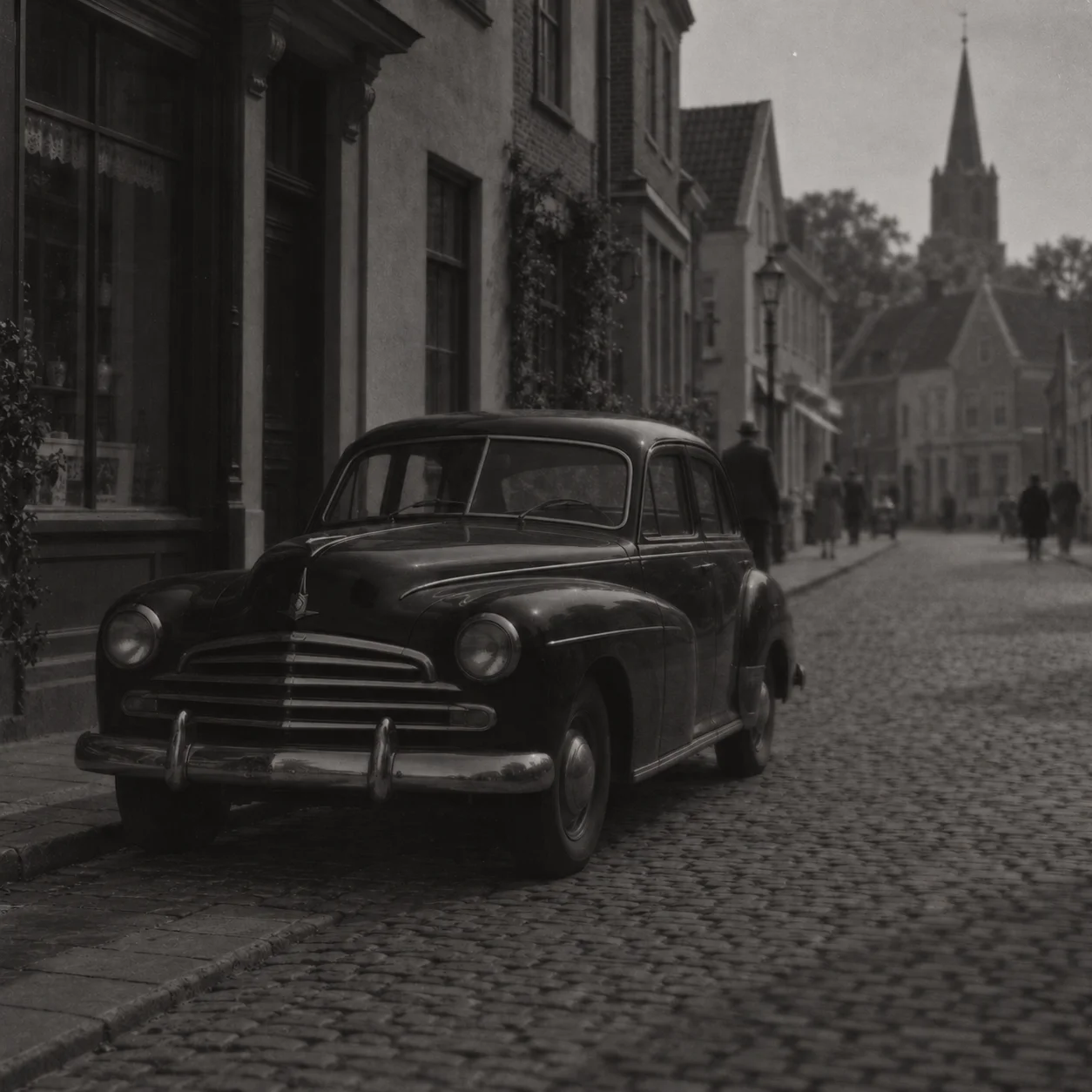
Enhanced vintage street scene with classic cars shown as a picture brightener example
Faded vintage street scene with classic cars before photo enhancement
Before
After

Compare a Vintage Street Photo

Use this vintage street scene to compare the classic cars, road, and period buildings. The Image Brightener can make existing contrast easier to inspect; move the slider across the frame and judge the overall result against the source.

When to Brighten a Photo

When Can the Image Brightener Help?

Use the Image Brightener to review dim indoor shots, evening light, or backlit subjects. Results depend on the exposure and detail in the source photo.

Before-and-after restoration of a vintage family photograph
1

Underexposed Photos

If the photo looks darker than the scene you remember, use the Image Brightener to preview a lighter version and compare it with the source before choosing one to keep.

2

Dark Areas and Shadows

A brighter exposure may reveal information in a face, dark clothing, or the background. Results vary when the original captured very little light.

3

Dim Indoor and Evening Photos

Try the Image Brightener on an indoor portrait, restaurant photo, or evening gathering when limited light makes the whole picture hard to see.

4

Check Color and Appearance

Check skin tones, highlights, and contrast after brightening. Compare with the source to make sure the photo still has the look you want.

Why Use This Tool

A Guided Image Brightener Workflow

The Image Brightener offers a guided upload-and-preview workflow. Review a lighter version without adjusting manual exposure controls.

How It Works

How to Brighten a Photo Online

The Image Brightener guides you from upload to preview. Keep the source nearby so you can compare exposure and decide which version to save.

1

Upload Your Photo

Choose a dim or underexposed photo. The Image Brightener accepts JPG, PNG, and WebP files up to 50 MB.

2

Create a Brighter Preview

Start the Image Brightener and keep this page open while it prepares a preview. Processing time can vary with the image.

3

Review the Preview

Compare exposure, shadows, color, and visible grain. The Image Brightener preview is a suggestion; choose the version that looks natural to you.

4

Download Your Photo

If the preview works for your photo, download a copy. Keep the source for comparison or further editing.

What to Expect from the Image Brightener

Use the Image Brightener to preview a lighter version, then compare faces, shadows, colors, and grain with the original before deciding what to keep.

Brighten a Dark Image

The Image Brightener creates a lighter preview of a dim photo so you can inspect faces, objects, and background details beside the source.

Review Darker Areas

Check faces and objects in shadow. Brightening may reveal captured information, but no tool can restore detail missing from fully black or clipped areas.

Natural-Looking Color

The Image Brightener preview can shift color and contrast. Compare it with the source at the same size and keep the version that suits the scene.

Check Grain and Fine Detail

Brightening can make low-light grain easier to see. Inspect the preview at full size; if noise is the main issue, try a dedicated image denoiser.

A Simple Enhancement Workflow

Upload a photo to the Image Brightener, review its preview, and download a copy if it meets your needs. Keep the source so both versions remain available.

Works in Your Browser

Open the Image Brightener in a browser on your phone, tablet, or computer. Upload a supported photo, review the preview, and save a copy if you want it.

An Image Brightener Guide for Dark Photos

Indoor lighting, dusk, or a bright background can leave a photo darker than the scene looked in person. An image brightener creates a lighter version for you to review. Compare the preview with your original to decide whether it improves visibility and still looks like your photo.

What happens when you use an Image Brightener?

An Image Brightener changes how light or dark a photo appears overall. It may make shadow information captured by the camera easier to see, but it cannot change the original scene's lighting or guarantee recovery of missing detail. Deep shadows can remain unclear, while highlights may look washed out after brightening.

Which photos are good candidates?

An online image brightener is most useful when the photo looks darker than intended but still contains visible information. It can help with dim rooms, evening portraits, backlit subjects, and indoor snapshots. A file that is uniformly bright may need a different edit, while a completely black or clipped area may not contain enough recorded detail to recover.

How to review the Image Brightener preview

Compare the Image Brightener preview with the original at the same size. Look at faces, shadowed objects, and dark corners, then check skin tones, highlights, and grain. If the result seems flat, noisy, or washed out, keep the source or try another image. Saving a copy lets you choose later without replacing your original.

Brightening, denoising, and sharpening are different

Choose the Image Brightener when your photo looks too dark overall. If speckled grain is the main problem, try an image denoiser; if edges look soft, a photo sharpener may help; if you need more pixels, use an image upscaler. Each tool addresses a different issue, so compare any edit with your original.

Image Brightener FAQs

Learn how this online tool works, which photos may benefit, and how to review a brighter preview.


Ready to Use the Image Brightener?

Choose a dim or underexposed photo, review the brighter preview against the source, and download a copy if it looks right.