
Fix Overexposed Photos Online
Fix overexposed photos online with AI-assisted editing. Improve a washed-out look, balance overall brightness, and review the result in a few steps—no manual editing skills needed. Results depend on the original image.
Drag your image here, or
Reference Image (Max 50MB)




See How an Overexposed Photo Looks After Editing
Fix overexposed photos by comparing the source with the edited image, not by relying on a claim that every highlight can be recovered. Review overall exposure, bright regions, color, and the details that remain visible. The examples below are existing page images and will be replaced separately.
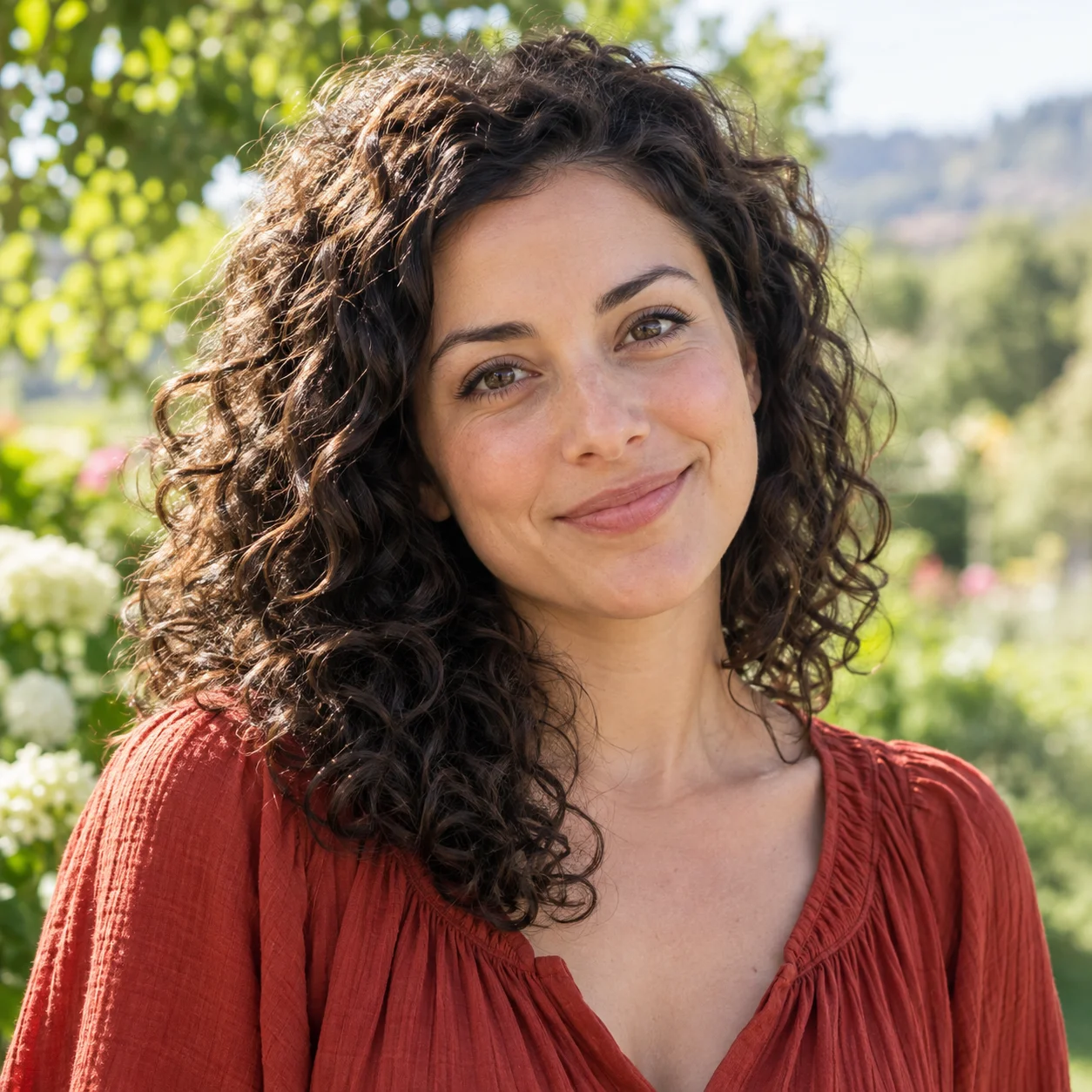

Review the Exposure Correction
Compare the source and edited image at the same viewing size. Look at the overall brightness and contrast, and check that reducing a washed-out appearance has not made the entire photo look dull.
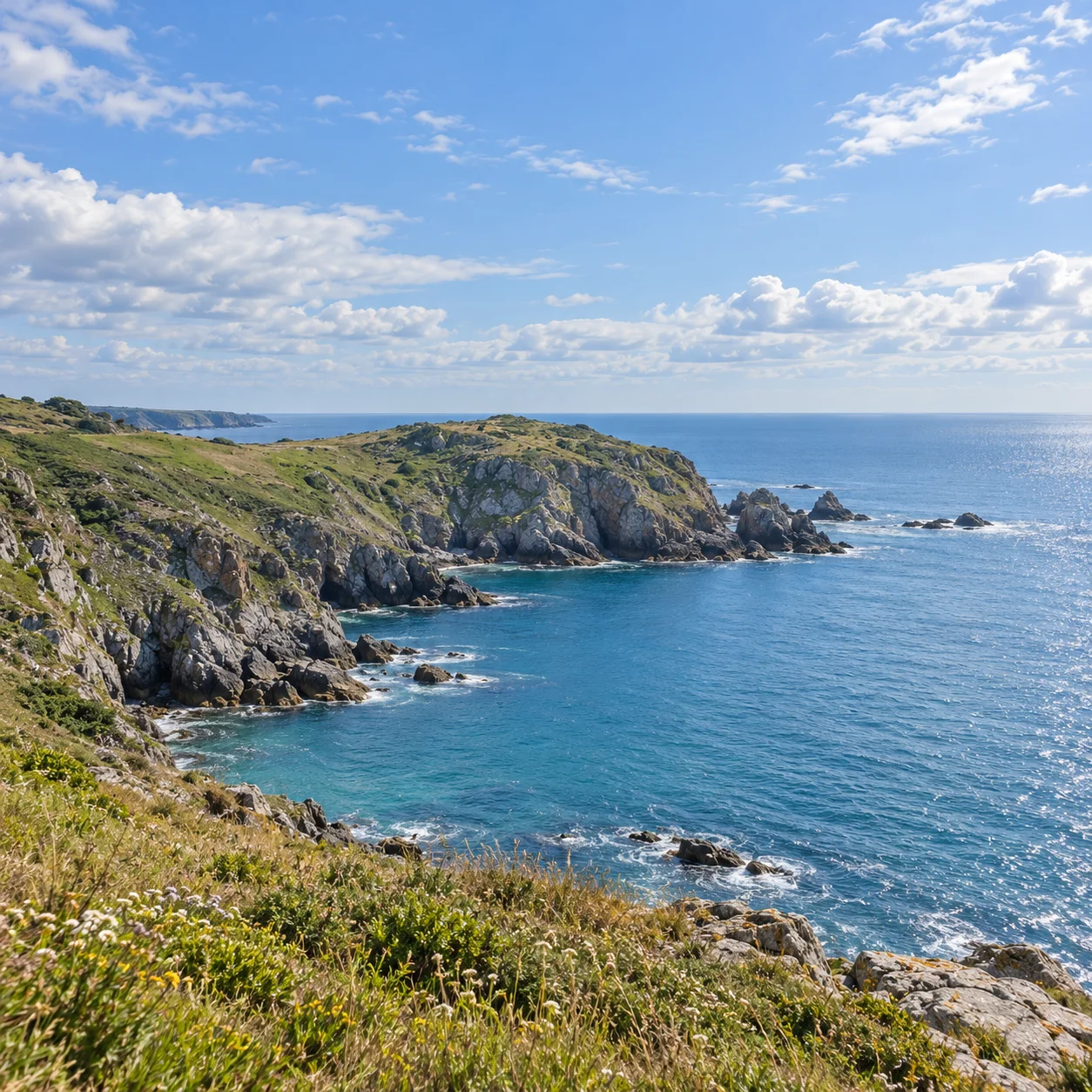
Check Bright Portraits
In a bright portrait, inspect skin tones, hair, clothing, and facial details. A useful edit should look like a plausible photograph and should not depend on unrealistic changes to the person's appearance.


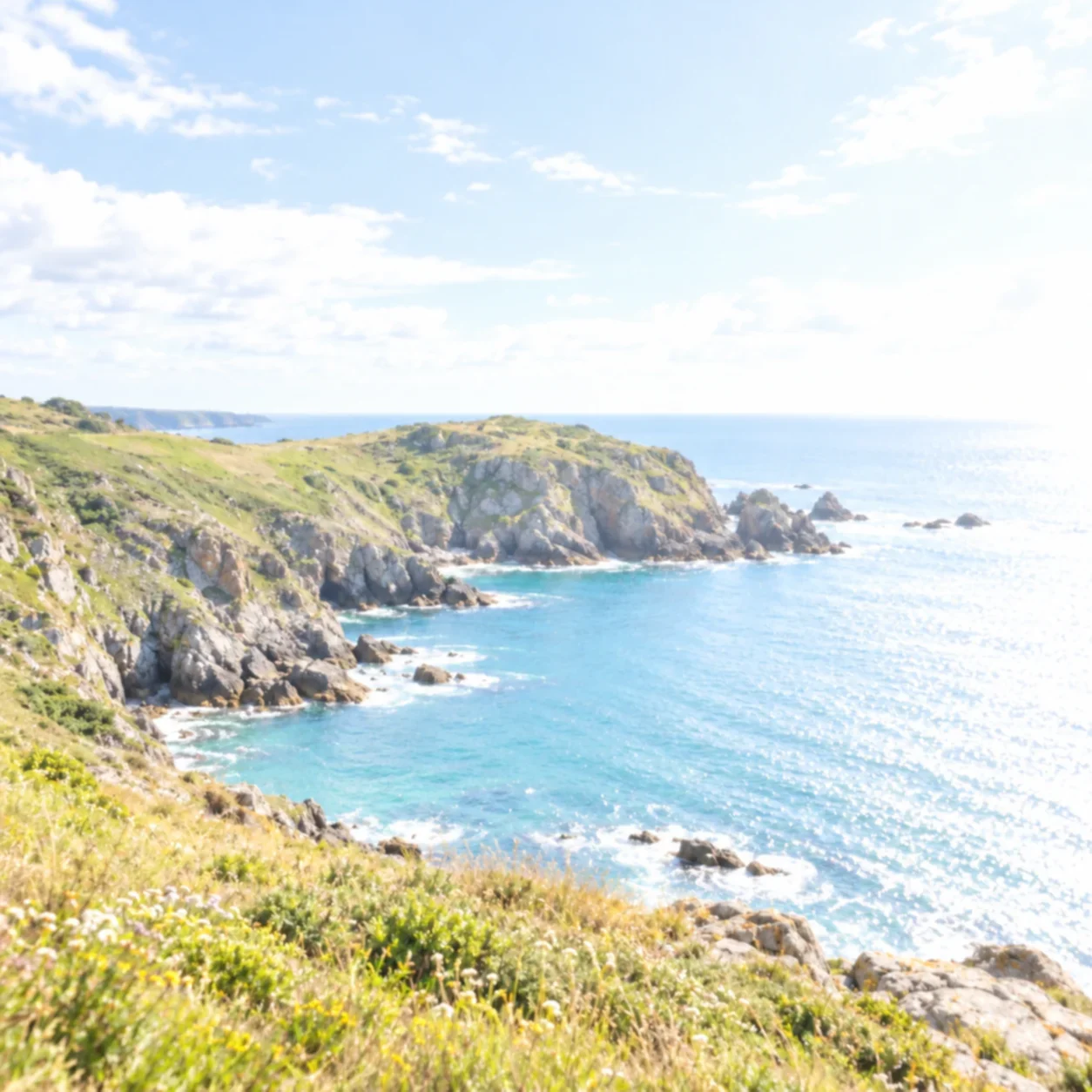
Compare Washed-Out Photos
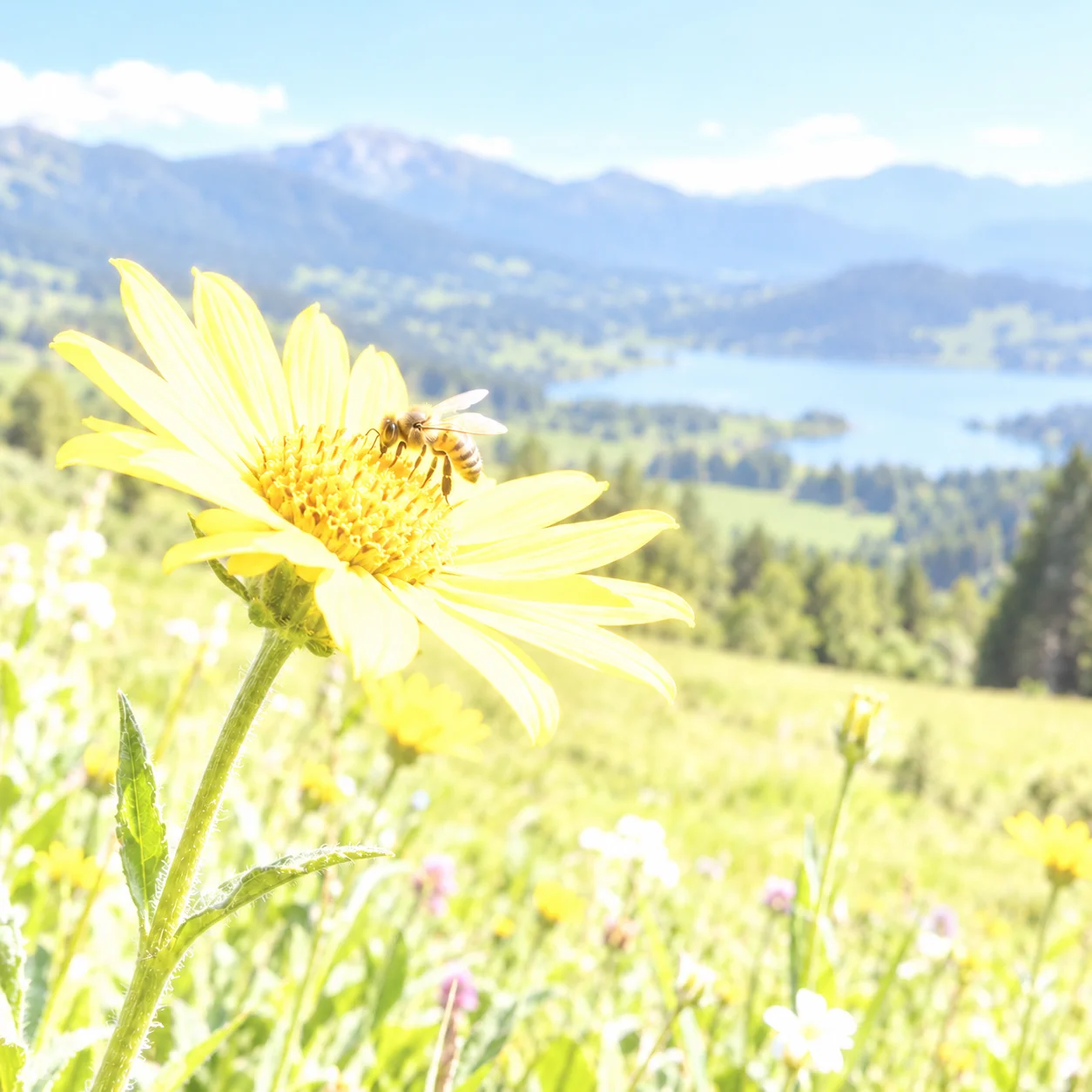
For an outdoor scene, compare the sky and other bright areas with the rest of the frame. Consider whether the edited version looks balanced while retaining the natural lighting and colors of the scene.
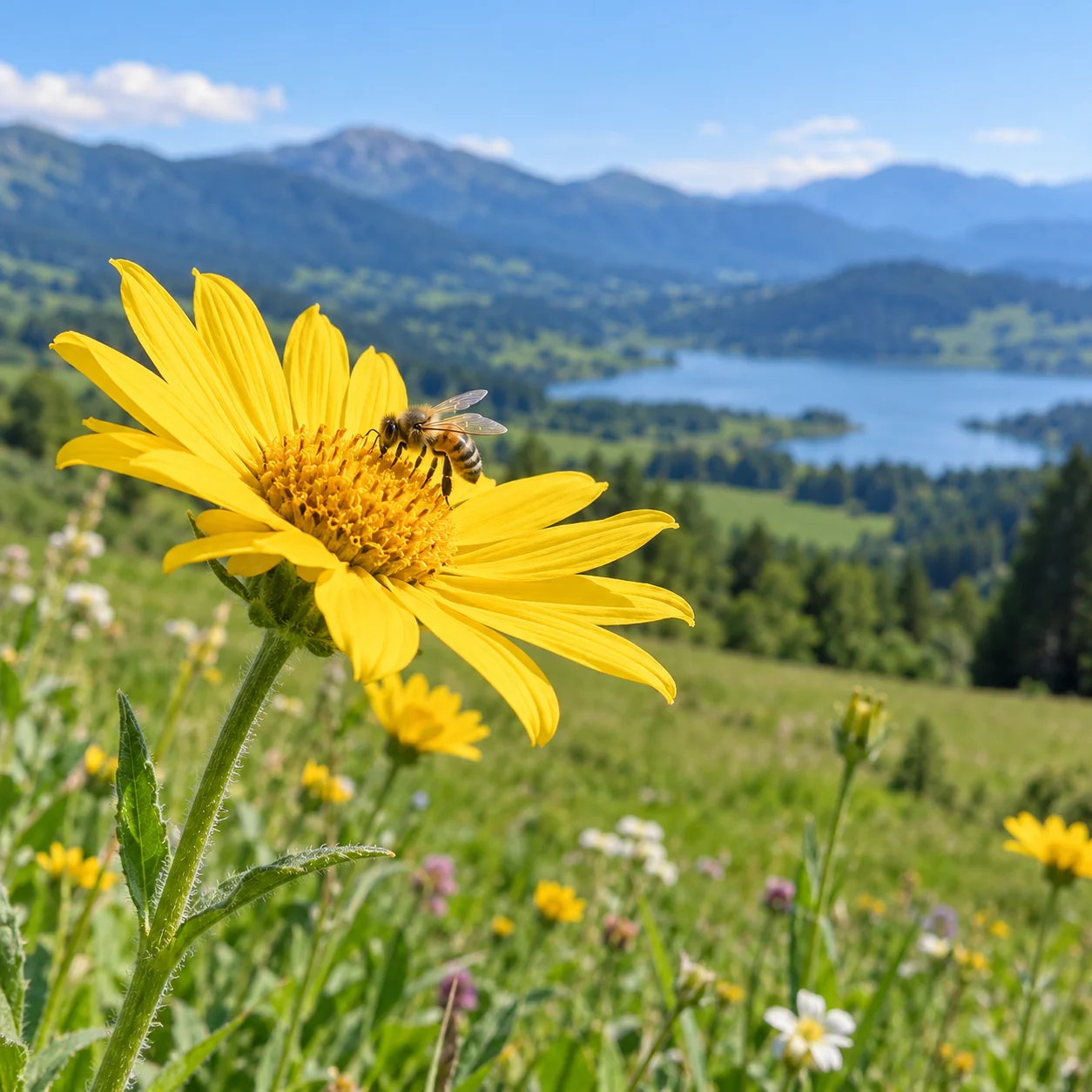
Understand What Can Be Improved
Results depend on the source. Areas clipped to pure white may have little or no original image information to recover.
What Does It Mean to Fix an Overexposed Photo?
When a photo receives more light than intended, bright areas can lose contrast and the whole image may look pale or washed out. Fix overexposed photos by assessing both the highlights and the midtones rather than simply darkening every pixel. An AI-assisted edit can adjust the overall appearance, but the result depends on the source image and how much detail remains.

Balance an Overly Bright Photo
A photo can look overexposed when highlights dominate the frame, skin or clothing appears unusually bright, or a bright background competes with the subject. Exposure correction aims to make the overall tonal balance feel more even instead of just making the image darker.
Improve Washed-Out Highlights
Harsh midday sun, direct flash, backlit scenes, and reflective surfaces can create washed-out areas. Fix overexposed photos online when you want a quick way to review an AI-assisted edit without learning exposure sliders or installing desktop software.
For Portraits, Travel, and More
Portraits, holiday snapshots, product images, and everyday photos can all be affected by excess brightness. Upload a JPG, PNG, or WebP file, apply the edit, and compare the result with your original before deciding whether to keep it.
Aim for Natural-Looking Results
When you fix overexposed photos, look for balanced brightness without gray-looking whites, unnatural skin tones, or lost texture. If a region was recorded as pure white, its original detail may not exist in the file; an AI edit can make a plausible change but cannot promise the exact missing information.
A Simple Way to Improve Overexposed Photos
Fix overexposed photos with an online AI-assisted workflow when you want to test an edit quickly instead of working through desktop controls. Upload your image, generate a version to review, and decide whether the correction improves the picture.
How to Fix an Overexposed Photo Online
Fix overexposed photos online with a straightforward upload, edit, and review workflow. You do not need to adjust multiple exposure controls manually: start with your image, inspect the generated version, and decide if it suits your needs.
Upload Your Photo
Choose the original bright or washed-out image in JPG, PNG, or WebP format. The upload limit is 30 MB. A higher-quality source with visible information in bright areas gives the editing model more to work with.
Apply an AI-Assisted Correction
Start the AI-assisted image edit. It generates an adjusted image intended to improve the overall appearance of a too-bright photo; it is not a manual highlights slider, and results can vary from one image to another.
Preview the Result
Use the before-and-after preview to inspect bright regions, skin tones, color, and midtone contrast. Fix overexposed photos by checking the whole image as well as the brightest areas, so a darker result is not automatically mistaken for a better one.
Download Your Photo
Download the edited image if the preview looks right to you. Keep the original as well: a new AI-generated edit may change parts of the image, and completely clipped highlights may not contain recoverable source detail.
Online Tools to Fix Overexposed Photos
Fix overexposed photos online by generating an AI-assisted edit, then review the changes before you choose what to download. The workflow is designed for people who want to improve a bright or washed-out image without making every adjustment by hand.
AI Photo Exposure Correction
Apply an AI-assisted edit to improve the overall brightness and exposure balance of a photo that looks too bright.
Before-and-After Preview
Use the before-and-after view to compare the source with its edited version. Review brightness, color, subject detail, and the overall look instead of judging the correction by darkness alone.
Natural Color Balance
Improve the overall appearance of bright photos while aiming to keep their existing colors natural and recognizable.
Review Visible Detail
An edit may make existing color and texture easier to assess, but its output depends on the source. When highlight pixels are completely clipped, no editor can retrieve the exact scene information that the camera did not record.
Preview Before Downloading
Check the preview and the credit or download requirements displayed in the tool before proceeding. Available options can depend on your account and selected settings.
Edit Photos in Your Browser
Upload and edit a photo from a phone, tablet, or desktop browser without installing photo editing software.
FAQs About Fixing Overexposed Photos
These answers explain how to fix overexposed photos online, how to assess an AI-assisted edit, which file types are accepted, and why severely clipped highlights can be difficult to improve.
Ready to Fix Overexposed Photos?
Fix overexposed photos with an AI-assisted online edit, compare it with your original, and download the result if it meets your needs. Brightness corrections have limits when image details have been clipped.