
Low Light Image Enhancer for Dark Photos
Use this low light image enhancer to brighten a dark photo online with AI. Upload a dim or underexposed image, review a brighter version, and compare it with the original before deciding what to keep. Results depend on the detail captured in the photo.
Drag your image here, or
Reference Image (Max 50MB)


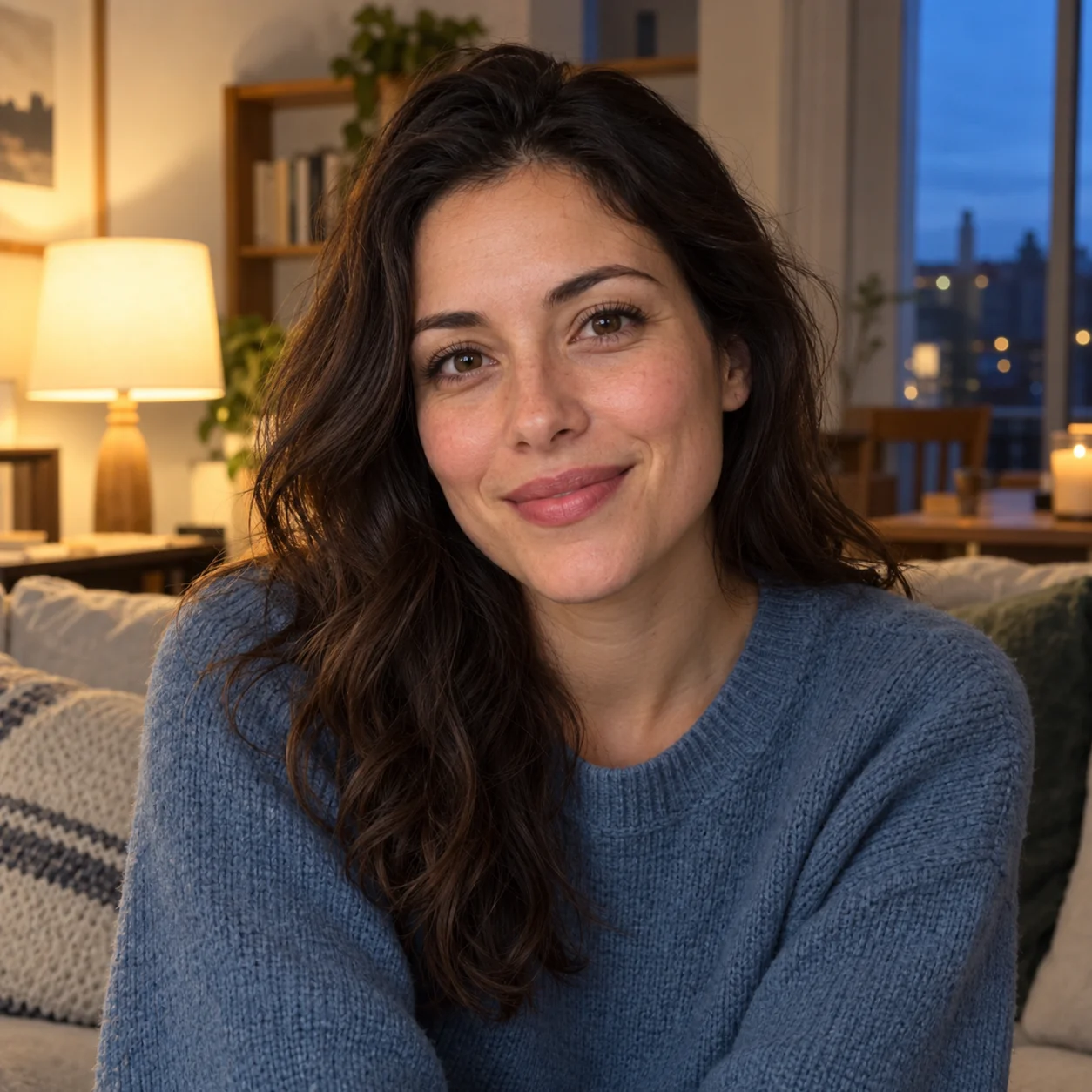
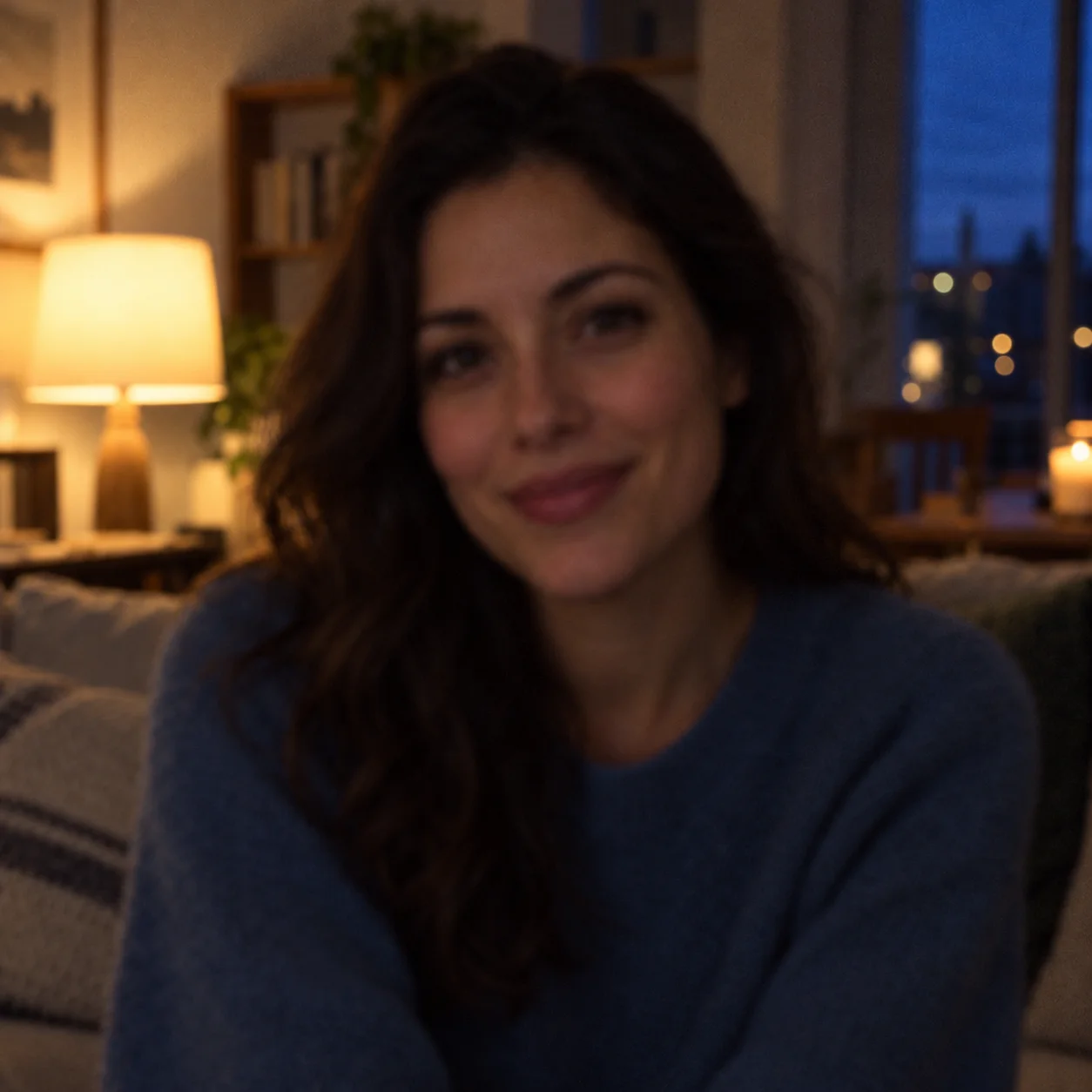
See Low-Light Photo Enhancement Before and After
These before-and-after examples show how a low light image enhancer changes dim indoor, evening, and night photos. Review the subject, shadow detail, colors, and bright areas in each preview.
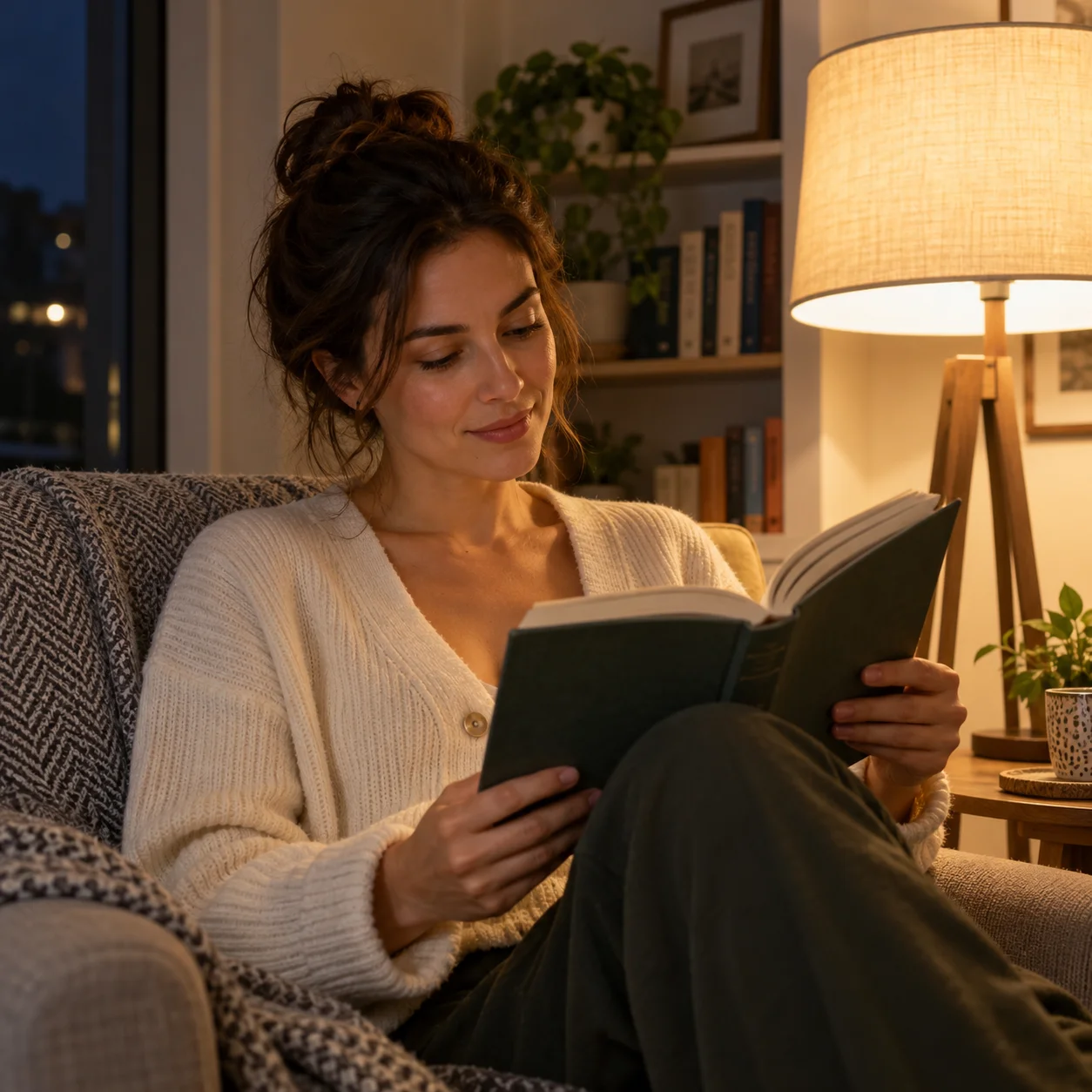
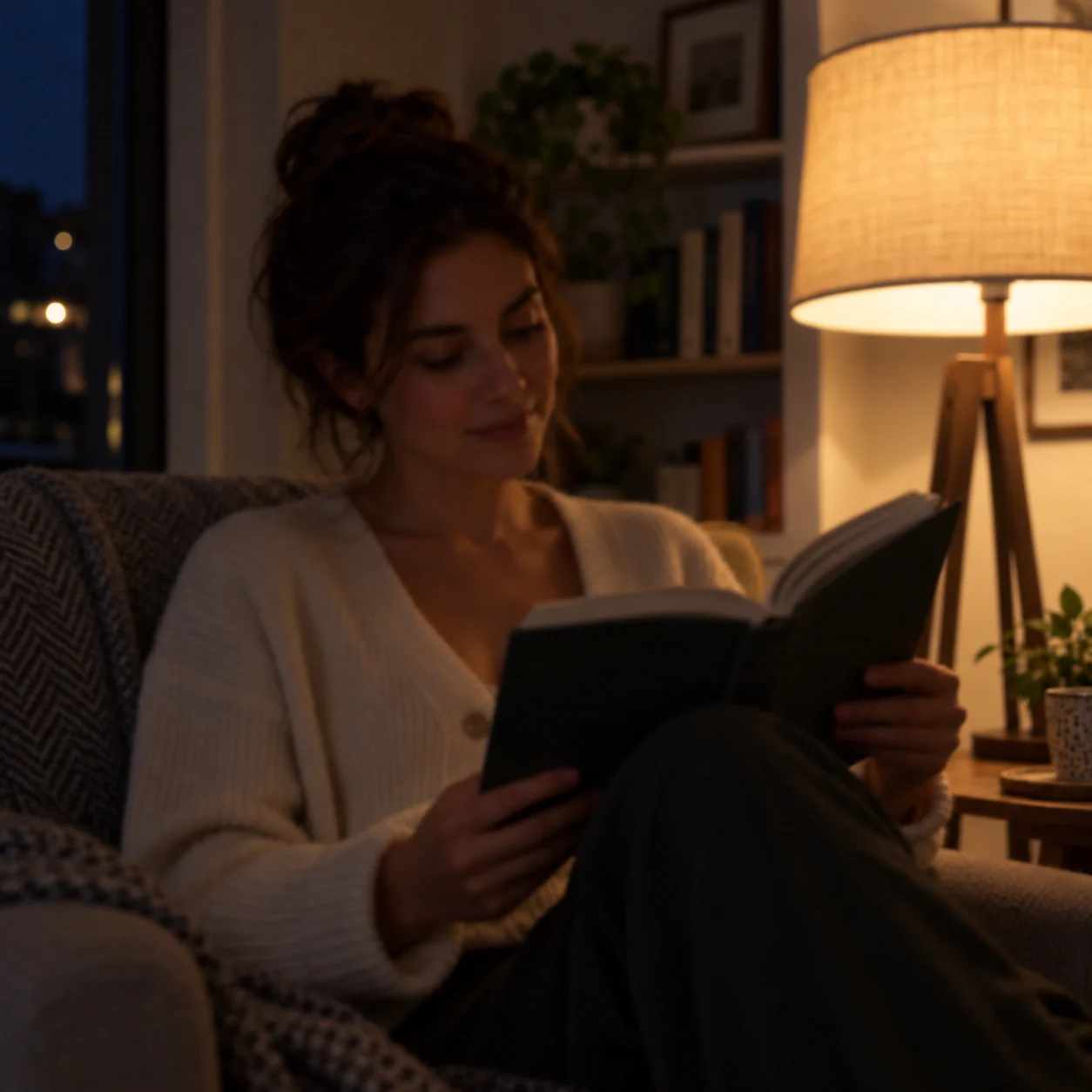
Low Light Image Enhancer for an Underexposed Portrait
Compare an underexposed indoor portrait with a brighter preview. Check whether the subject is easier to see and whether skin tones and highlights still look natural.
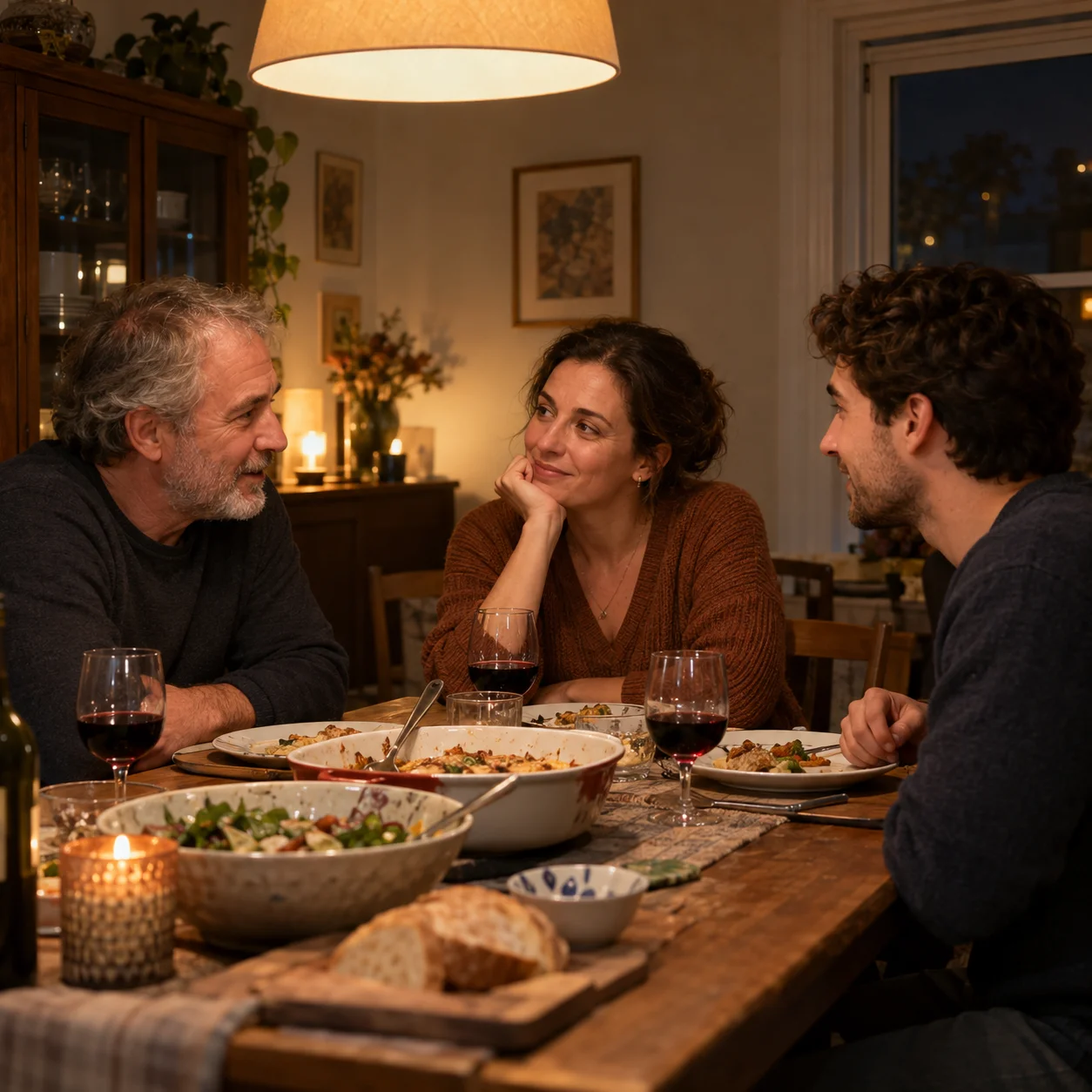
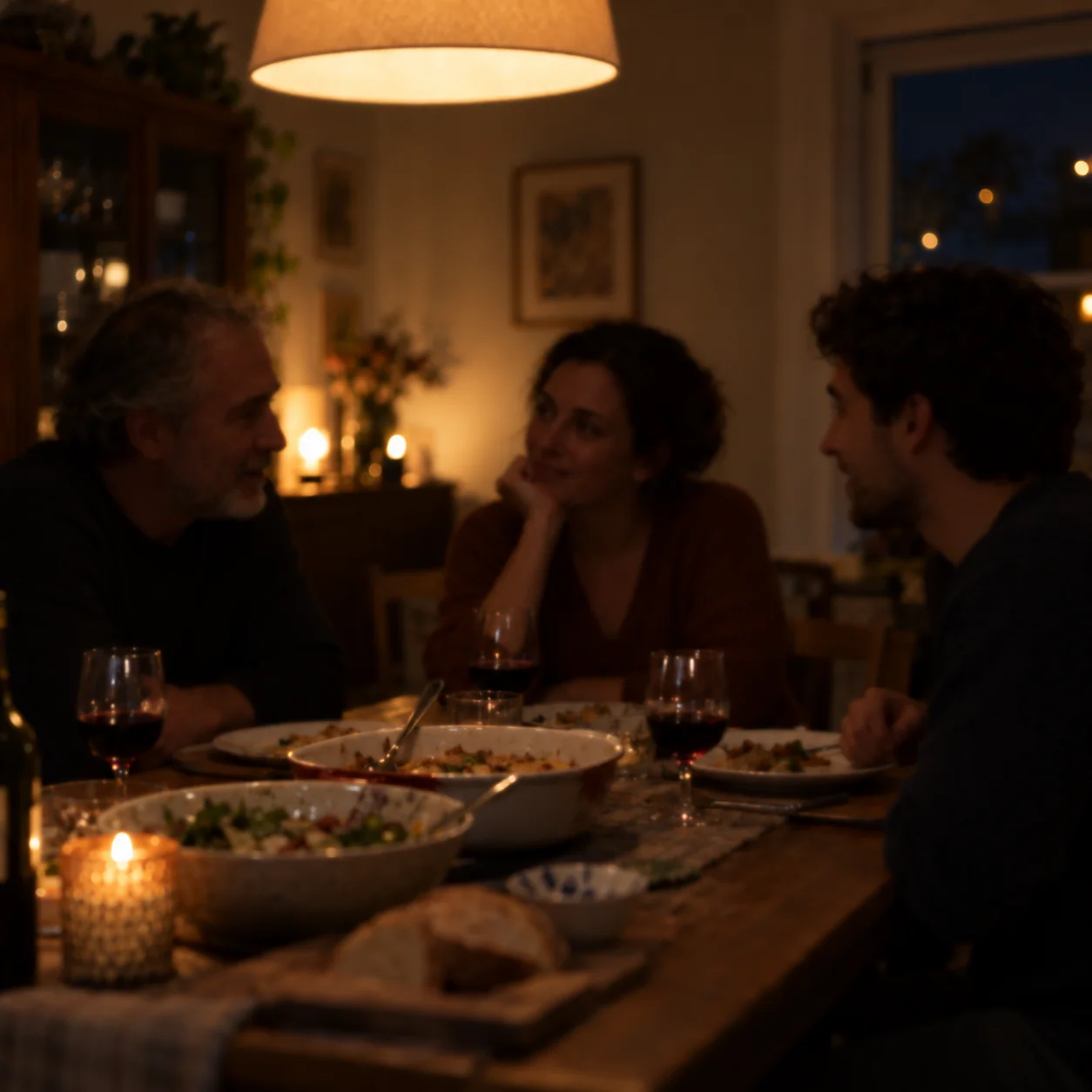
Make a Dim Evening Photo Easier to See
An evening gathering in low light can leave faces, clothing, and room details hard to see. Compare the low light image enhancer preview with the original and check whether faces are clearer without losing bright lamp details.
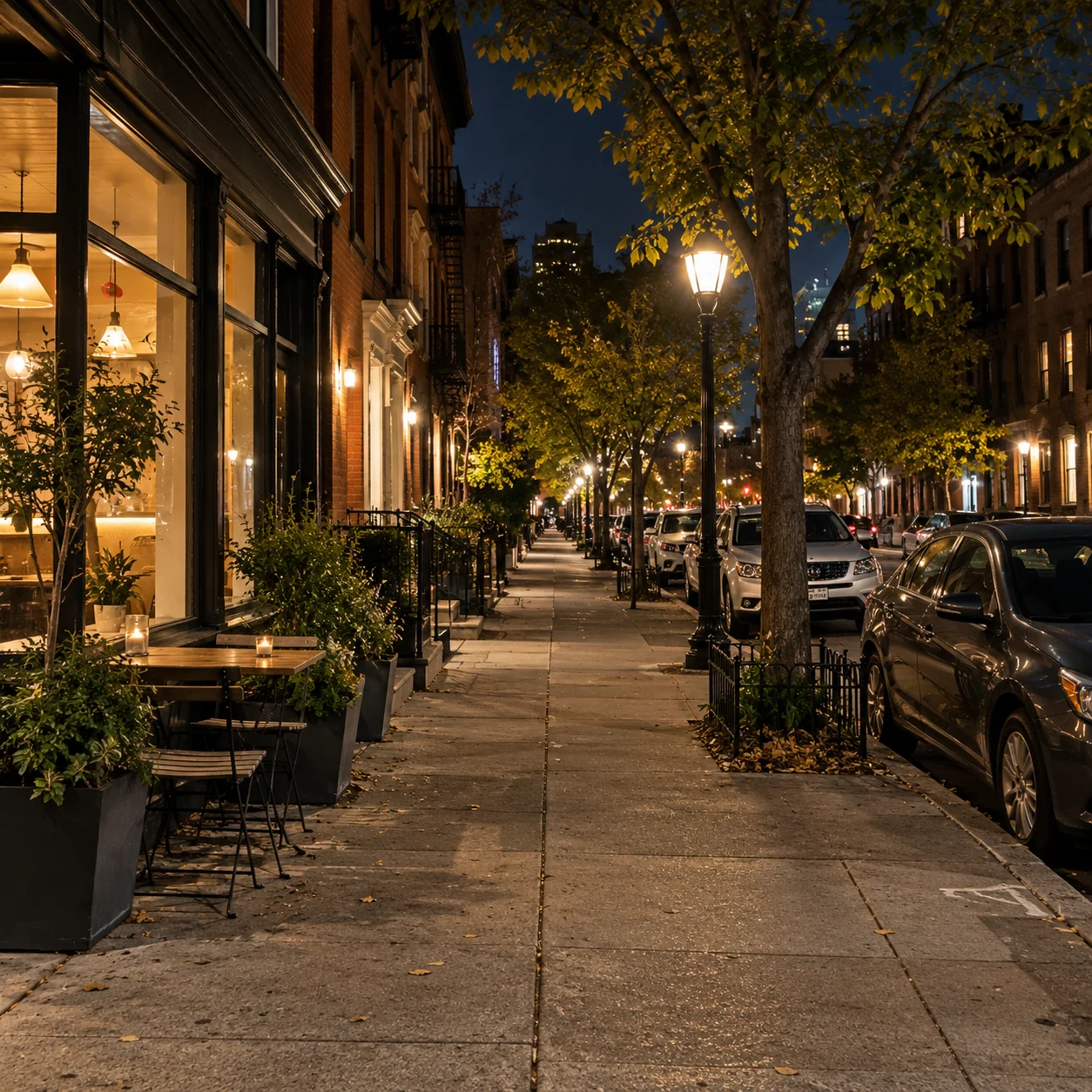
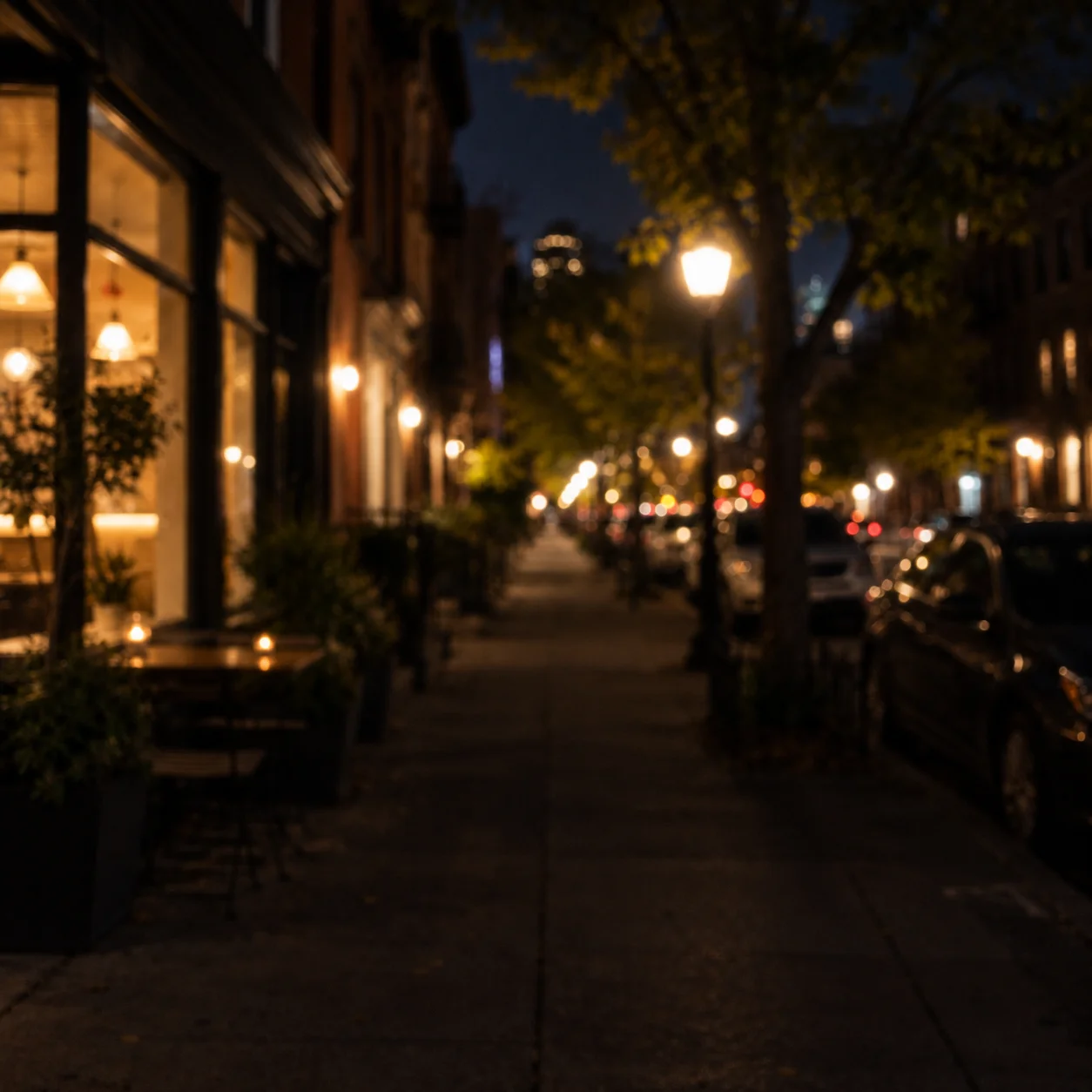
Review a Night Photo Preview
Night photos often contain dark shadows and bright light sources. A low light image enhancer preview lets you compare foreground visibility with the highlights before saving.
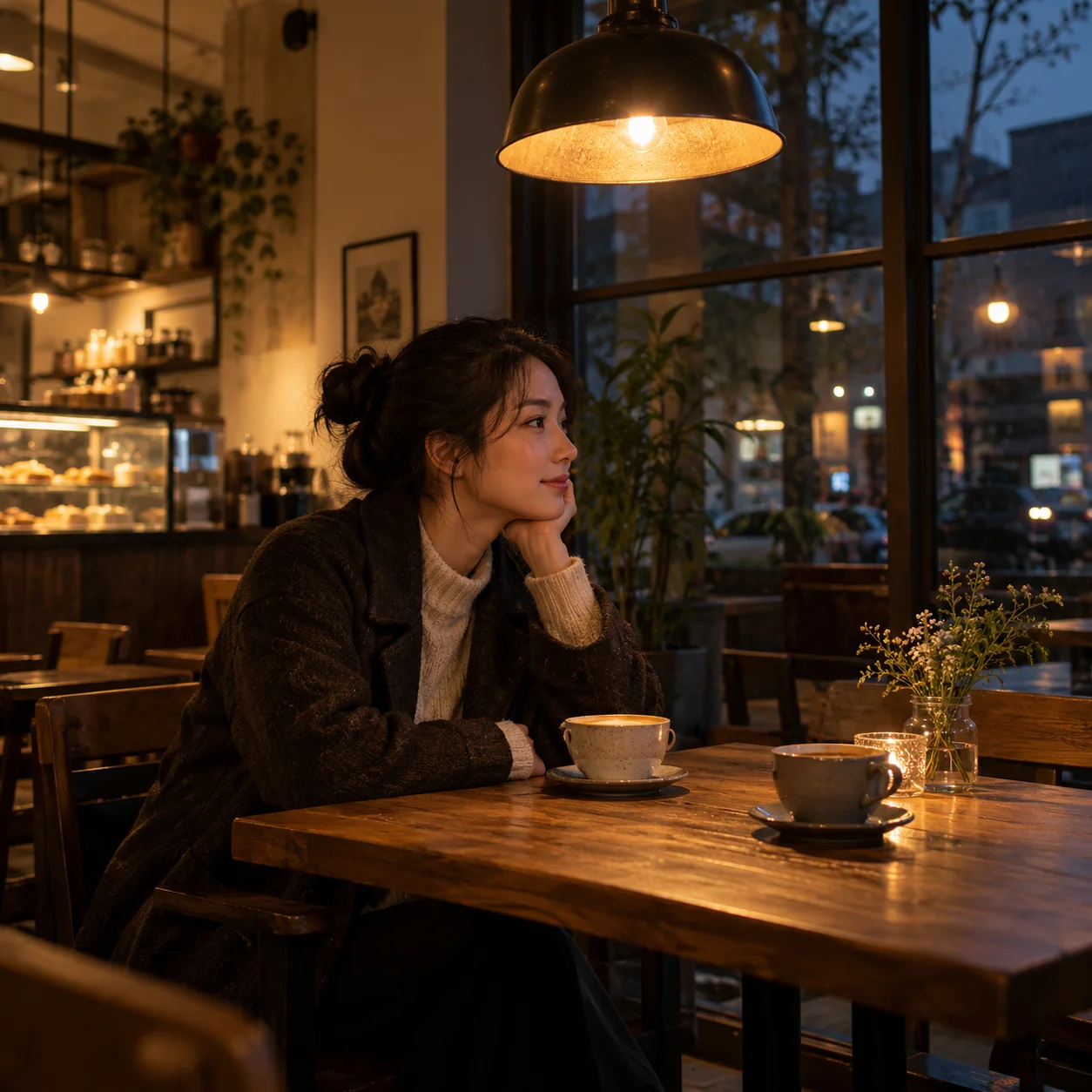
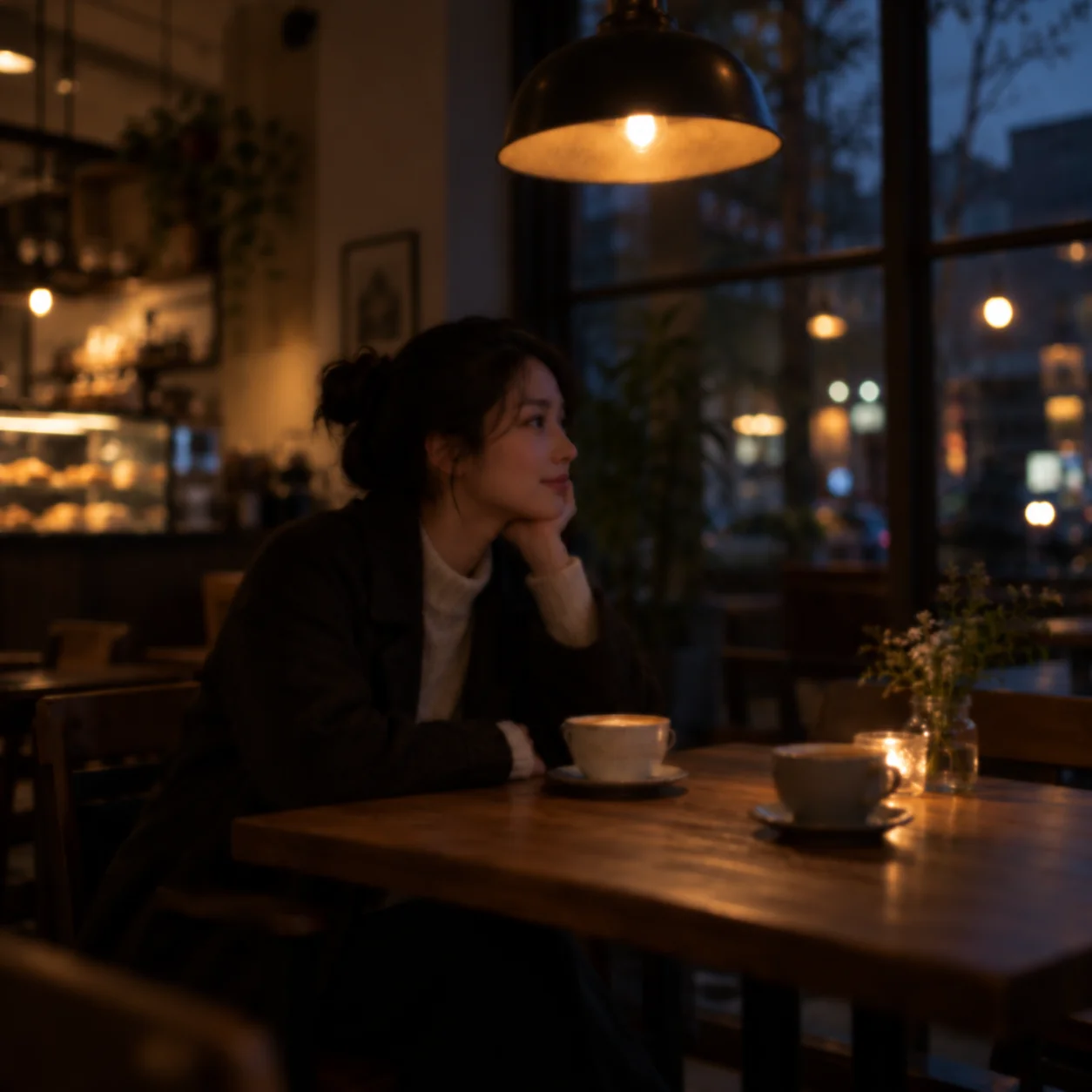
Brighten a Dim Indoor Scene
For a dark indoor image, compare the low light image enhancer result across both the subject and background. Check whether visibility improves without making the whole photo look washed out.
Low Light Image Enhancer for Dark and Underexposed Photos
A low light image enhancer is useful when a photo looks too dark to see clearly. Review how an AI-brightened preview affects shadow detail, faces, colors, and highlights before saving a copy.
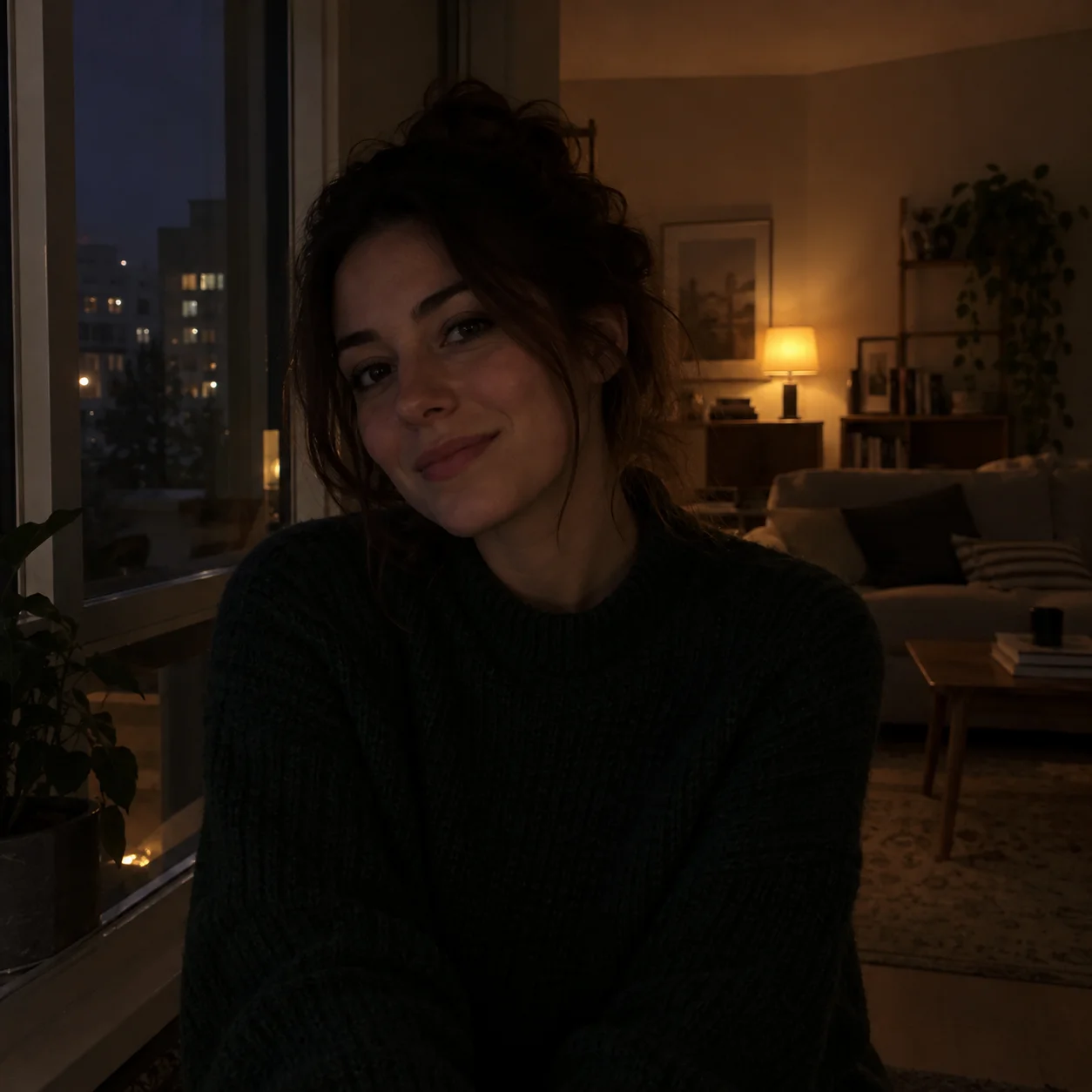
Brighten a Dark Photo
A low light image enhancer can make a face or other subject in a dark indoor photo easier to inspect. Compare the brighter preview with the source to see whether captured details are clearer.
Review Underexposed Images with a Low Light Image Enhancer
An underexposed photo can look dim across much of the frame. AI image brightening creates a revised version to review; it cannot recover information the camera did not capture.
For Dim Rooms and Night Scenes
A low light image enhancer can brighten an evening portrait, dim room, or night scene for review. Results vary with the original exposure and visible image detail.
Check Color and Highlight Detail
When using a low light image enhancer, check skin tones, bright areas, and shadow detail in the preview. If the image looks washed out or the subject still appears too dark, keep the original or try another photo.
A Practical Low-Light Photo Enhancement Workflow
A low light image enhancer can help you review a brighter version without manually adjusting exposure sliders. Compare the preview with the source, check the shadows and highlights, and use your judgment before saving.
How to Brighten a Dark Photo in 4 Steps
This low light image enhancer uses a short upload-and-preview workflow. Brighten a dark photo online, compare the result with your source, and decide whether it is right for you.
Upload a Dark Photo
Choose a dark photo or underexposed image with some visible scene detail. Upload it to the low light image enhancer to create a brighter version for review.
Let AI Enhance the Image
The low light image enhancer analyzes the photo and creates a brighter version for review. Results vary with the original exposure and image content.
Compare the Preview
Compare the preview from the low light image enhancer with the original using the slider. Check the subject, shadow detail, color, and highlights at a comfortable viewing size.
Save a Copy
If the preview from the low light image enhancer looks suitable, use the available download option to save a copy. Keep your original so you can choose between both versions.
What to Expect from a Low Light Image Enhancer
Use a low light image enhancer to create a brighter version of a dim photo, then compare shadows, faces, colors, and highlights with the original before saving.
Low Light Image Enhancer for Underexposed Photos
Use this low light image enhancer for dark indoor pictures and underexposed photos. The brighter version depends on available image information; nearly black areas may remain unclear.
Check Shadow Detail and Grain
A low light image enhancer can make shadowed faces, objects, and background areas easier to inspect in a brighter preview. Lifting dark tones can also make image grain or noise more noticeable.
Review Color and Contrast
Use the preview to check whether a dim scene looks clearer while its colors still feel appropriate. AI enhancement can change color and contrast, so compare the result with the original.
Compare Before and After
Use the before-and-after view from the low light image enhancer to inspect exposure, color, and visible detail. If the image still looks too dark or washed out, keep the source or try another photo.
Preview Before You Save
Review the available preview and download options before starting. Check the result against your original so you can decide whether the brighter version suits your photo.
Works on Any Device
Open this low light image enhancer in a modern browser on your phone, tablet, or computer. Upload a supported image to review a brighter version online, then compare it with the original on your screen.
From Low-Light Photo to Brighter Preview
Use this low light image enhancer in three steps: upload a dark photo, compare the brighter preview with the original, and save a copy if the result looks right.
01 Upload a dark photo
Upload a dark photo
02 Compare the preview
Compare the preview
03 Save a copy if it looks right
Save a copy if it looks right
Low-Light Photo Enhancement Scenarios
These low-light scenarios show the kinds of photos people may bring to a low light image enhancer: dim interiors, evening portraits, and night scenes. Compare each example and judge where a brighter preview may be useful.
A dim indoor portrait with the face partly hidden in shadow.
Indoor Portrait
An evening family gathering photographed under soft, low indoor light.
Evening Gathering
A night street scene with darker foreground details and bright lights in the background.
Night Street Scene
A café interior in which tables and faces are difficult to see in the available light.
Dim Indoor Scene
An evening outdoor portrait with a shadowed subject against a darker background.
Evening Portrait
An underexposed room with visible window and furniture details to compare in the brighter preview.
Underexposed Room
Low Light Image Enhancer FAQ
Learn what to expect when using an online low light image enhancer for dark and underexposed photos.
Try the Low Light Image Enhancer on a Dark Photo
Try a low light image enhancer on an underexposed or dim image to preview an AI-enhanced result. Compare the brighter photo with your original, check faces, shadows, colors, and highlights, then decide whether to download it.