
Remove Glare from Photo Online
Remove glare from photo in a few steps with an AI-assisted edit. Upload a portrait with glasses glare, a picture with a bright sunlight hotspot, or an image photographed through reflective glass. Compare the edited photo beside the original to judge whether visible glare is reduced and whether nearby eyes, edges, and colors still look natural. Results depend on the source image; light that fully obscures detail may not be recoverable.
Drag your image here, or
Reference Image (Max 50MB)




See Photo Glare Removal Before and After
Explore planned before-and-after photo examples for common glare and reflection problems. Each future comparison will show the original photo, the distracting glare, and the edited result.


Remove Glare from Glasses in a Photo
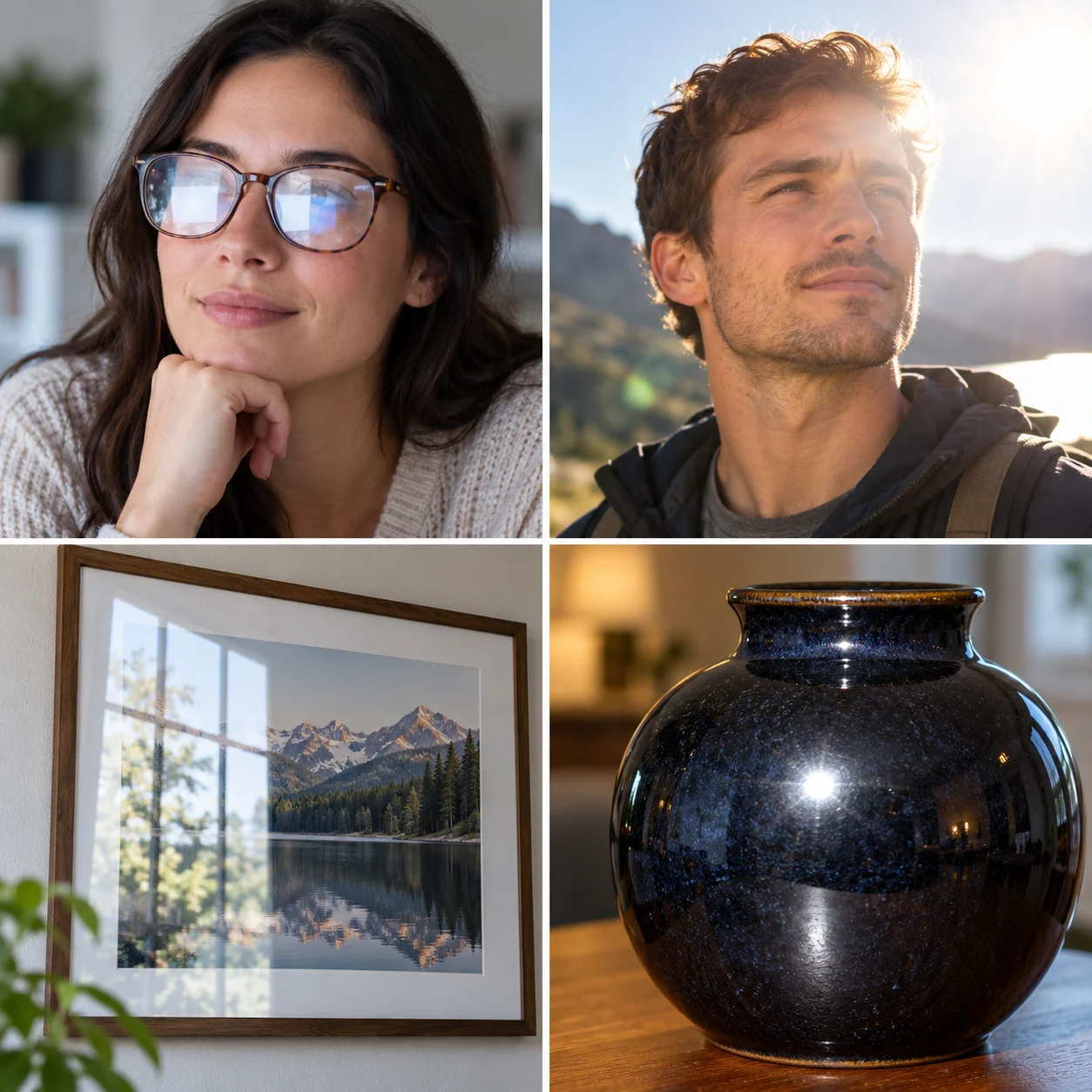
Planned glasses-glare removal example: compare a portrait with bright reflections across the lenses against an edited version with less distracting glare. This is a common reason to remove glare from photo portraits, where a lens reflection can pull attention away from the eyes. Review eye shape, frame edges, and skin tones carefully because results depend on visible source detail.


Reduce Sun Glare in a Photo
Planned sun-glare photo example: see the same picture before and after reducing a bright light spot. If you remove glare from photo highlights, check whether nearby sky, skin, and clothing retain natural tones. Strong highlights can hide detail, so inspect the edited area before saving.
Remove a Glass Reflection from a Photo
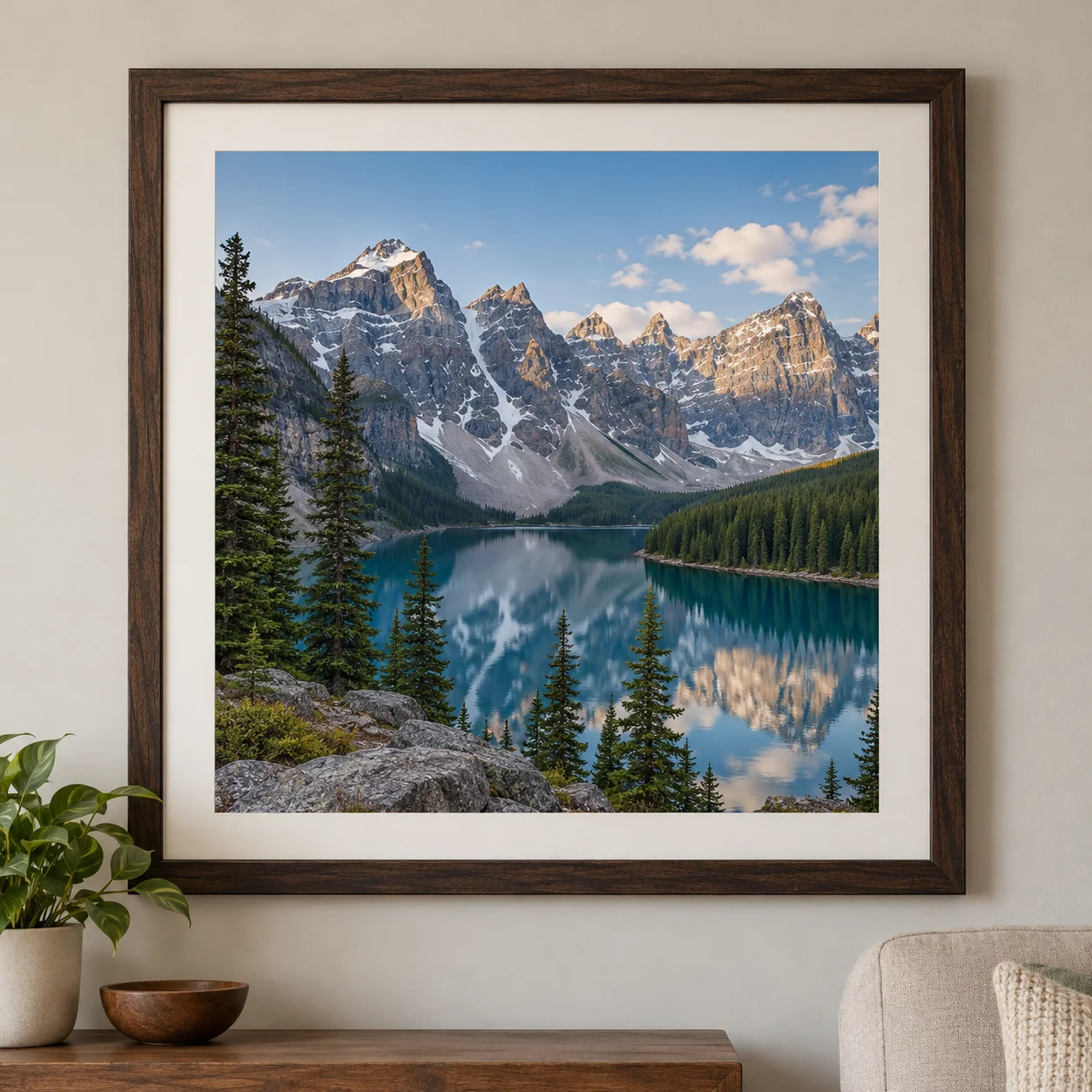
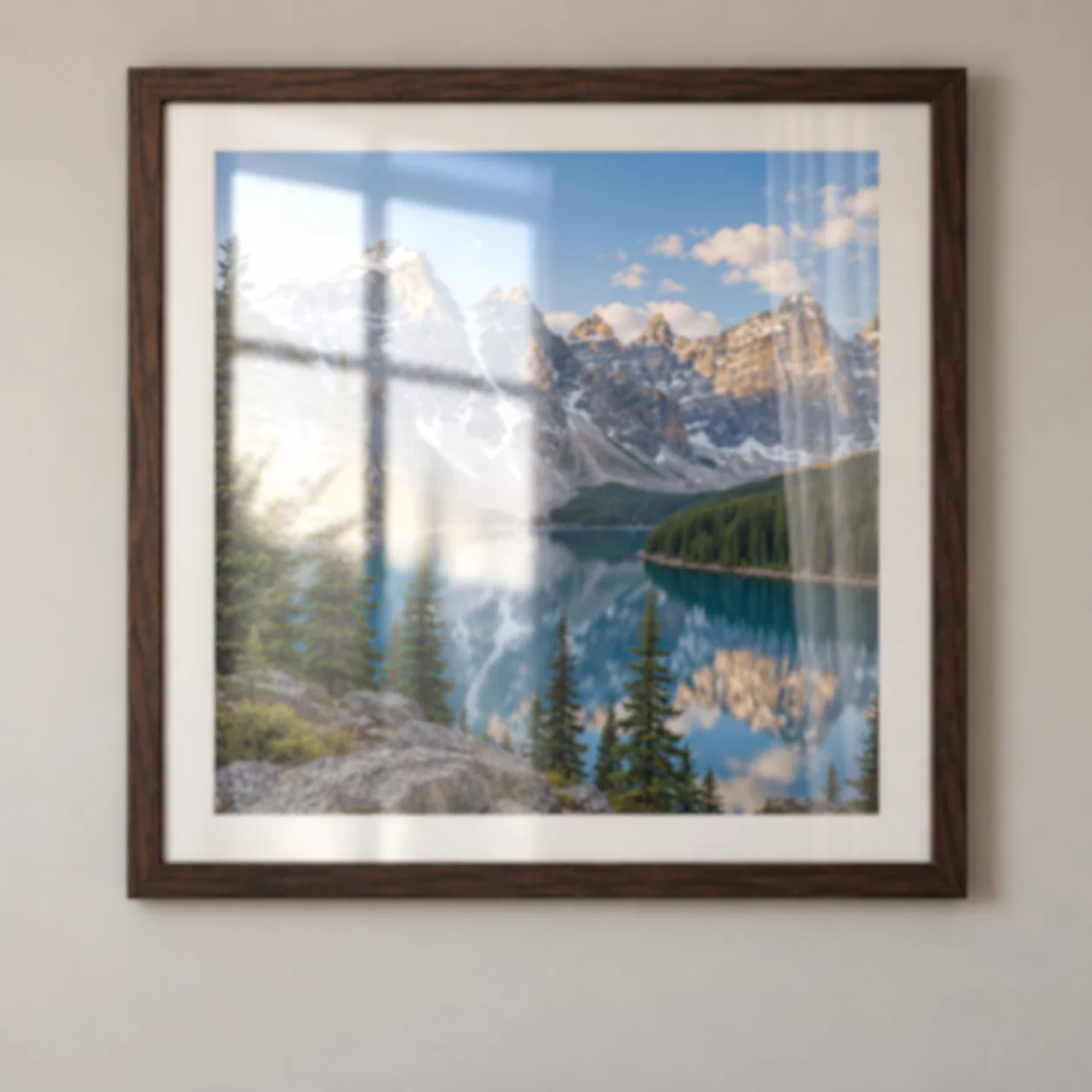
Planned reflection removal example: compare a photo of a framed picture behind glass before and after reducing reflected window light. The intended result makes the artwork easier to view while preserving frame lines and nearby room details. Check that important edges and image details still look natural.
Reduce Light Glare and Bright Hotspots
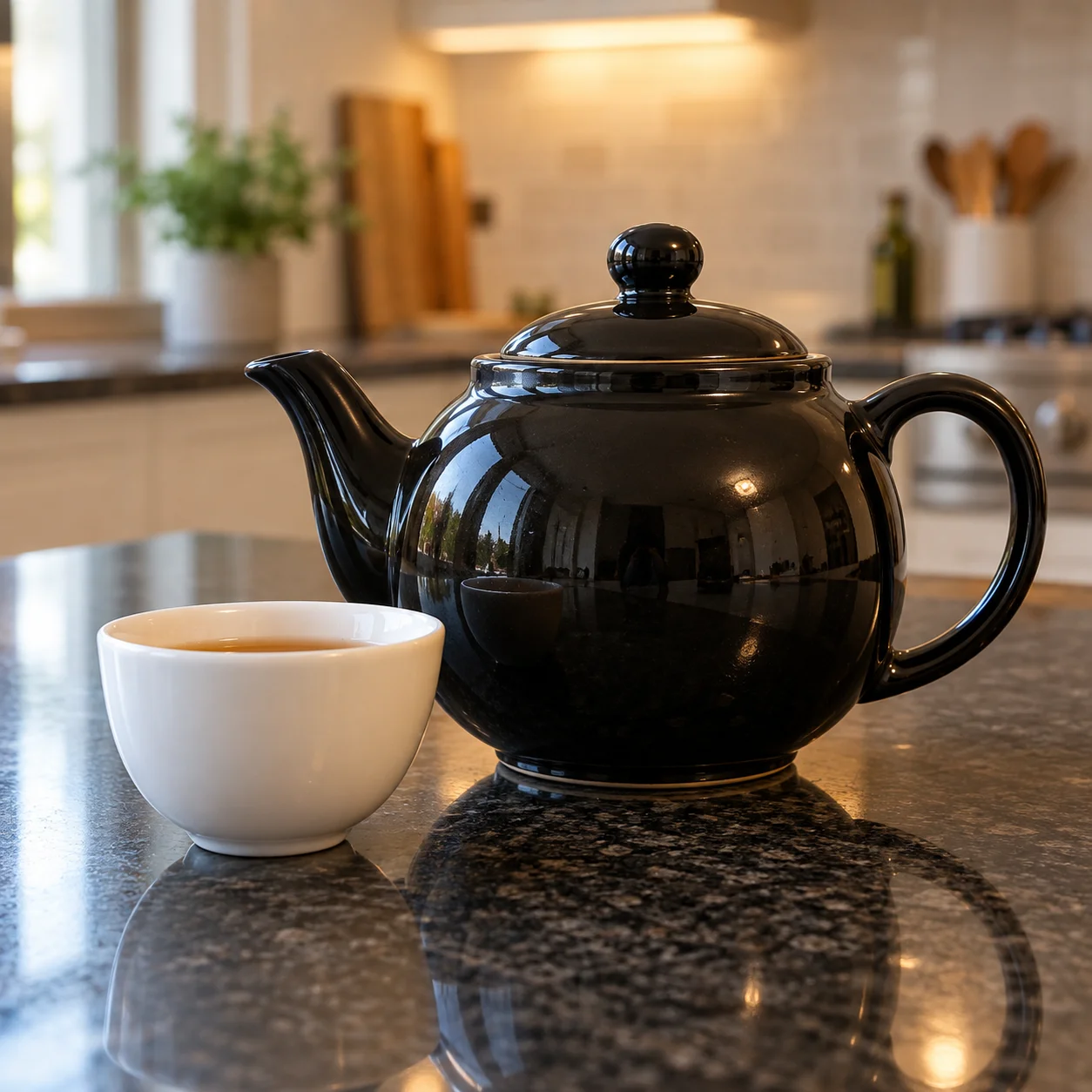
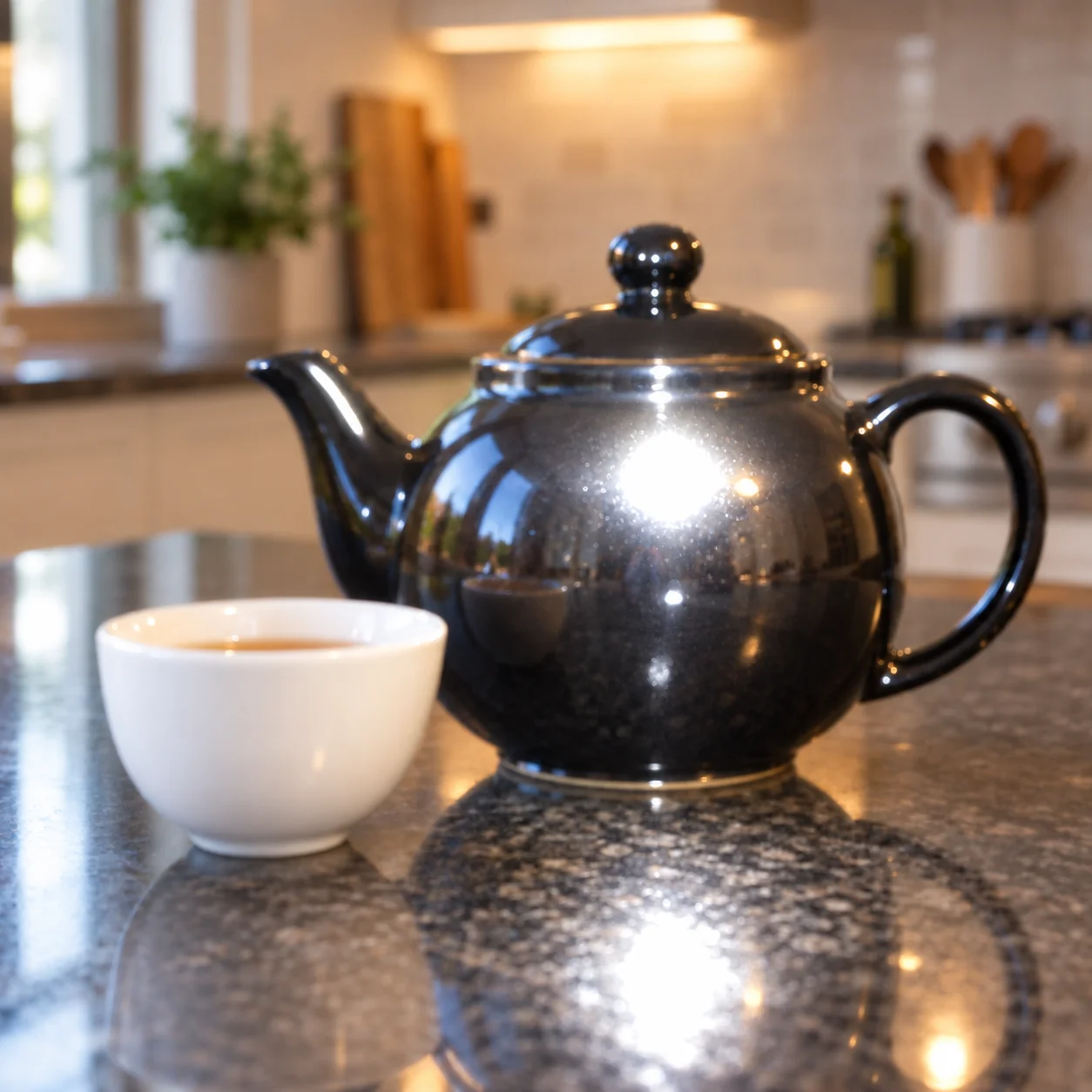
Planned light-glare example: see how a photo glare remover may reduce a flash hotspot on a reflective surface. When you remove glare from photo images of shiny objects, compare highlights and edges to make sure the object still looks plausible. Results vary, especially when glare fully obscures the photographed detail.
Remove Glare and Reflections from Photos
When you remove glare from photo examples, the source matters: a reflection on eyeglass lenses behaves differently from a sun flare, flash hotspot, or window reflection. This guide explains the common patterns, what an AI-assisted edit may change, and which details to inspect afterward. The goal is to make distracting reflected light less prominent while keeping the rest of the scene believable. Results vary with exposure and the visible detail around the glare.
Glare on Glasses
To remove glare from photo portraits with glasses, start with a clear view of the face and a reflection that covers only part of each lens. A window, lamp, or camera flash can create a bright streak that competes with the eyes. Compare the lens area before and after editing, then check eye shape, pupils, frame edges, and skin tone. If the reflection hides an eye completely, the result may need careful review because the source image contains little information to recover.
Sun and Light Glare
Sun glare may appear as a washed-out patch, a hard bright spot, or flare across a portrait or outdoor scene. When you remove glare from photo highlights, inspect the transition between the edited area and nearby sky, skin, or clothing. A convincing edit should not make the whole picture darker simply to hide one bright region. Strongly overexposed areas can lack recoverable texture, so compare with the original and judge the visible improvement rather than expecting missing detail to reappear.
Reflections on Glass
Window reflections can layer indoor objects, sky, or bright lamps over the subject behind the glass. A photo of framed artwork may also catch room light across the surface. If you remove glare from photo images taken through glass, look at the subject boundary, straight frame lines, lettering, and repeated textures. These checks help reveal unwanted changes outside the reflection. The edit may reduce distracting reflected light, but it cannot always separate overlapping details cleanly when both layers occupy the same area.
Review the Edited Details
After you remove glare from photo areas, zoom in on faces, text, object edges, and color transitions near the edit. A bright reflection can hide information, and an AI-assisted result may reconstruct rather than reveal that missing detail. Compare at the same scale as the original, check whether the rest of the scene has changed, and keep the original if an important feature looks different. A careful review is especially useful for eyes behind glasses and details under clipped highlights.
Why Use an AI Photo Glare Remover?
An online photo glare remover offers a guided way to try reducing reflected light without manually tracing every bright region. When you remove glare from photo images, the goal is to make the subject easier to see while preserving the surrounding scene. The AI-assisted edit is a starting point, not a guarantee: compare the output with the source, especially where glare overlaps a face, text, or a detailed surface.
How to Remove Glare from a Photo in 4 Steps
This guide walks through how to remove glare from photo uploads with the available AI-assisted editing workflow. Choose a clear source, start the edit, and compare the preview with the untouched original. Take time to examine both the reflected-light area and nearby details; the best next step depends on how much information the glare covers and whether the result fits your intended use.
Upload a Photo with Glare
Choose a picture with distracting glare, such as a portrait with reflected light on glasses, a bright sun spot, or a photo taken through glass. For a useful first attempt, select the highest-quality original available and avoid a screenshot or heavily compressed copy. Clear surrounding detail gives you more to compare after the edit.
Process the Photo
Start the AI-assisted edit and allow the photo glare removal workflow to process your upload. The editor analyzes the image and returns an edited version; the time and visible result can vary. A small reflection with surrounding texture may be easier to review than a large, fully clipped highlight.
Review the Before-and-After Result
Compare the edited photo with the original side by side. Check the glare area, visible eyes or objects, colors, and nearby edges before deciding whether the result looks right. Zoom in for fine detail, then zoom back out to see whether the overall image still feels balanced. This review matters when you remove glare from photo portraits or reflective surfaces with important detail behind them.
Save the Edited Photo
Download the edited image if it meets your needs and the available account or credit requirements are clear. Strong reflections or fully obscured details may limit what an edit can realistically recover. Keep a copy of the source photo, especially if you plan to use the edited image for a project where accurate details matter.
A Simple Way to Remove Glare from a Photo
Use this online workflow to remove glare from photo uploads affected by reflected light or bright hotspots. The editor prepares an AI-assisted result that you can compare with the original, inspect at full size, and download if it suits your needs. No manual masking is required for the initial edit, though the result depends on the image and should be checked before sharing or printing.
AI Photo Glare Removal
The AI-assisted workflow can help remove glare from photo areas where reflected light distracts from the subject. It may reduce visible reflections on lenses, glass, or glossy surfaces and tone down a bright hotspot. The edit is not guaranteed to recover detail that was fully obscured, so inspect faces, edges, and nearby colors before keeping the result.
Review Reflection and Edge Detail
Check how the edit handles the affected area and its nearby edges. Review the result closely where reflections overlap important details, such as eyes, text, or a patterned surface. If the glare is reduced but the subject changes, keep the original and try a different source photo when available.
Review Color and Skin Tones
Review skin tones and colors around the edited area to make sure reducing glare has not changed details that should remain natural.
Before-and-After Comparison
Compare the original and edited photo at a consistent zoom level. Look for reduced glare, preserved subject features, natural colors, and clean transitions around the adjusted area. Download only after checking the details that matter for your picture.
Preview Before Saving
Upload a photo to check the available editing and preview workflow before deciding to save a result. Account, credit, or download requirements may apply to some actions, so review the current tool prompts. Compare the preview with your source image before spending credits or using the edited file elsewhere.
Edit in Your Browser
Open the photo glare remover in a current desktop or mobile browser and upload a supported image. You can review an edit without installing desktop software, then decide whether it is suitable for your intended use. A larger screen can make it easier to inspect small details around glasses, reflections, or bright spots.
Frequently Asked Questions About Removing Glare from Photos
Learn how this online photo glare remover handles reflections, glasses glare, bright hotspots, previews, and image limitations.
Ready to Remove Glare from Your Photo?
Upload a photo with distracting glare or reflections, review the AI-edited result beside the original, and decide whether it is ready to save. Results depend on the image and how much detail the glare hides.