
Contrast Enhancer for Flat, Washed-Out Images
Use this contrast enhancer to give a flat or washed-out photo more tonal separation. Upload an image, describe the contrast you want, then preview the AI-generated result before downloading.
Drag your image here, or
Reference Image (Max 50MB)


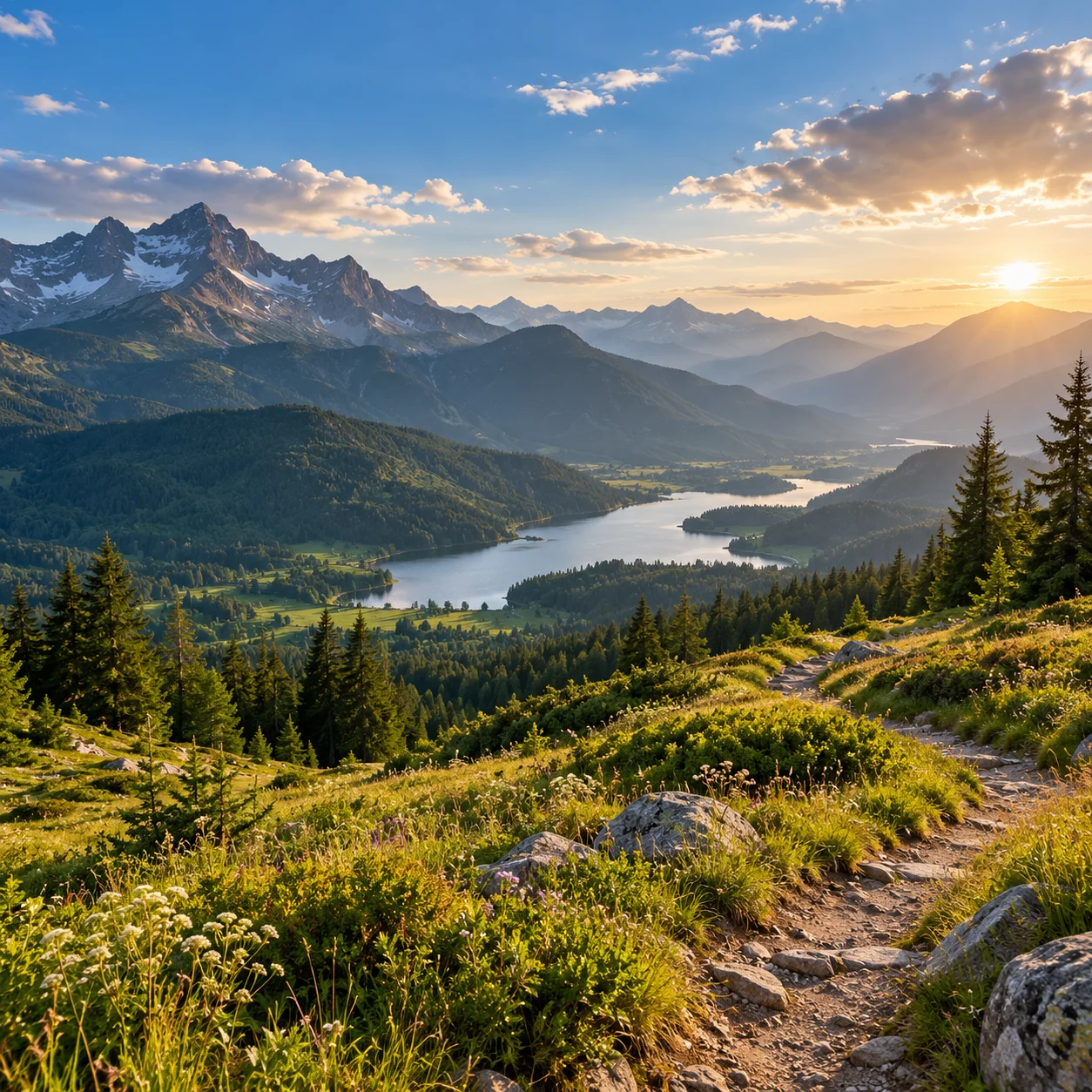
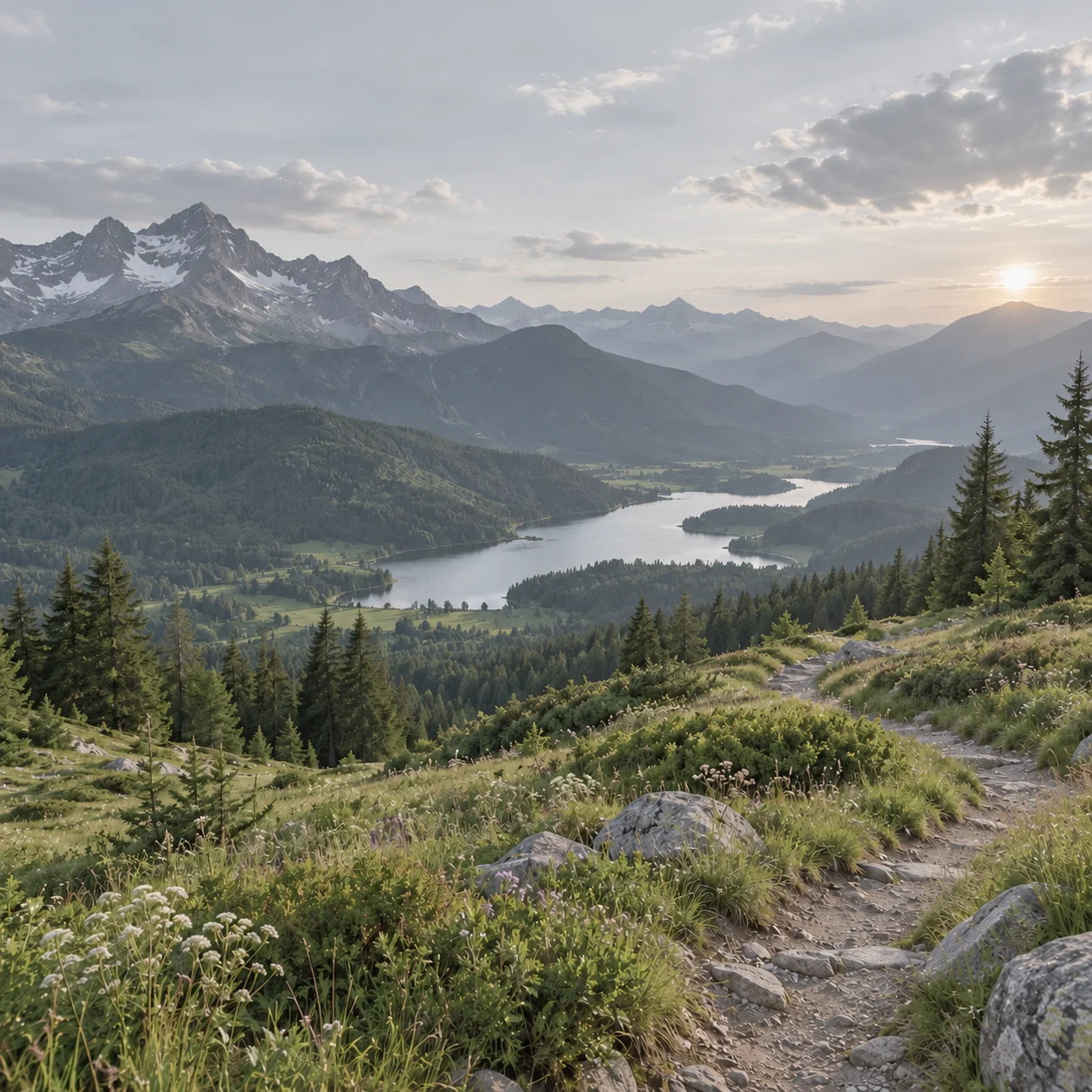
Compare Contrast Enhancer Results
A useful image contrast editor and contrast enhancer should make tonal changes easy to judge. These planned before-and-after examples will show a flat original beside an AI-enhanced version, so you can compare highlight and shadow separation, midtone clarity, and the overall look before trying your own image.
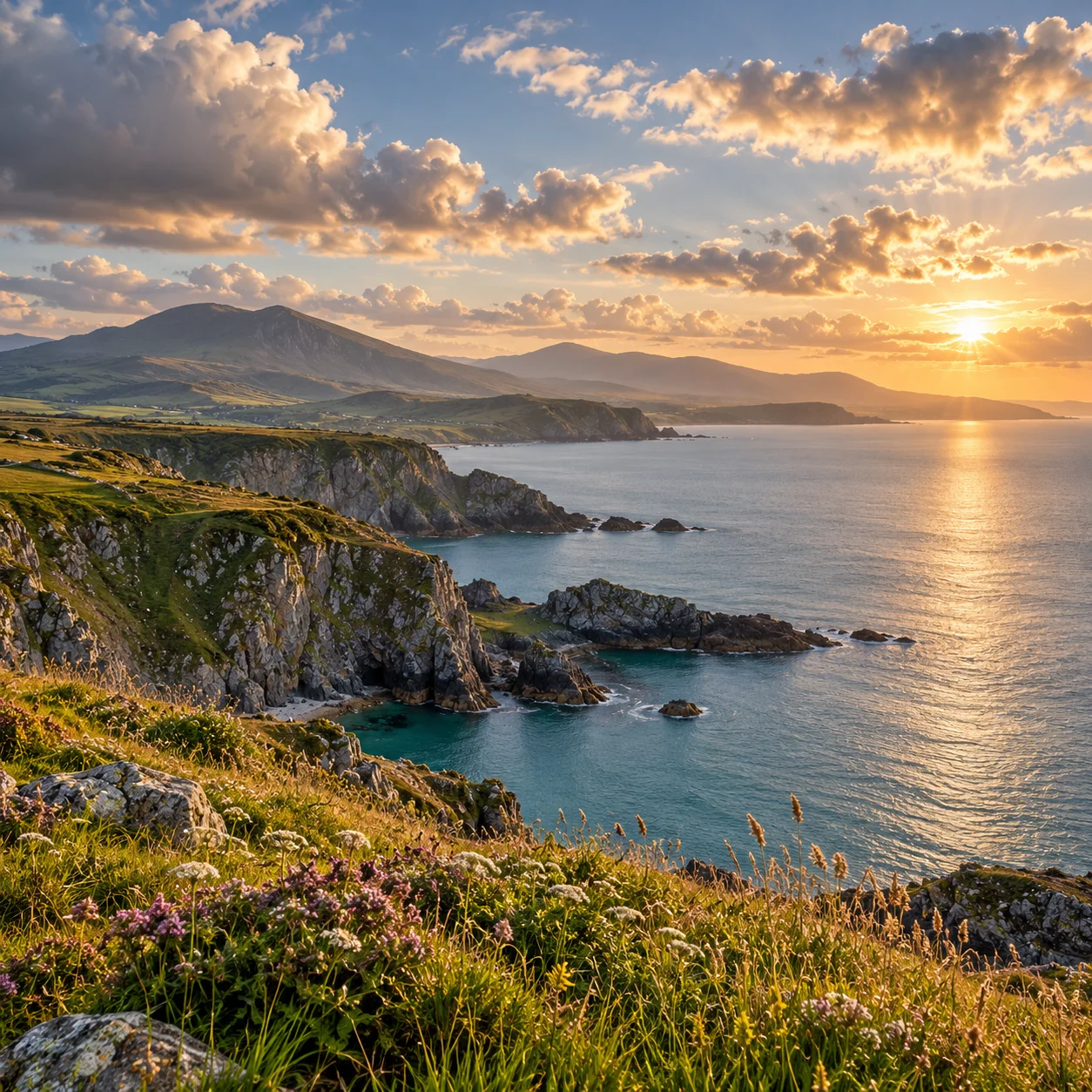
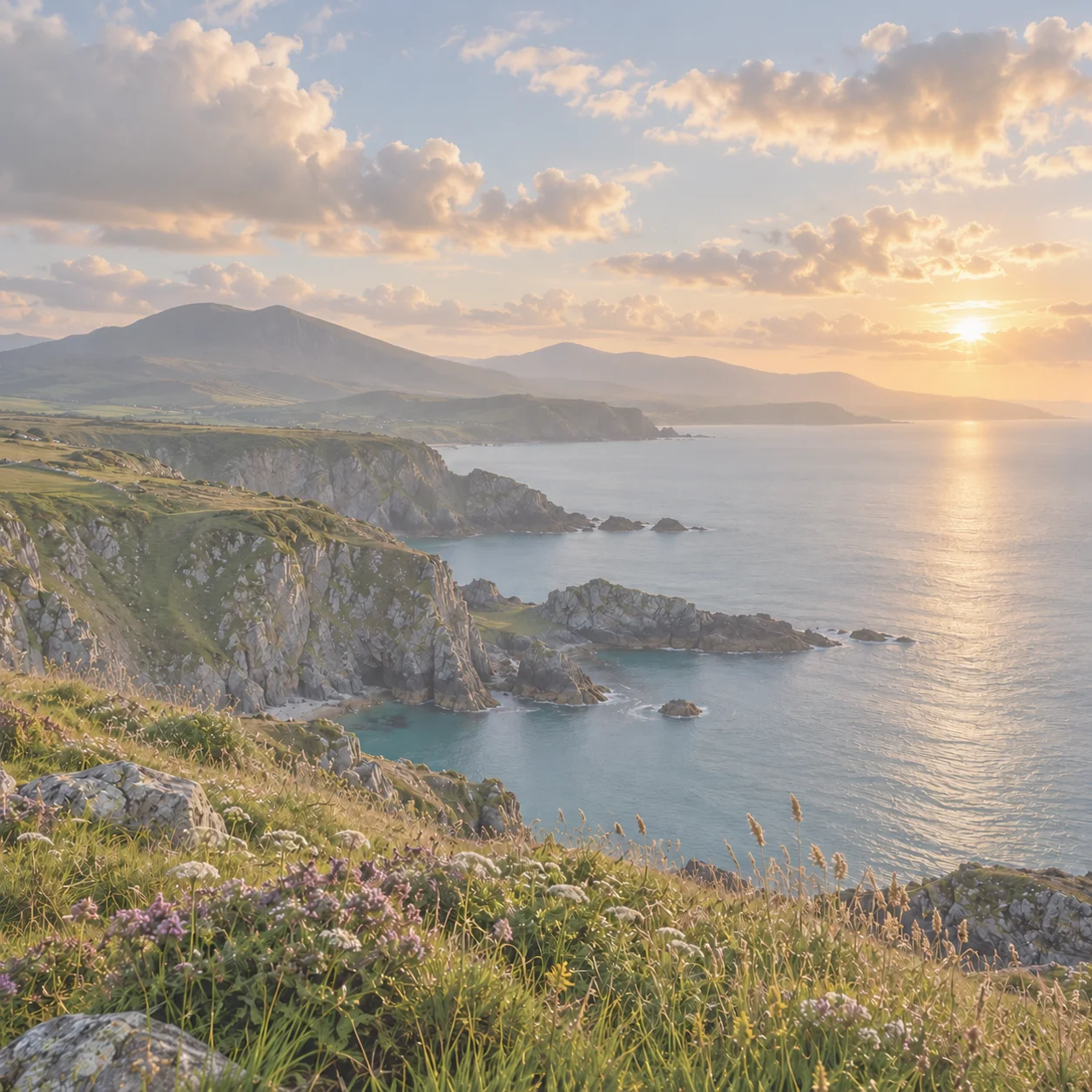
Improve a Flat Landscape Photo
The first contrast enhancer example will show a softly lit outdoor photo with muted tones beside a version with clearer separation between the sky, landscape, and foreground. This contrast enhancer result should look more defined while keeping natural color and visible detail, not turning every shadow into solid black or every bright area into white.
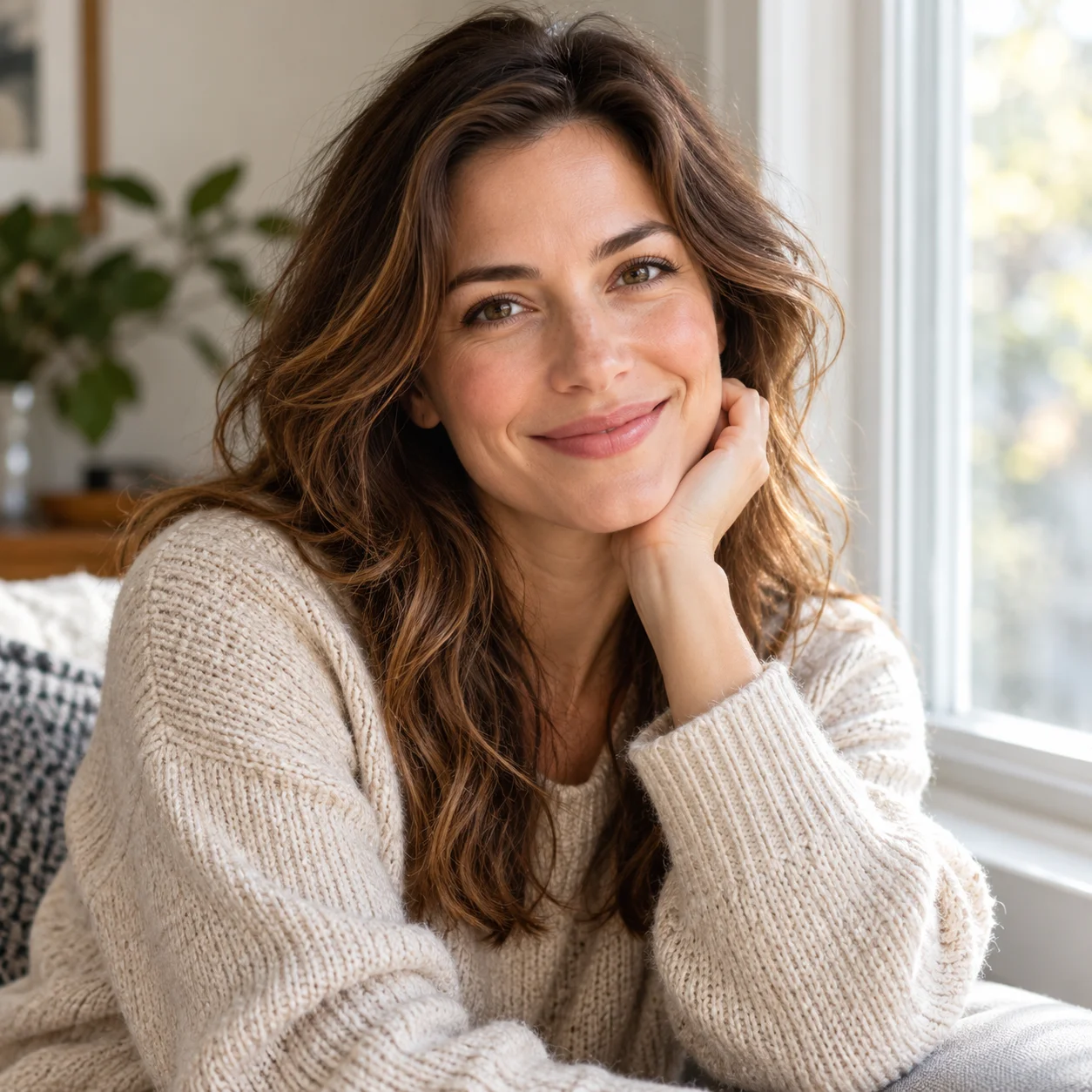

Add Definition to a Low-Contrast Portrait
A low-contrast portrait can look hazy when skin, hair, clothing, and the background blend into similar tones. This photo contrast editor example will demonstrate a moderate tonal adjustment that helps the subject stand apart while preserving realistic skin color and a natural expression. Review the contrast enhancer image closely before saving it.
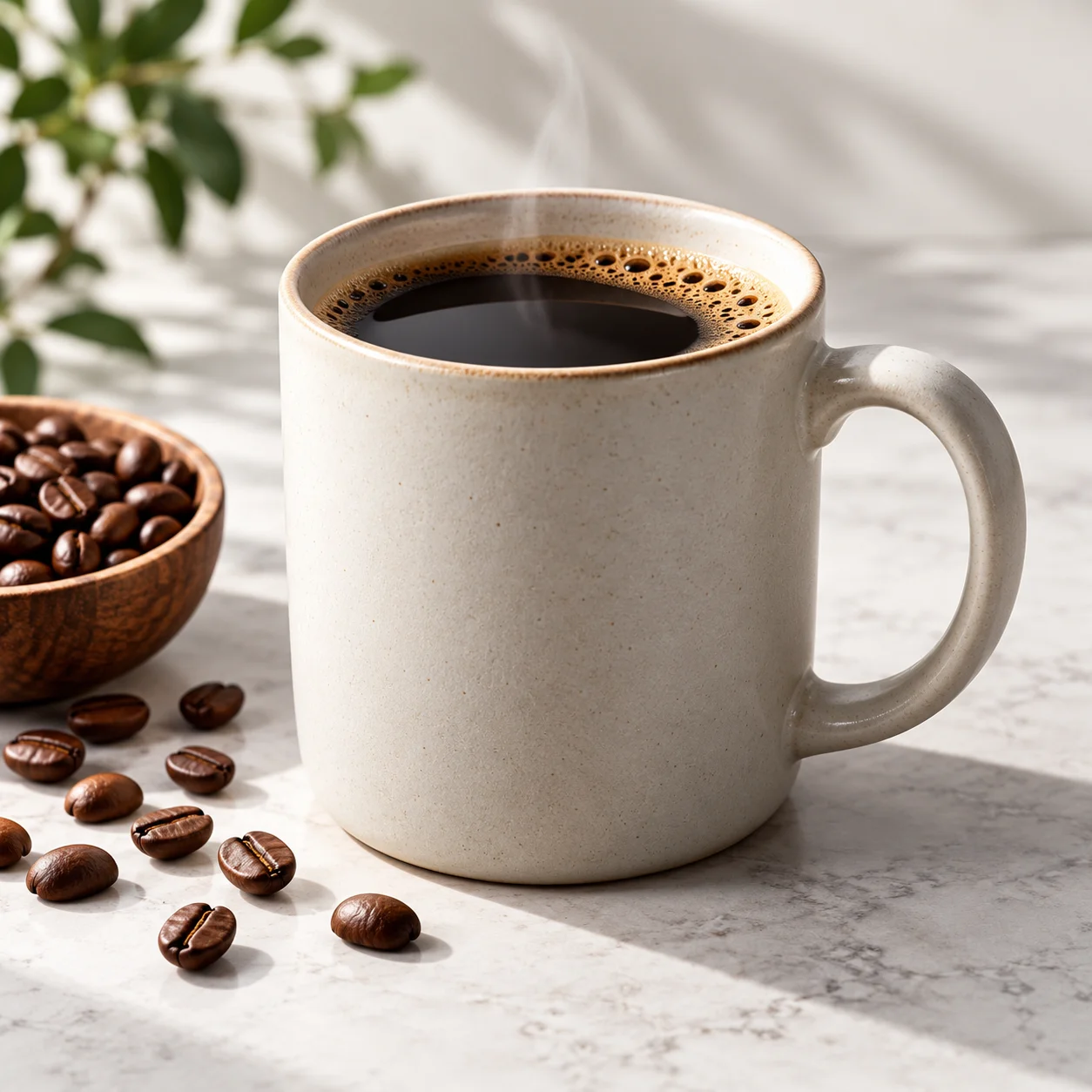
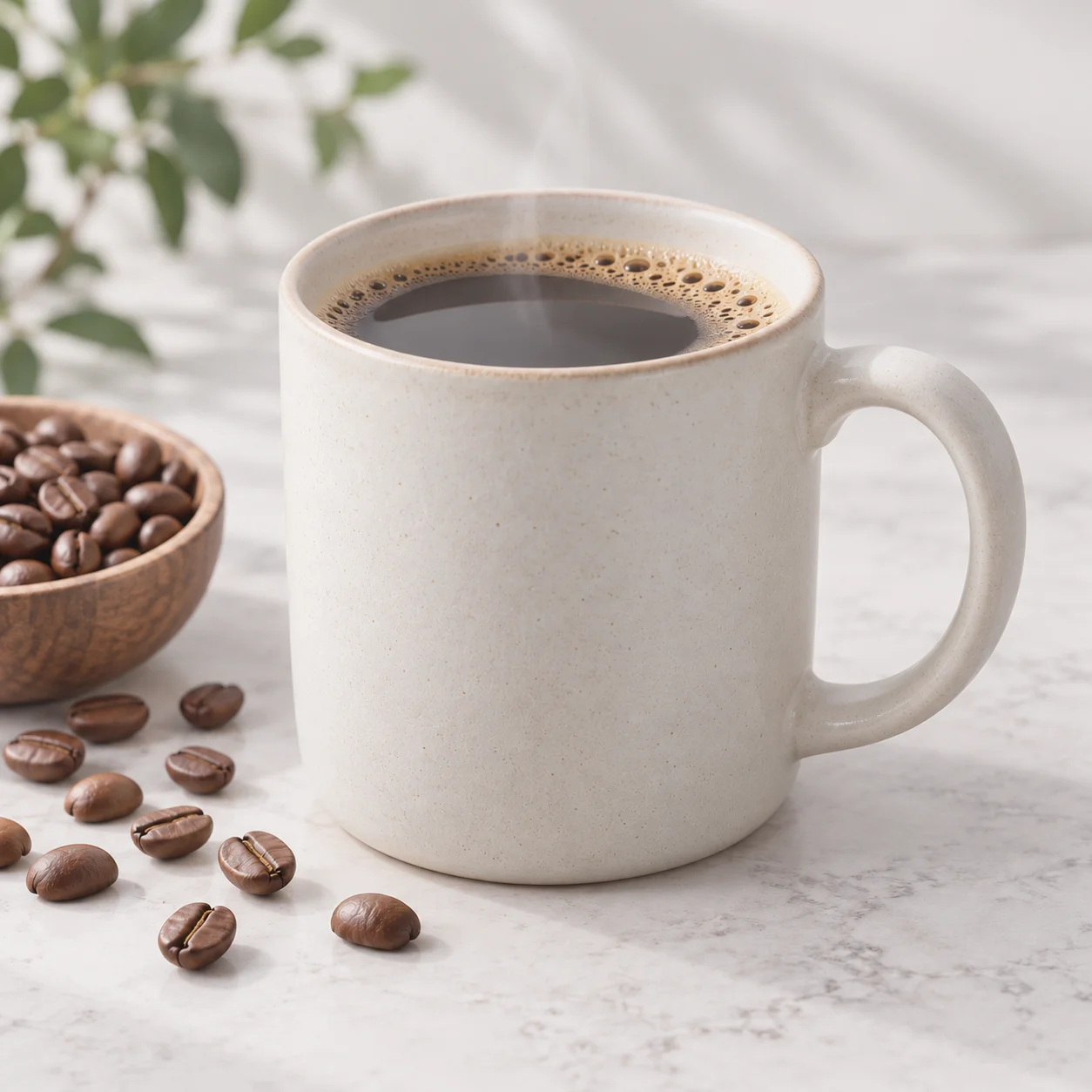
Bring More Definition to Product Images
Product photos need enough tonal separation to reveal shape, material, and surface detail. In this contrast enhancer preview, a washed-out product image will be paired with a clearer version that gives the object more definition. This contrast enhancer example should also remind you to check logos, labels, fine edges, and product colors after AI editing so the final visual remains accurate for its intended use.
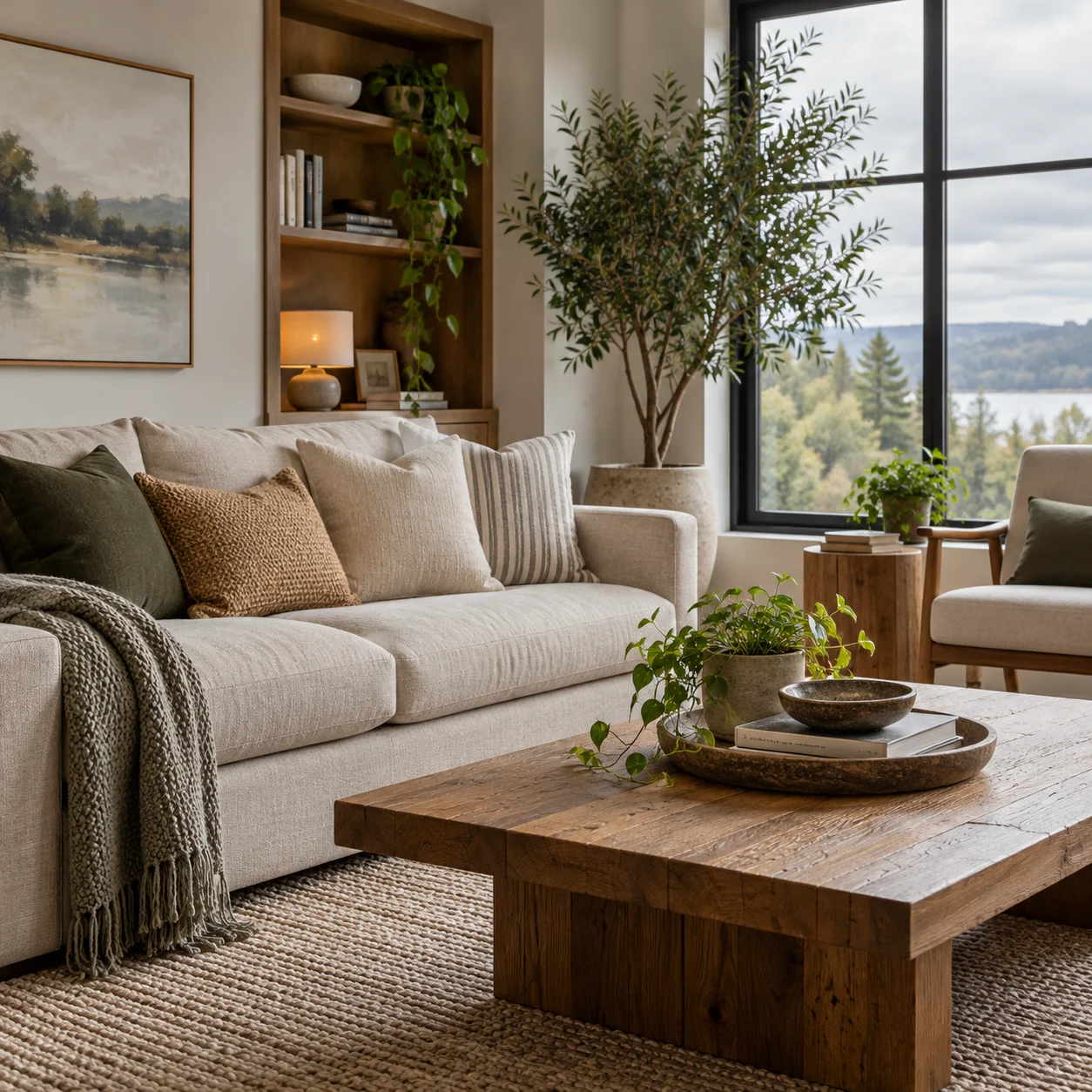
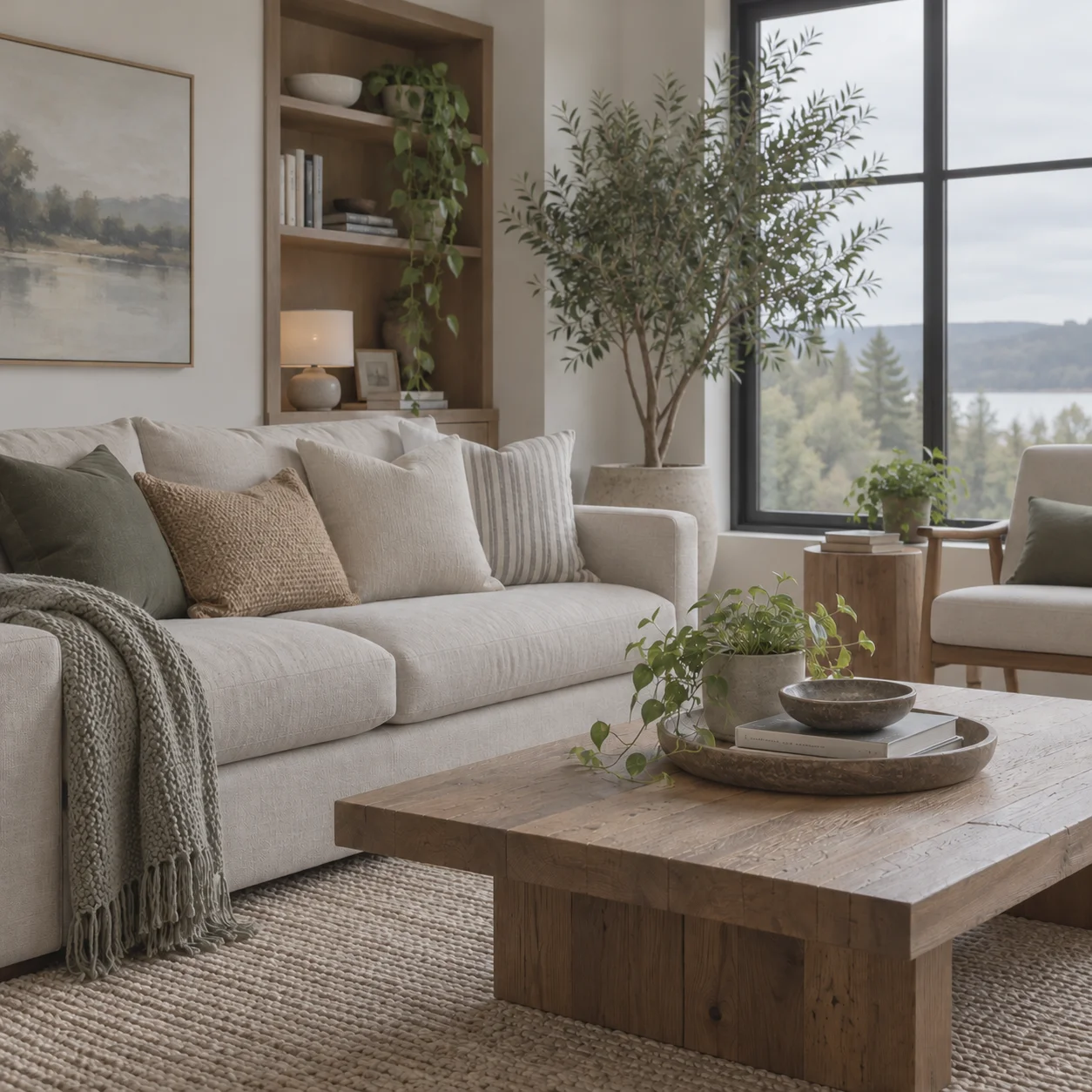
Give a Washed-Out Photo More Depth
Indoor and overcast photos can appear dull when the light and dark areas sit too close together. This image contrast enhancer example will compare a subdued original with an AI-generated result that has more depth across its tonal range. Use a contrast enhancer for a balanced change that improves definition without making the scene look harsh or unnaturally dramatic.
How a Contrast Enhancer Improves a Flat Image
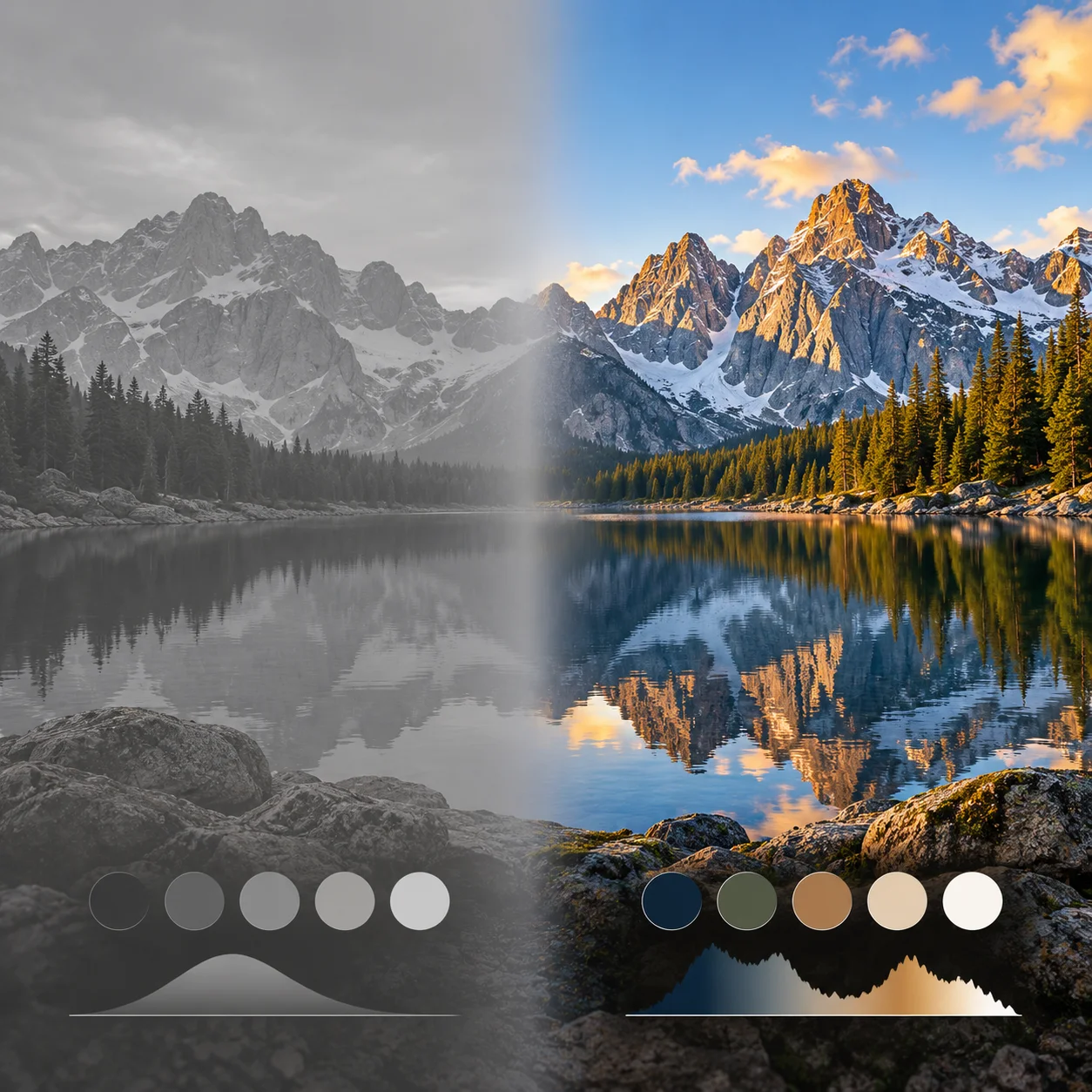
A contrast enhancer is useful when an image looks flat, gray, or washed out because bright and dark areas blend together. This AI contrast enhancer concept image will explain tonal separation and show how a measured edit can add definition while keeping important detail visible.
What Image Contrast Changes
Image contrast describes the visible difference between the lighter and darker parts of a picture. When those tones sit too close together, the result may look dull or hazy. Use a contrast enhancer to create more separation so shapes and textures are easier to see.
Recognize Flat or Washed-Out Photos
A low-contrast image often has compressed tonal range: shadows look lifted, highlights feel muted, and midtones lack definition. A contrast enhancer can help when a photo appears flat, but assess the whole frame so added depth does not hide details in dark or bright areas.
Common Causes of Low Contrast
Overcast light, haze, backlighting, a faded scan, or a subdued camera exposure can reduce the visible separation in a photo. Ask the contrast enhancer to improve tonal definition while keeping the scene and its colors as natural as possible.
Keep the Tonal Result Balanced
More contrast is not always better. Strong edits can clip highlights, crush shadows, exaggerate texture, or make skin and product colors look unnatural. Describe the result you want in measured terms, then compare the AI output with your original before using it.
Why Use an AI Contrast Enhancer?
A traditional contrast adjuster gives you a direct slider, while this AI contrast enhancer uses an image-to-image workflow. Upload a photo and describe the change you want in the prompt area. The contrast enhancer creates a new image, so compare it with the original and make sure it still suits your purpose.
How to Use a Contrast Enhancer in 4 Steps
Use this AI contrast enhancer in four straightforward stages: upload an image, explain the tonal improvement you want, generate a result, and review it before downloading.
Upload a Low-Contrast Image
Choose a flat, gray, hazy, or washed-out image from your device and upload it to the contrast enhancer. Start with a clear source file when possible, because compressed or very small images can limit the detail visible in the final result.
Describe the Contrast Improvement
Describe the change in plain language. For example, ask the AI contrast enhancer to add moderate tonal separation, define the subject, and preserve natural colors, skin tones, shadow detail, and the original composition. A contrast enhancer prompt can also specify what the AI should leave unchanged.
Preview and Compare the Result
Generate an image-to-image result and compare it with your source. Check whether the contrast enhancer output looks balanced, whether important highlights and shadows remain visible, and whether the AI has changed any details you need to keep.
Download the Image You Prefer
Download the enhanced image when the tonal result looks right for your use. If a contrast enhancer result feels too harsh or alters the subject, refine your description and generate another version, or return to the original.
What You Can Do with a Contrast Enhancer
Use this AI image contrast editor and contrast enhancer to work on flat photos, muted portraits, hazy landscapes, or product images that need clearer tonal definition. Describe the change you want, generate an image-to-image result, and review it carefully because generative editing can alter details as well as contrast.
Improve Tonal Definition with AI
Ask the AI contrast enhancer to improve separation between dark, middle, and bright tones in a flat image. Use a moderate description when you want more depth without an overly dramatic look, and compare the generated contrast enhancer result with your original.
Keep Important Details in View
A photo contrast editor focuses on tonal separation, not guaranteed object removal or repair. If your image also contains scratches, text, or other details that must remain exact, state that in your prompt and inspect the contrast enhancer output before using it.
Keep Color Relationships Natural
A contrast enhancer can make color relationships easier to read by separating similar tones. Ask for subtle contrast improvement while keeping the source palette natural, then inspect the result for shifts in hue, saturation, or skin tone.
Understand Contrast Versus Sharpness
Contrast and sharpness affect different qualities. A contrast enhancer changes how light and dark areas stand apart, while sharpening emphasizes edges. If you only need more tonal depth, ask for contrast improvement without extra sharpening or invented texture.
Check Generation and Credit Details
Review the current plan and credit information shown in the tool before generating. The contrast enhancer uses the site’s image-generation workflow, so availability, previews, downloads, or credit requirements may depend on your account and selected options.
Use the Online Image Contrast Editor
Open the photo contrast editor in a modern browser on desktop, tablet, or phone. Upload a supported image, enter a natural-language instruction for the contrast enhancer, and follow the page controls to generate and review your image.
Contrast Enhancer Use Cases
Different image types need different contrast treatment. Use these contrast enhancer scenarios to plan what to check when reviewing an AI image contrast editor result.
For a hazy landscape, ask the contrast enhancer to define the horizon and foreground while keeping sky texture and distant detail visible.
Use case: landscape photo
For a low-contrast portrait, request clearer subject separation with natural skin tones, soft highlight detail, and realistic shadows.
Use case: portrait photo
For a product image, describe the definition you want and check that the AI has kept the product color, label, edges, and material appearance accurate.
Use case: product photography
For an indoor photo, ask for balanced tonal separation that lifts a dull scene without crushing shadows or making window highlights look harsh.
Use case: indoor lighting
For a faded or scanned image, request more midtone definition and compare small text, faces, and edges with the original before sharing the result.
Use case: scan or faded image
For a social image, use a restrained contrast change that makes the subject easier to read on screen while keeping the overall color and atmosphere consistent.
Use case: social content
Contrast Enhancer: Frequently Asked Questions
Learn how this AI contrast enhancer works, what image contrast changes, and how to review generated results.
Give a Flat Photo More Definition
Upload a low-contrast image and describe the tonal improvement you want. Generate an AI-edited version, compare it with your original, and download the result when it looks right. This contrast enhancer is designed for image-to-image editing, so review important details before saving or sharing the output.