
Unblur Text in Images with AI
Unblur text in an image online with a simple upload and preview workflow. Use this AI text enhancer to unblur text in screenshots, scans, receipts, notes, or photos when the letters are still partly visible. Compare the result with the source, check important wording, and download the clearer image if it helps.
Drag your image here, or
Reference Image (Max 50MB)


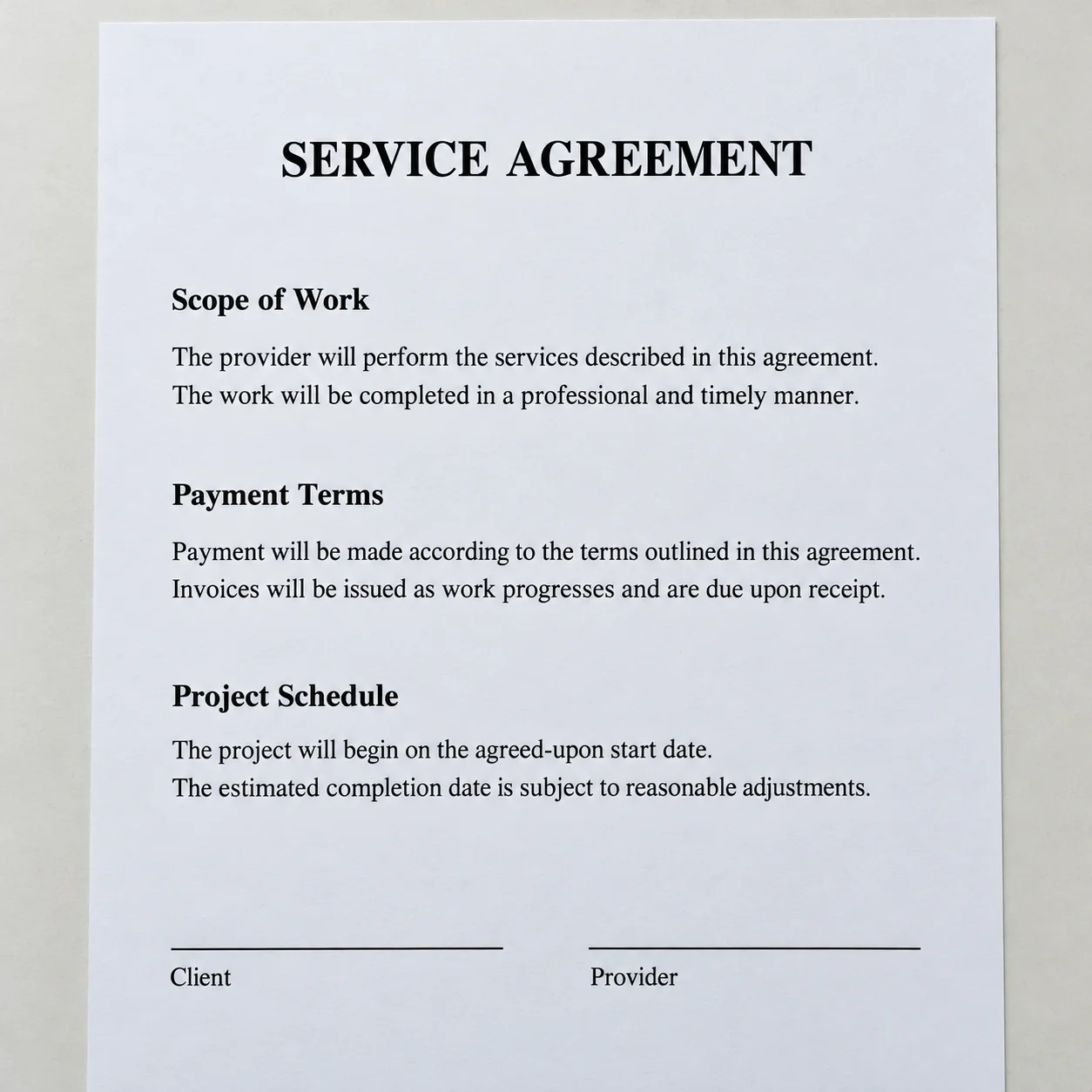
See How to Unblur Text in an Image
Explore examples of how to unblur text in screenshots, scanned documents, receipt photos, and handwritten notes. Each text deblur example should show the same image before and after processing, so you can compare visible letters while keeping the source context in view. Results depend on the original image and need careful review.
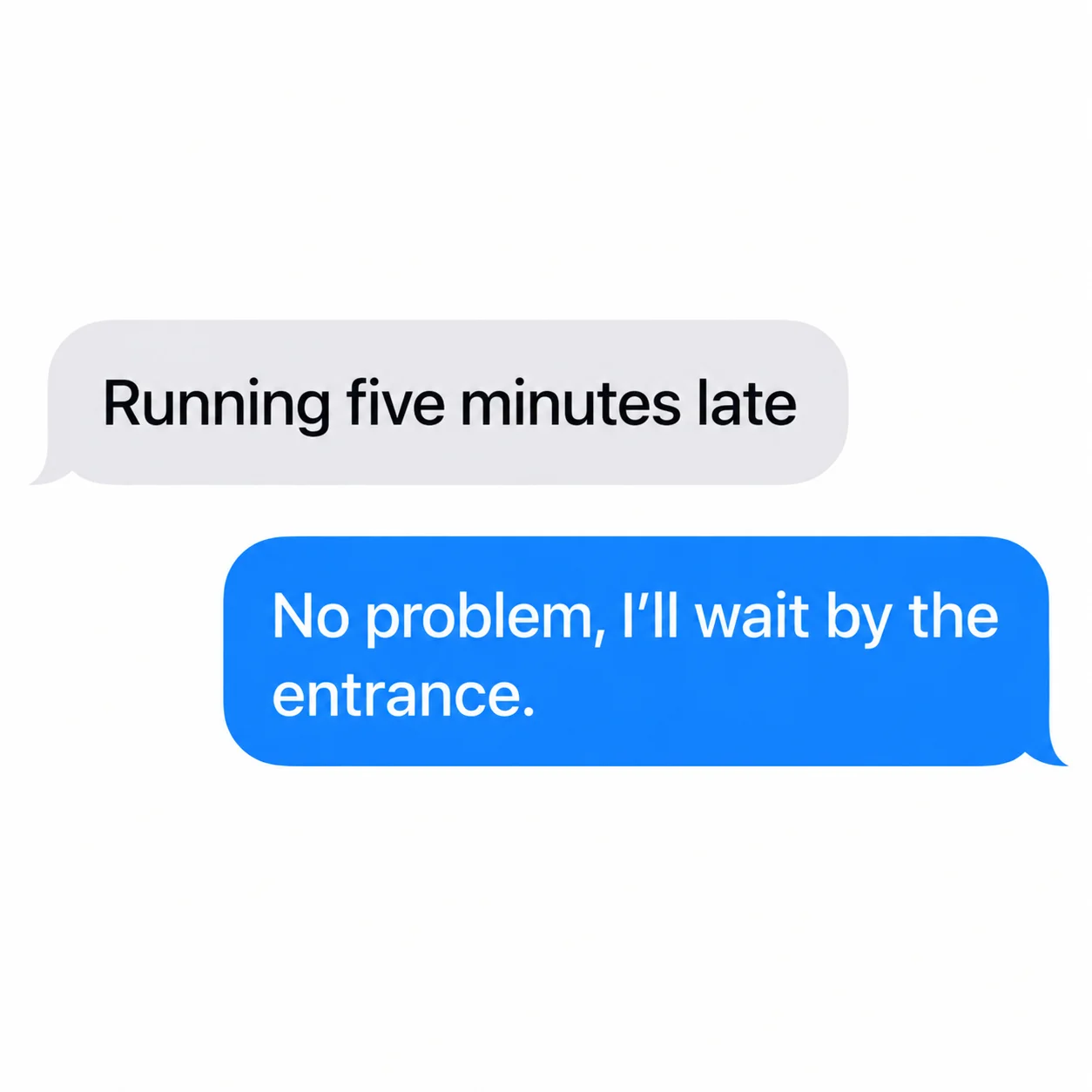
Unblur Text in a Screenshot
Unblur text in a screenshot to make visible chat messages or screen labels easier to inspect while retaining the original screen composition. This can help when a message looks soft from slight focus blur or compression. Compare the enhanced words with the source capture before quoting or sharing them.
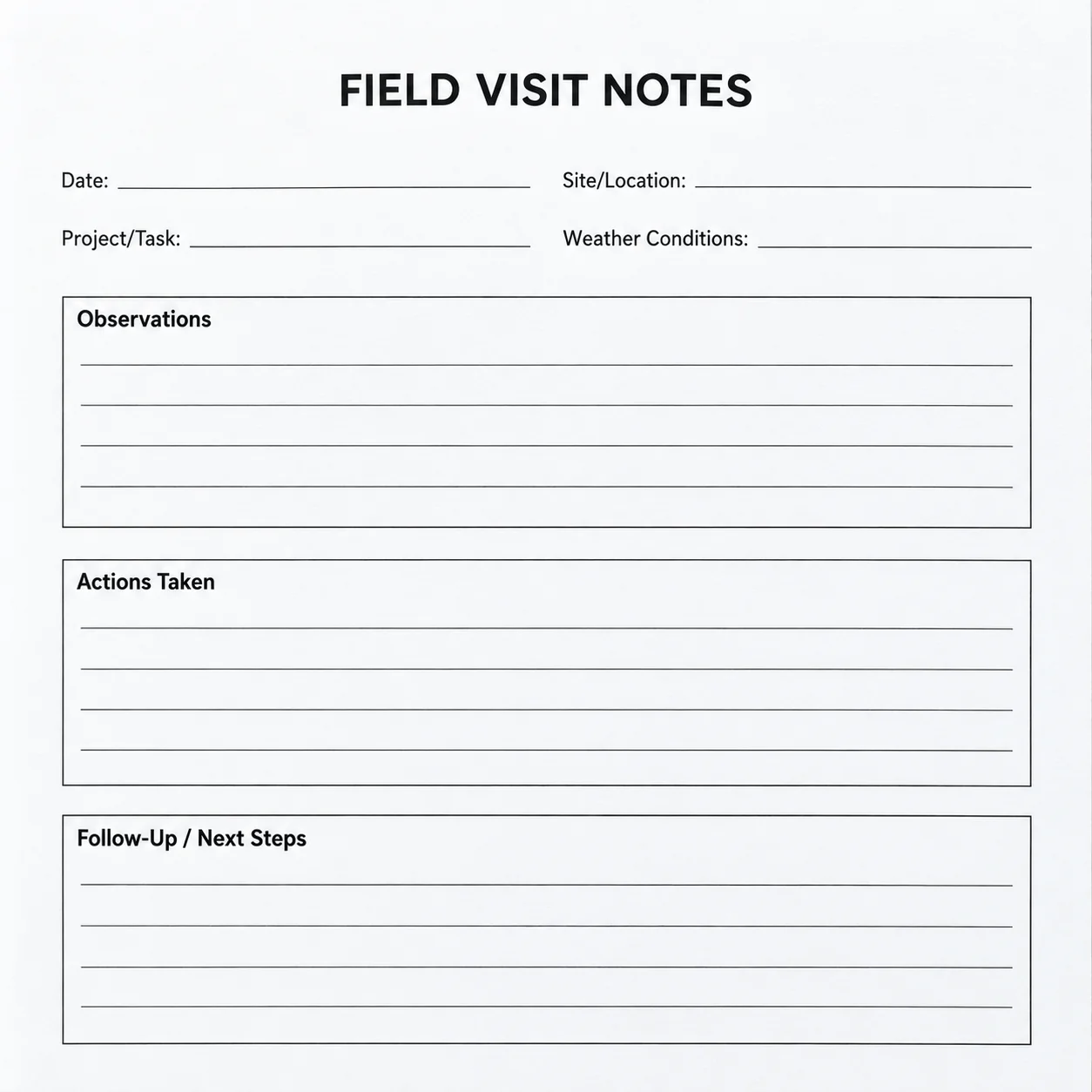
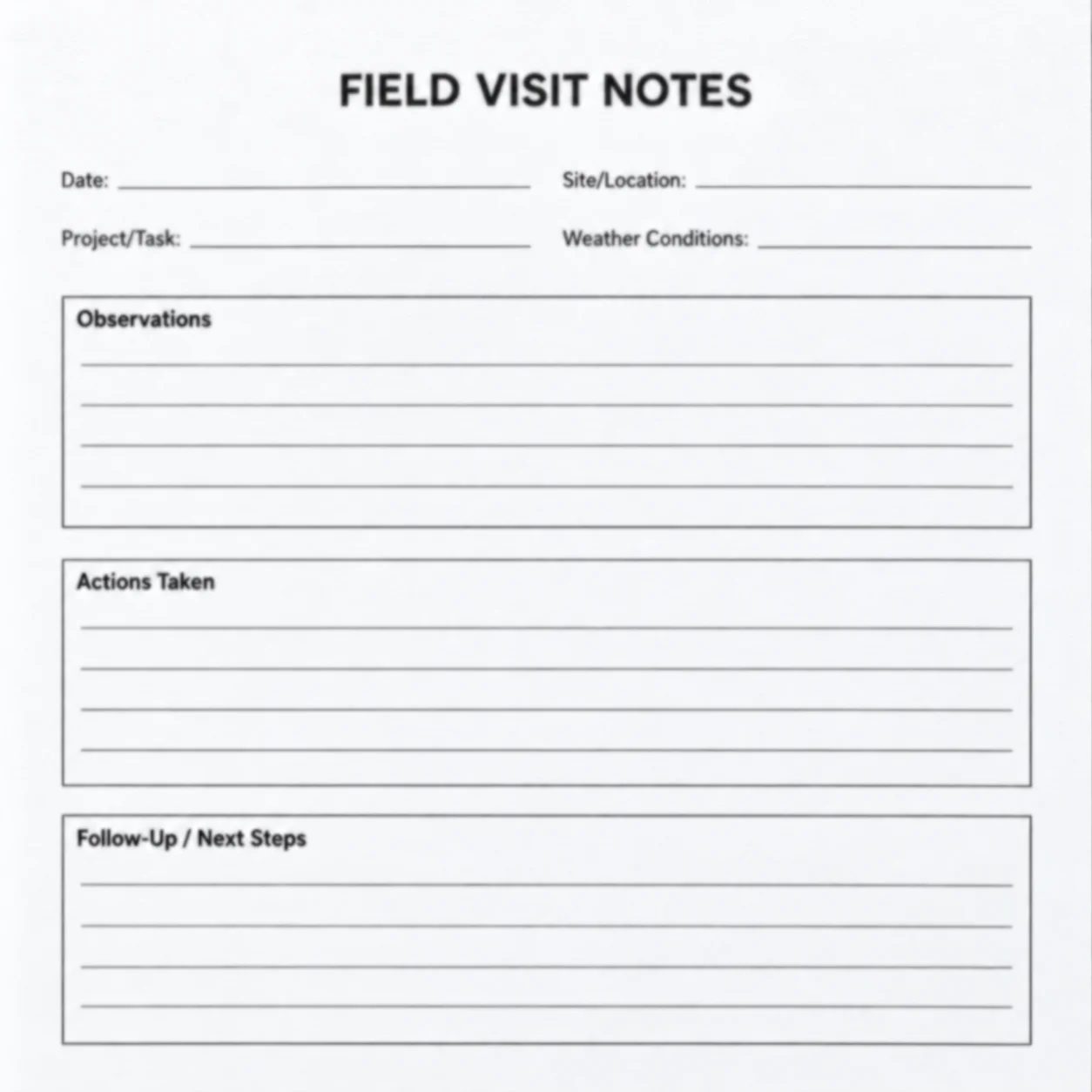
Deblur Text in a Scanned Document
Use AI to unblur text in a scan when printed lines are soft or low in contrast but still visible. A text deblur pass may make the page easier to inspect without changing it into editable text. Review names, dates, and other important details against the original scan.
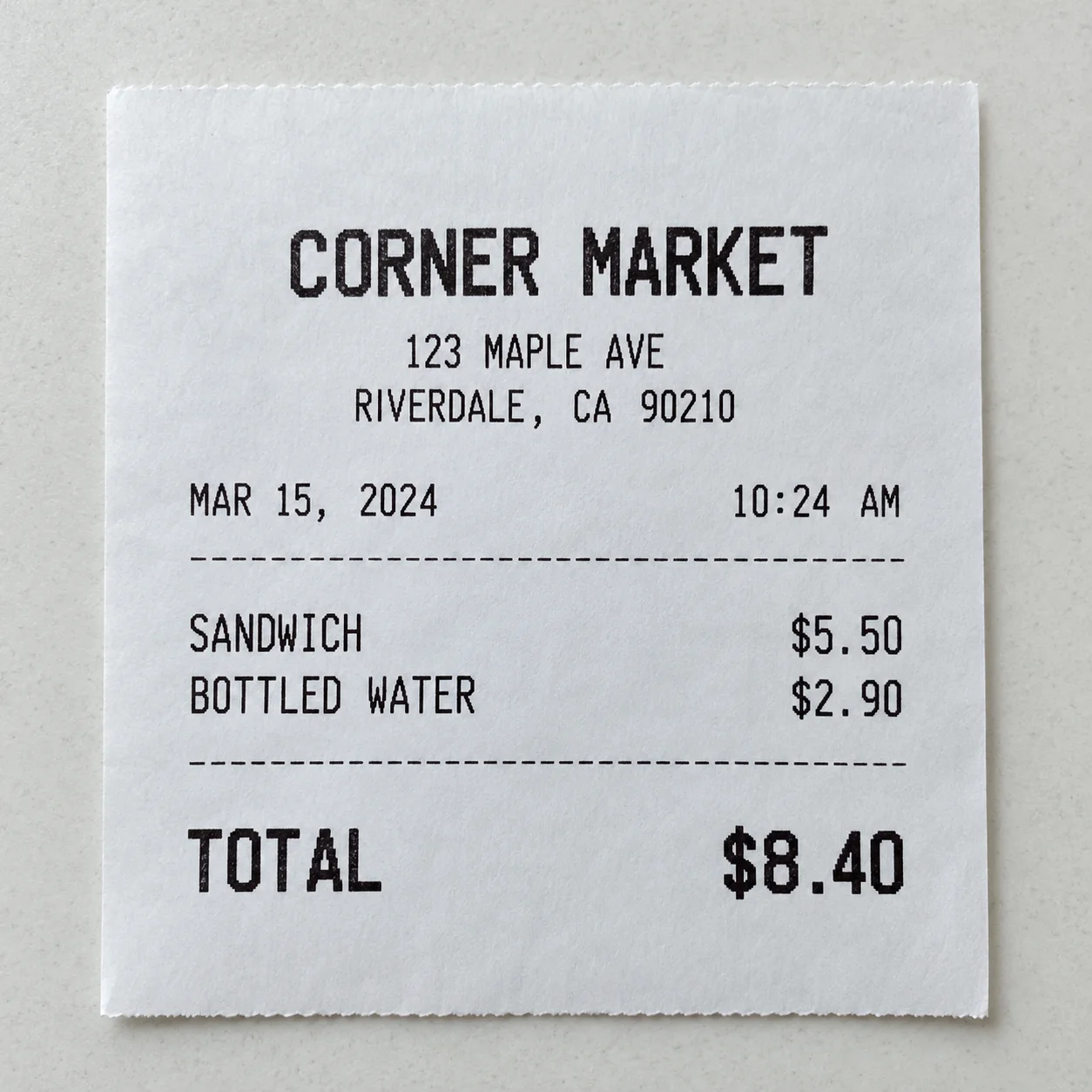
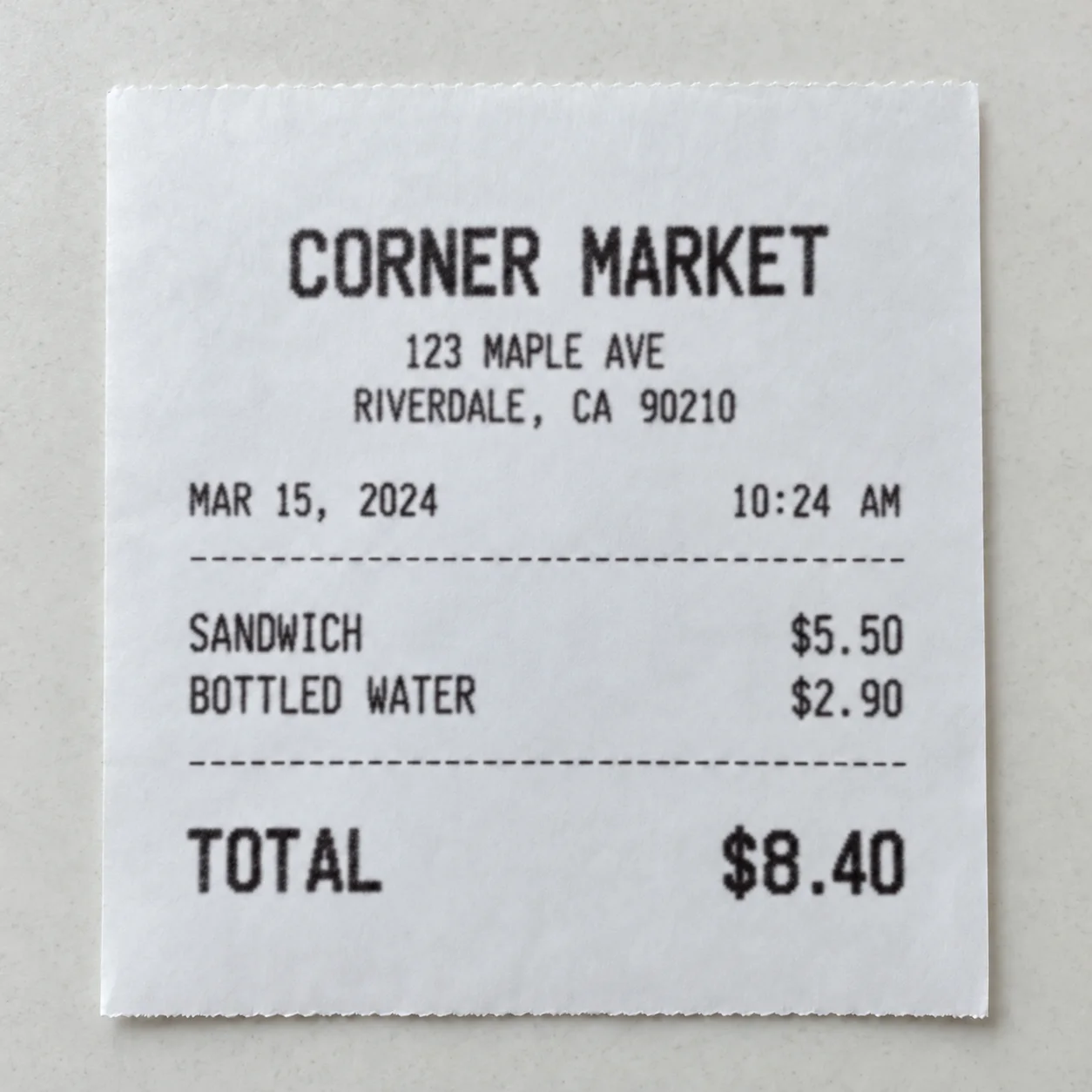
Enhance Text in a Receipt Photo
Use an image text enhancer to unblur text in a receipt photo when the item lines appear soft. Inspect the enhanced image for visible wording, then verify prices, taxes, totals, dates, and transaction codes against the original receipt before you rely on them.
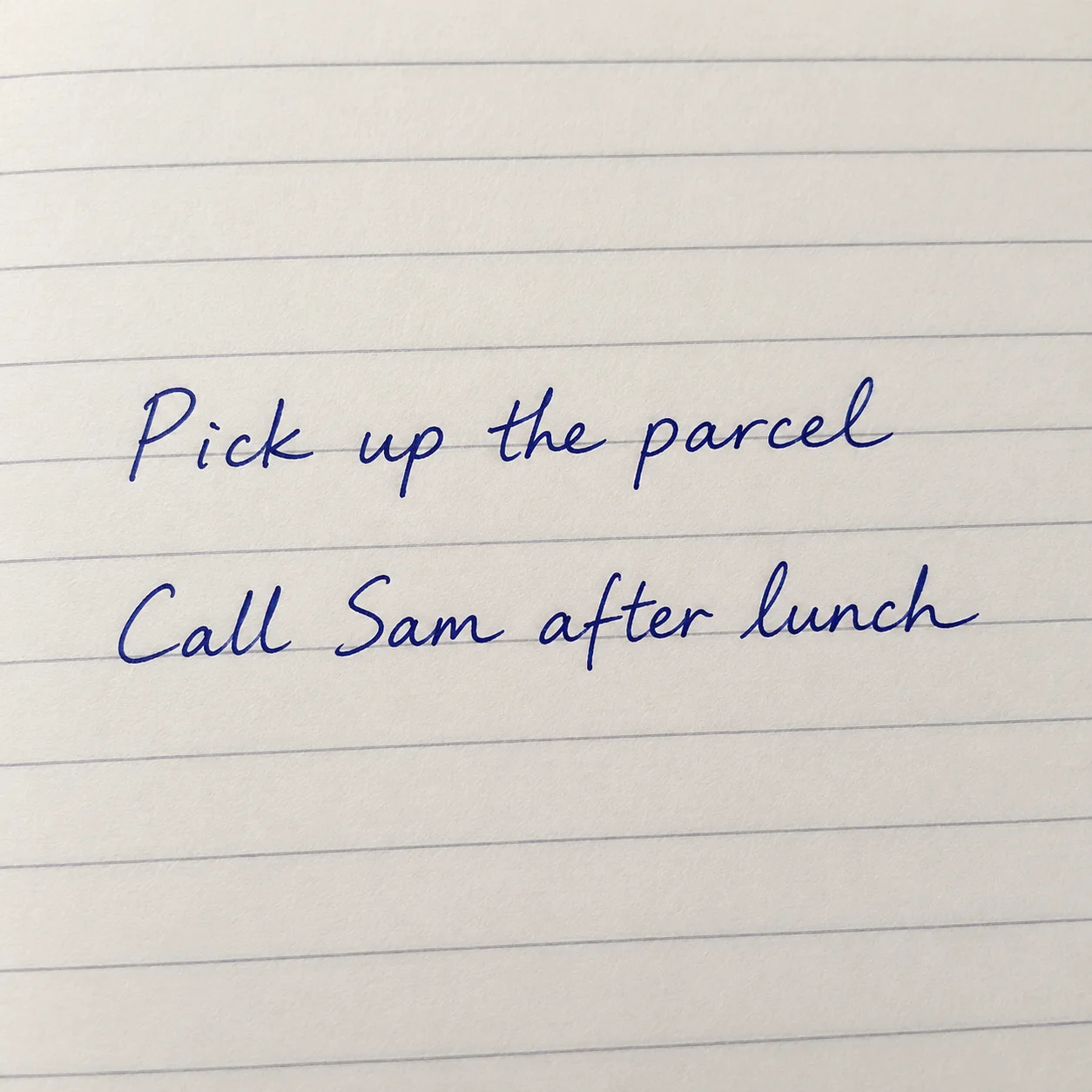
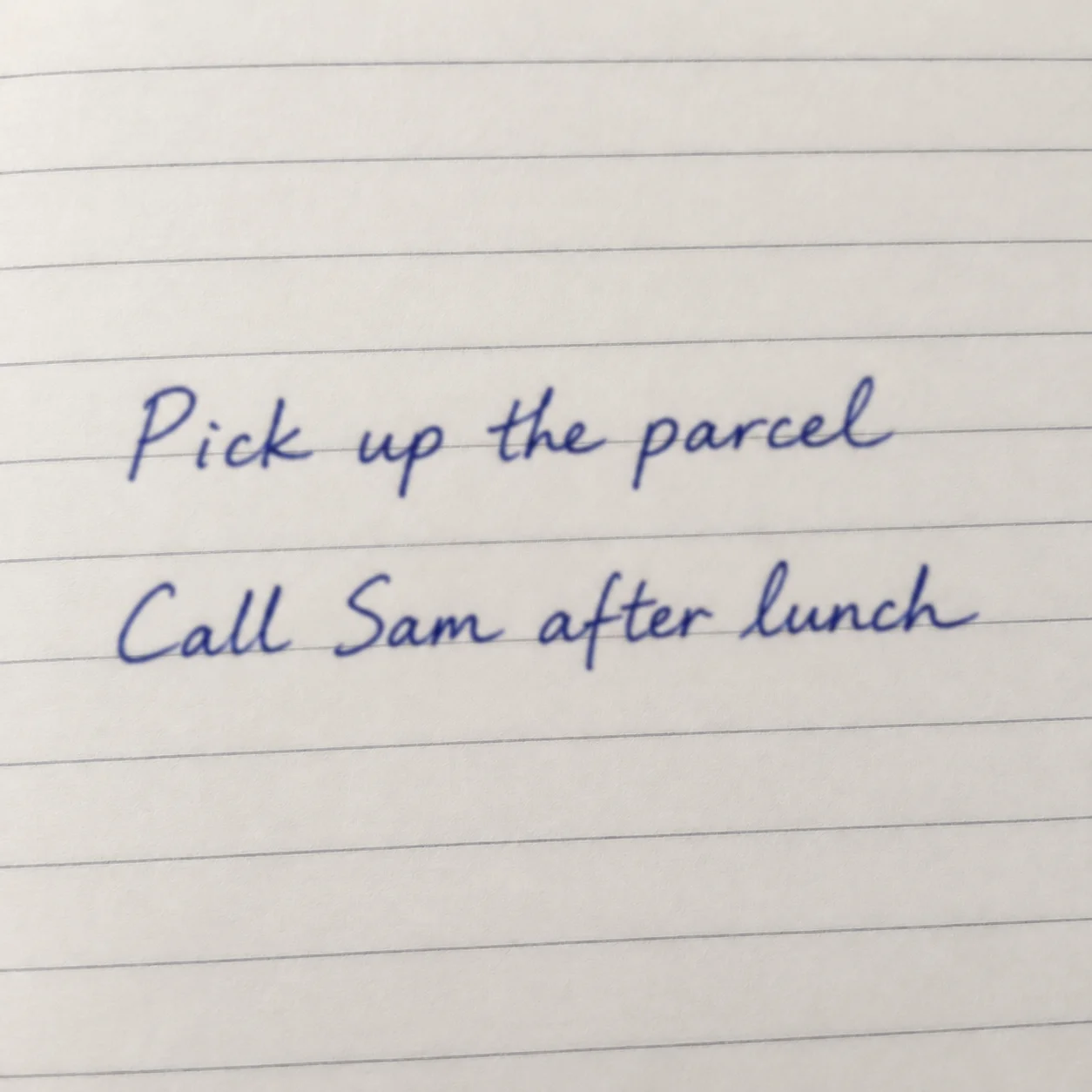
Make Handwritten Notes Easier to Read
Try to unblur text in a photo of a handwritten note when the original strokes are still visible. The AI text enhancer may make some pen marks easier to inspect, while cursive joins or faint strokes can stay ambiguous. Compare each word with the source instead of assuming the result is exact.
Unblur Text in Screenshots, Scans, and Photos
Use an AI text enhancer to unblur text in screenshots, scanned pages, receipts, notes, signs, and other images with soft lettering. If you want to unblur text online, start with an image where at least some letter shapes remain. This text deblur tool works from the visible pixels. Compare the result with the source before using the words.
Screenshots and Screen Captures
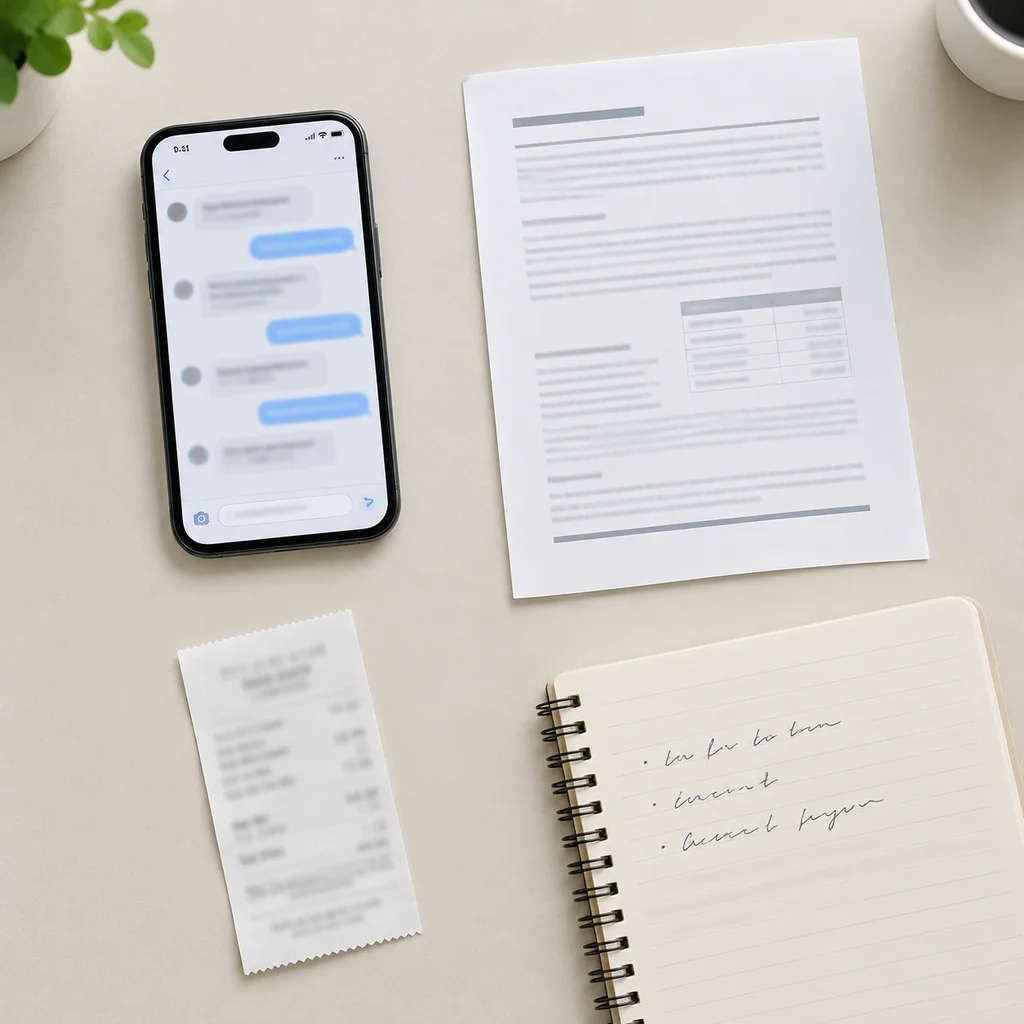
Unblur text in image screenshots such as chat captures, app screens, and slides when letters are soft but still partly visible. If you need to unblur text from a compressed screenshot, check the small labels and punctuation against the original capture. The layout stays part of the image, and the result is not copied or verified text.
Scanned Pages and Documents
Unblur text in a scanned page, form, printed note, or document image when the lines look soft but remain visible. Review headings, dates, and names after enhancement, especially in small print. The image text enhancer returns an image and does not turn a scan into editable OCR text.
Receipts, Labels, and Signs
Unblur text in photos of receipts, labels, menus, and signs when focus or image softness makes visible lettering hard to inspect. Compare every amount, date, address, and code with the original photo; AI may make an unclear character look plausible without confirming what it says.
Handwritten Notes
Use AI to unblur text in a photo of handwriting or a personal note when some pen strokes are still visible. Cursive, overlapping marks, and faint pencil can remain uncertain. Compare each enhanced word with the original instead of treating an AI text enhancer as a handwriting transcription service.
What to Know About Text Deblurring
When you unblur text with AI, the system works from details already present in the image. A careful review helps you decide whether the clearer result suits your purpose and whether the wording matches the source.
How to Unblur Text in an Image in 4 Steps
Unblur text in an image online in four clear steps: choose a source, process visible lettering, compare the result, and download if it is useful. This text deblur workflow is intended for images with some readable character detail. Follow these steps to unblur text and review the result carefully. Check important words against the original because AI enhancement is not a verified transcription.
Upload an Image with Blurry Text
Choose a screenshot, scan, receipt, note, sign, or other image with blurry text. To unblur text successfully, use the clearest source available and avoid resizing or compressing it again before upload. More original detail gives you more to review in the result.
Let AI Deblur the Text
The AI processes the uploaded pixels to make visible words easier to inspect. When you unblur text with this tool, it enhances the image rather than reading or rewriting the wording. Missing, covered, or never-captured details cannot be reliably recovered.
Review the Before-and-After Result
Compare the text deblur result side by side with the original image. Look at letter shapes and spacing, then check spelling, names, dates, totals, and codes. If you unblur text for a record or decision, verify every critical detail from the source or another trusted copy.
Download the Enhanced Image
Download the enhanced image when the result is useful for reference or sharing. The text deblur output remains a picture; it is not editable OCR text or proof that every character is accurate. Keep the source file so you can revisit the original wording whenever needed.
A Practical AI Text Enhancer for Images
Use this AI text enhancer to unblur text in an image with a simple browser workflow. Upload a source, review the before-and-after result, and download the image if the visible words are easier to inspect. This workflow helps you unblur text in an image while keeping the source available for comparison.
AI Text Deblurring
AI text deblurring analyzes the uploaded image and aims to unblur text that is still partly visible. The result may help you inspect letter shapes, but it depends on the original focus, resolution, and image quality.
Scans and Text-Heavy Photos
Use an image text enhancer on scans and photographed pages where visible printed or handwritten text looks soft. Important details should still be checked against the original.
Screenshot Text Clarity
Improve the legibility of text in screenshots, app captures, slides, and other text-heavy images while comparing the enhanced image with its source.
Review the Full Image
After you unblur text, compare the enhanced image with the original to review letter shapes, spacing, and surrounding details before saving. The original remains the reference for checking unclear wording.
Preview Before Downloading
Preview the enhanced image before downloading so you can decide whether the clearer text is useful for your needs.
Use It in Your Browser
Unblur text from a phone, tablet, or desktop browser. Upload an image with blurry words, preview the text deblur result, and decide whether it helps before saving a copy.
Unblur Text FAQ
Have questions about how to unblur text in an image? Learn which screenshots, scans, and photos may benefit from AI text deblurring, what the result contains, and how to check important wording. These answers explain how to unblur text and where results may remain uncertain.
Ready to Unblur Text in an Image?
Ready to unblur text in a screenshot, scan, or photo? Upload an image with visible blurry words, preview the AI text deblur result, and compare it with the source. Download the enhanced image when it is useful, and verify important wording before relying on it.